API keys and the audit log in Navixy 4: who changed what in your account
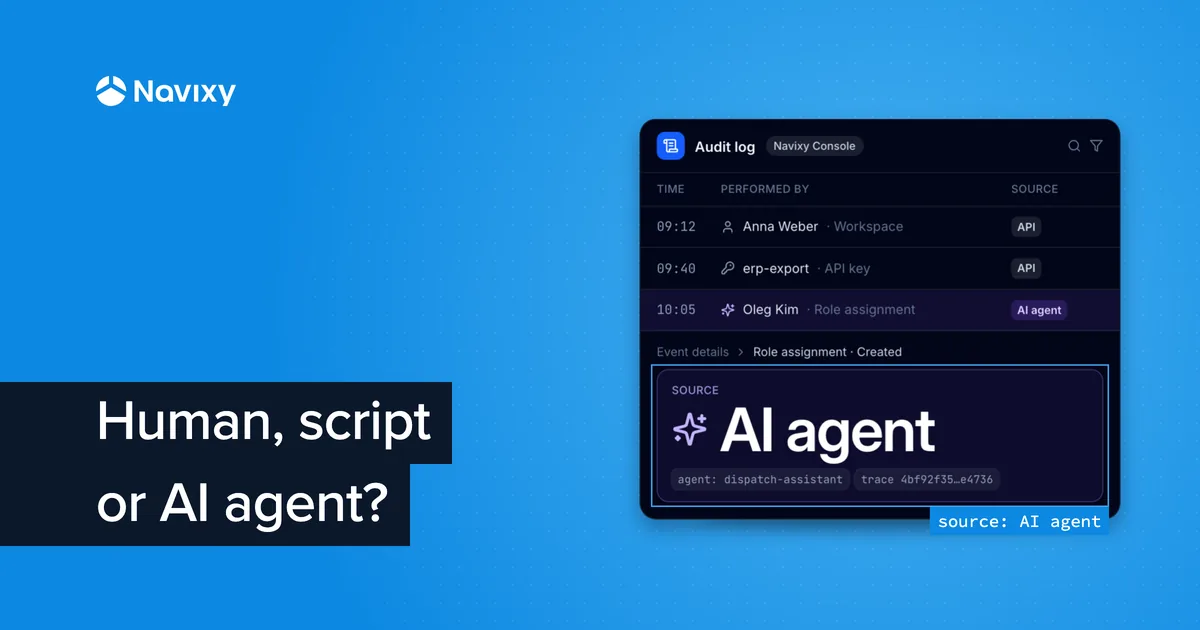
Your telematics platform has more users than your org chart suggests. Overnight, an integration pushes trip data to your ERP. During the day, a script refreshes reference lists. When a dispatcher asks, an AI assistant adjusts a schedule.
All of it runs without anyone clicking a button. So when something breaks, the first question is always the same: who made that change?
The answer is often harder to find than it should be. Plenty of companies have run integrations under employee accounts for years, and in the audit log a person and a program look exactly alike.
Here's what a log looks like once that's fixed. On Monday morning, one workspace records three changes:
| Time | Performed by | Source | What changed |
|---|---|---|---|
| 09:12 | Anna Weber, user | API | Asset "Tractor 14" renamed to "Tractor 14 (spare)" |
| 09:40 | "ERP export", API key | API | Asset "Tractor 14": "Cost center" field updated |
| 10:05 | "Dispatch assistant", API key | API | Schedule "Shift B": start time changed |
Every row tells you who acted, how, and what exactly changed.
Getting there takes one thing: every actor on the platform has its own identity and its own set of permissions. Employees sign in with personal accounts. Integrations and AI agents each get a dedicated API key.
Navixy 4 covers this with two Navixy Console tools: API keys and the audit log. Each key gets a clear name and its own role, and the audit log shows who changed what, when, and through which channel. Changes to your organization's setup are visible right in Console. The business-data change log, like the example above, is available through the Navixy GraphQL API.
Want to see how this looks in your own organization? Sign up for Navixy Console and create your first API key.
Sign upWhy integrations shouldn't run on employee accounts
A familiar story. A few years ago, an engineer set up an integration that sends trip data to the ERP and connected it with their own account.
As long as the engineer stays, everything works. The day they leave or change their password, the export stops.
The audit log is the second problem. Everything the integration does is recorded under the engineer's name, so when something changes, there's no telling whether it was the engineer or their script.
The third problem is excess access. To export trips to accounting, the integration only needs to read trips in one workspace. Running under the engineer's account, it inherits everything the engineer can do, down to managing devices, roles, and organization settings.
The role model described in the post on flexible access control in telematics lets you limit access to features and data precisely. An integration borrowing someone else's account makes those limits meaningless.
AI agents raise the stakes. An agent can run dozens of operations in a couple of minutes, and like any automation, it gets things wrong sometimes. If it acts on an employee's behalf, every one of those actions lands in the log as that person's, and finding the cause means piecing it together from chat threads, logs, and request history.
How to tell employees, integrations, and AI agents apart
Give every actor its own way in and a clearly defined scope. That comes down to three things.
- Identity. You can see who performed an action. Integrations get names of their own, like "ERP export" or "Dispatch assistant," so nobody shares an admin account.
- Access. Each person, script, or agent reaches only the workspaces, products, and data its job requires.
- History. Every change is recorded with who made it, when, through which channel, and the values before and after.
Here's how that plays out for each type of actor:
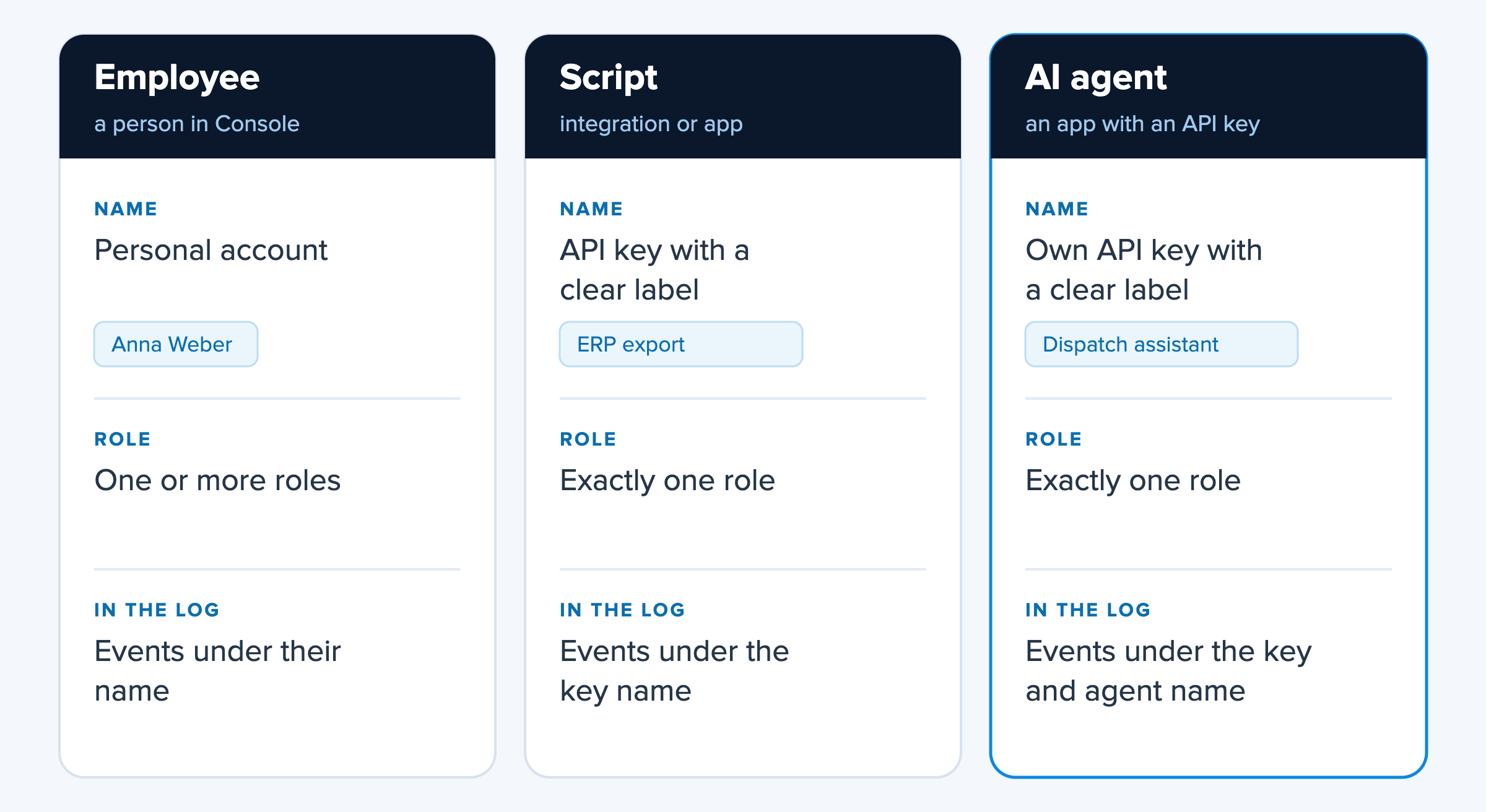
Security improves, and so does everything that comes after an incident: tracing errors and reviewing who has access.
How Navixy 4 handles it
API keys: separate access for every integration
An API key lets an application call the Navixy GraphQL API on behalf of your organization without borrowing anyone's account. You create keys on the API keys page in Navixy Console.
Creating a key takes a name, one role, and, if you want, an expiration date, say 30 days out. The key can reach the workspaces, products, and data that its role allows, and never more than the person who created it.
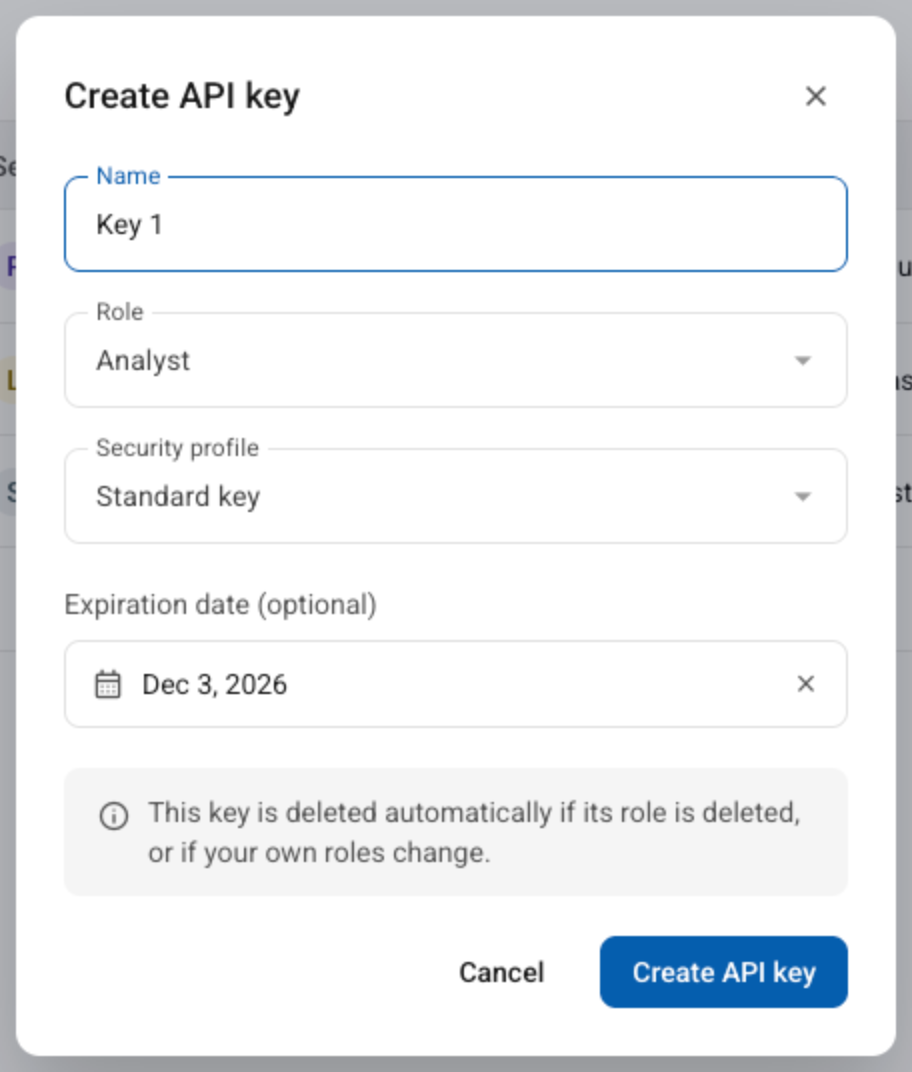
A key's role and expiration date are fixed once it's created. If an integration needs different permissions, create a new key.
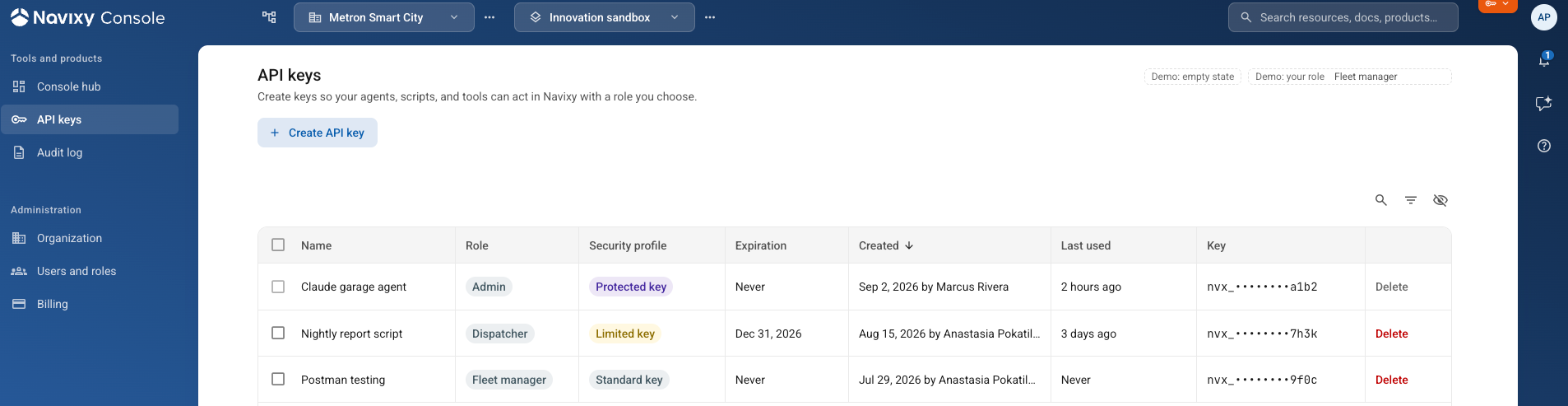
You can copy the key value exactly once, right after creating it. After that, the API keys page shows only its details:
- name and role;
- expiration date;
- who created it;
- creation date;
- when it was last used (Last sign-in);
- the first characters and last four characters of the key.
Sign up for Navixy Console and open the API keys page: a first key with a narrow role takes a couple of minutes.
Sign upBesides expiring or being deleted by hand, a key stops working in a handful of situations. Nearly all of them come down to the key's role or its creator's permissions:
- the key's role is deleted or revoked through the IAM API;
- the creator is assigned a new role or loses one, even if their access grows as a result;
- one of the creator's role assignments expires or gets a new end date;
- a role the creator holds is edited or deleted;
- the creator leaves the organization.
It's a security measure: a key can never hold more access than its creator, and no one keeps using a key after the creator's permissions change. The full rules are in the API keys documentation. Console logs every such deletion in the audit log, along with the reason.
The audit log: a history of changes and actions
The Audit log page in Navixy Console shows the history of your organization's setup: workspaces, members and invitations, API keys, roles, and role assignments. It also records changes to plans, subscriptions, and invoices, as well as payments.
Each event records:
- Performed by: who made the change (a user, an API key, Navixy staff, or a system service such as Invoicing);
- Source: where the change came from (API, AI agent for changes made by the AI assistant, or Internal for changes Navixy made on its own);
- Event data: the changed fields with their old and new values;
- IP address and User agent: where the request came from;
- Trace ID: the request ID that ties the event to entries in your application's logs.
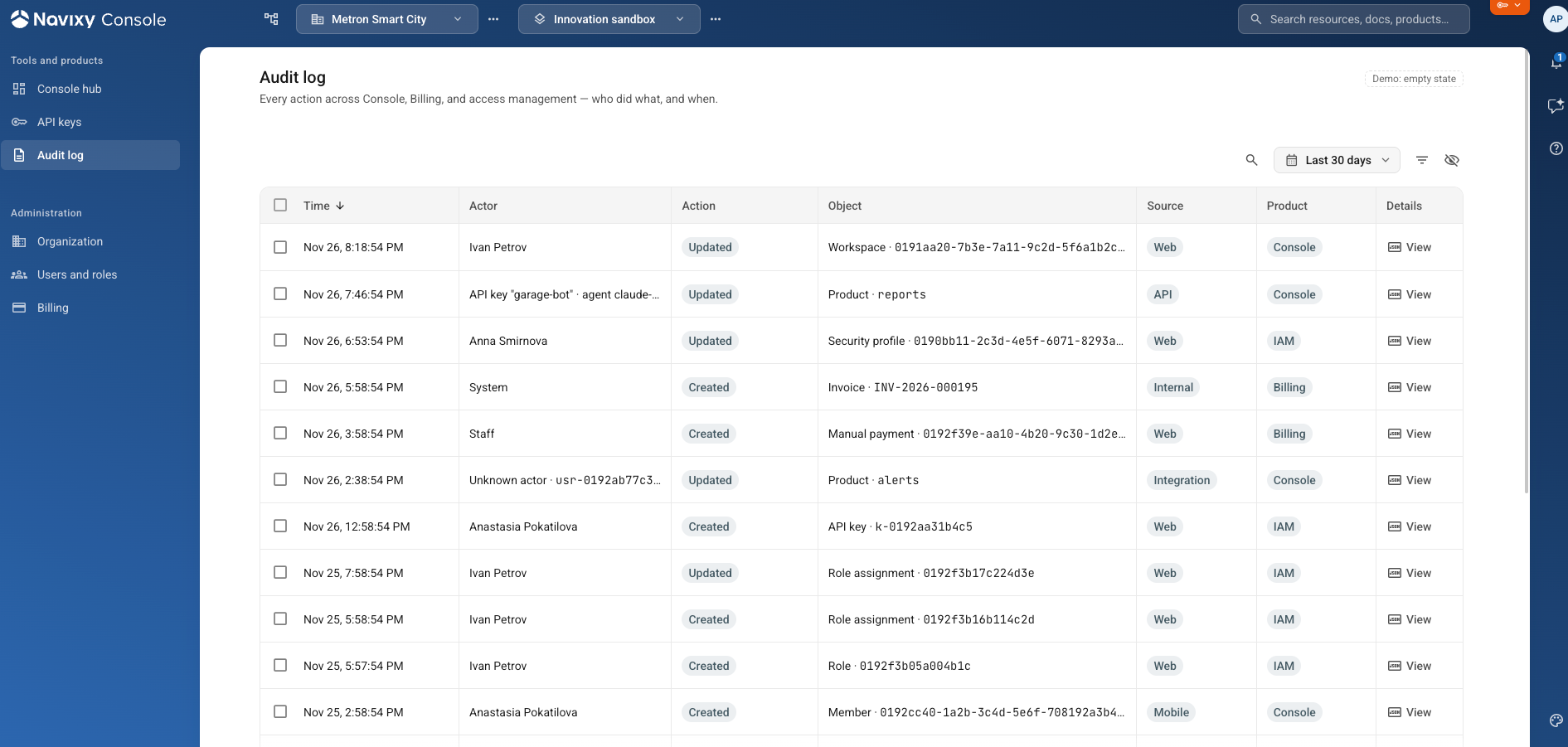
If one request caused several changes, View related events lists all of them. Fields and filters are covered in detail in the audit log documentation.
Audit log entries can't be edited or deleted. They're kept indefinitely, and employees stay attached to their actions even after they leave.
Business data has a separate workspace log. It records operations on devices, business objects, geo objects, and schedules, with values before and after, and it's available through the GraphQL API.
Five situations where API keys and the audit log pay off
The examples are made up, but every mechanism in them already works in Navixy 4.
1. An API key ends up in a team chat
A contractor's developer sends a colleague the "ERP export" key so they can test a request. The message lands in a shared channel with a few dozen people in it. The key is now compromised.
Step one: delete the key on the API keys page.
Next, the admin checks Last sign-in and the events tied to the key to see whether anyone used it after the leak and what they changed. Then the integration gets a new key.
2. An AI agent changes more than it was asked to
A dispatcher asks the AI assistant to push the start of Shift B back an hour. The next morning, it turns out the agent also changed three other schedules with similar names.
A developer opens the business-data log and filters for the agent's API key. The log keeps the previous values, so the schedules can be restored exactly. The trace ID leads to the original request in the application's logs, which shows how the agent misread the task.
3. The ERP integration suddenly stops working
On Monday, accounting notices that weekend trips never made it into the ERP. The integration is returning an authorization error, even though nobody touched its settings.
The admin opens Audit log and finds an automatic key deletion. On Friday, the roles of the employee who once created the key changed, so Console deleted it.
Getting the integration back takes a new key and an update to the application's settings. If the key lives in configuration rather than in code, that's a few minutes of work with no new release.
4. A customer blames your integration
An integrator connects a customer's telematics platform to their warehouse system. A week later, the customer reports that half of their assets have new names and suspects the new integration.
Without a change history, the conversation turns into competing guesses. With a dedicated API key, the log shows who actually changed the data. If it was the integration, the developers have something to debug. If it was someone on the customer's team or another app, that's visible too.
The business-data history is available through the API, and Console events export to CSV or JSON. The discussion rests on records instead of each side's assumptions.
5. A customer asks for a quarterly access report
Before renewing the contract, a large customer's security team wants to know who created API keys, assigned roles, and invited new members to the organization over the last three months.
No one has to piece that together by hand. The admin opens Audit log, picks the period, and filters by the Console and IAM products and by action: keys created and deleted, roles assigned, invitations sent. Entries are kept indefinitely and never change, so the same report works for any earlier period too.
Console exports events one page at a time, up to 100 per file. For larger volumes, the API is the easier route. A list of active keys with their last sign-in dates exports separately to CSV from the API keys page.
What it means for different Navixy users
API keys and the audit log do the same job for everyone: give access and keep track of changes. What that's worth depends on whether you run a fleet, resell telematics, or build software on top of it.
For fleet owners and managers
Integrations depend less on individual people. For an ERP connection, create a dedicated key that reaches only the workspace and data it needs. If the key comes from an admin whose roles rarely change, the integration survives the departure of the engineer who maintained it. And everything it does is logged under its own name.
Temporary access ends on schedule. To pilot a new integration, a 30-day key is enough. When it expires, access closes on its own, even if nobody remembers to delete the key.
Tracing a change takes minutes. Who removed that employee from the organization? Who widened that role? Who switched the plan? Audit log shows the author, the time, and the previous values, as long as your role lets you see those events. Business objects and devices an employee created stay in the workspace after they leave, with nothing to transfer.
For integrators and telematics service providers
Your integration's work is visible to the customer. When each app has its own key with limited permissions, the customer can see exactly what a given integration changed. In a dispute, both sides look at the same change history.
Access ends with the engagement. When an integrator leaves the customer's organization or their roles change, Console deletes the keys they created, so a former contractor keeps no way in.
For long-running integrations, that means the keys should come from an admin on the customer's side, so the integration doesn't hang on an outside specialist's account.
For developers of apps and AI agents
Swap keys without touching code. If a key gets deleted automatically or needs replacing, update the value in your configuration or environment variable and you're done, with no new release, so build for that from day one.
Every app gets its own access. The sound default is simple: one API key, one app, one role with the minimum permissions it needs. You can then delete one app's key without touching the rest, and the Last sign-in column on the API keys page shows which connections have gone quiet.
AI agent activity is easier to untangle. If each agent instance has its own identifier and your app writes trace IDs to its logs, a developer can match changes in Navixy to specific requests. Agent edited several assets instead of one? The trace ID points to the original request in your logs, and View related events shows every change it caused in Navixy.
Where to start
If your integrations and scripts still run on employee accounts, you can move them to dedicated keys one at a time.
- Take stock of your connections. List the integrations, scripts, and AI agents that use employee accounts.
- Create dedicated API keys. Give each connection a clear name and a role with the minimum permissions it needs.
- Put an end date on temporary access. For pilots and test projects, set the expiration date up front.
- Decide who creates keys. For long-running integrations, that's an admin whose roles rarely change. Keep keys in application configuration, never in source code.
- Review activity regularly. Once a month, say, check the Last sign-in column on the API keys page. If a key hasn't been used in a while, find out whether it's still needed.
The easiest first step is the first one on this list: find the integrations running on employee accounts and give each its own key. Access narrows right away, and your change history gets a lot easier to read.
Ready to try it in Navixy 4? Sign up for Navixy Console, create an organization and your first API key with a narrow role, then open Audit log: the key's creation will already be there.
Sign up