Geofence and overspeed alerts in Navixy 4: one truck, one day

AuthorRoman S, Product owner, Navixy IoT Logic and Integrations
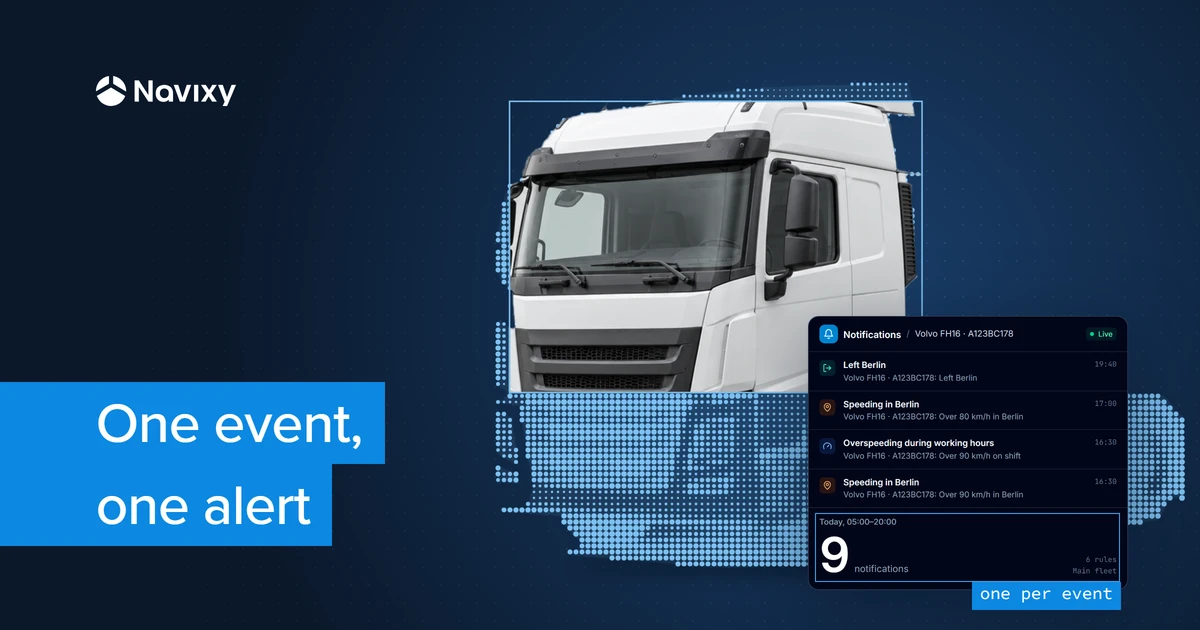
A truck's tracker sends hundreds of messages a shift: position, speed, voltage, sensor states. A dispatcher, logistics planner or crew lead needs a handful of moments from that stream: the truck left before the shift, sped through the city, exited a zone. A system that alerts on every message where a condition holds buries those moments, and people stop reading alerts. A system that alerts on nothing leaves someone watching a hundred vehicles on a map.
The Rules and Notifications services in Navixy 4 build a rule from equations on device parameters, geo objects and schedules, apply it to all vehicles or selected ones, and send one notification per event, with the vehicle's name and your text. Here is how geofence alerts and overspeed alerts behave over one truck's working day, hour by hour (a demo scenario).
Five rules for one fleet
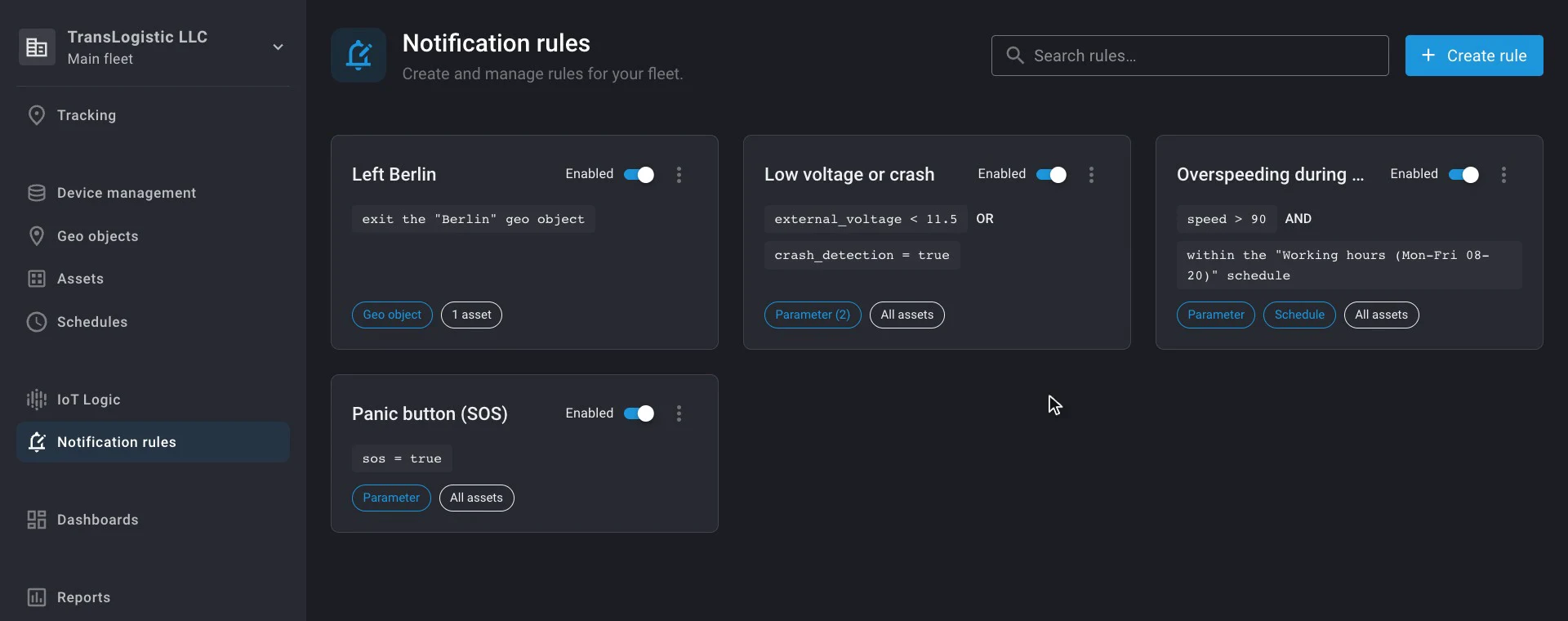
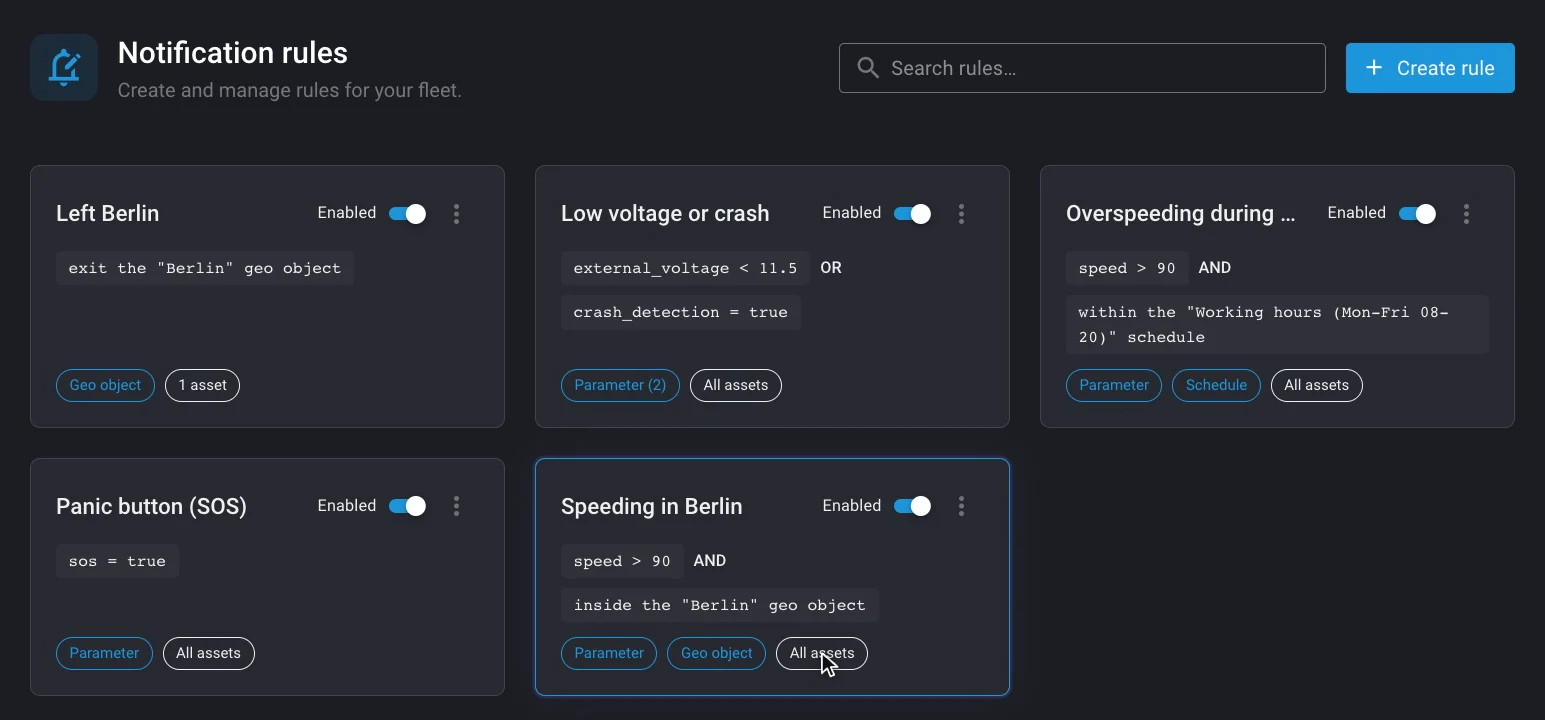
The truck is a Volvo FH16 in a demo workspace. The fleet already has these rules on the Notification rules page in Location Intelligence:
- Speeding in Berlin:
speed > 90and inside the "Berlin" geo object, all vehicles; - Overspeeding during working hours:
speed > 90and within the "Working hours (Mon–Fri 08–20)" schedule, all vehicles; - Left Berlin: exits the "Berlin" geo object, one vehicle;
- Low voltage or crash:
external_voltage < 11.5orcrash_detection = true; - Panic button (SOS):
sos = true.
A sixth rule joins them for the day: Moving after hours.
A geofence alert tells you where a vehicle is relative to an area on the map: it entered, exited, is inside or is outside. In Navixy 4 it's a rule with a Geo object equation; an overspeed alert is a rule with a speed Parameter equation.
Both follow one principle. The rule checks every message from the vehicle's devices as it arrives, and sends a notification once, when its equations become true. While they stay true, nothing more is sent. When they stop being true, nothing is sent either.
How a rule checks data and when it sends a notification is described in the docs: How rules work.
The day, hour by hour
05:50. Leaving before the shift
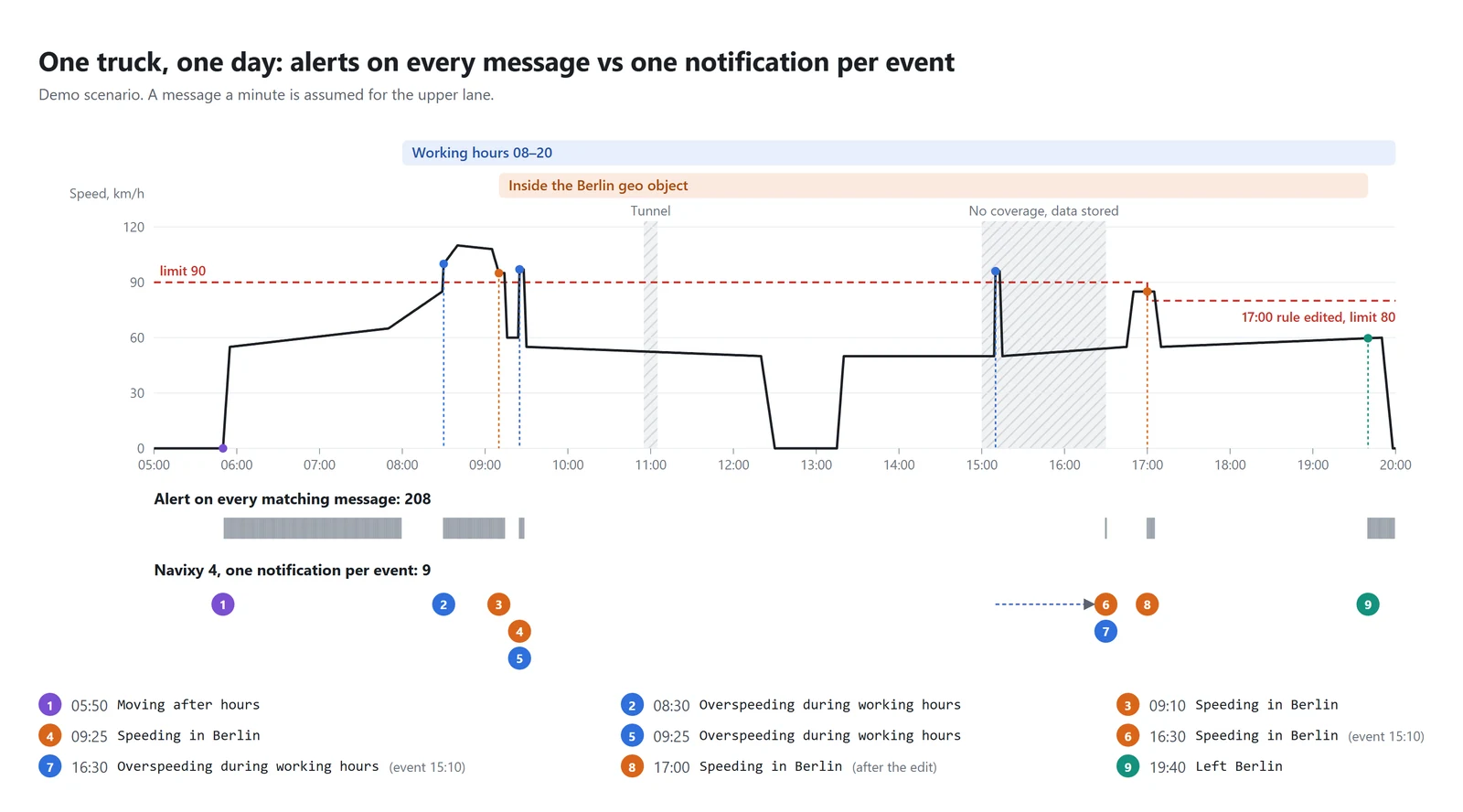
The driver pulls out of the depot two hours before the shift, a classic case of unauthorized use of a company vehicle. Moving after hours catches it with two equations: Outside the "Working hours" schedule and a sign of movement. The first message where both hold produces a notification. The truck drives on for over an hour and sends dozens of messages, with no second notification: the condition never stopped.
A real trip shows a subtlety. If the sign of movement is speed > 0, every red light drops the speed to zero, the condition ends, and it starts again on green. For the rule, that is a new event and a new notification. A parameter that doesn't reset at stops works better for "moving after hours", such as ignition, if the device reports it.
08:30. 110 km/h on the highway
Speeding in Berlin stays quiet: the speed is above 90, but the truck is outside the geo object, and the equations are joined with and.
Overspeeding during working hours fires, because the shift started at 08:00. Each rule judges the same speed on its own terms, and that is what compound equations are for. A bare speed > 90 fires on the highway and in the city alike. A geo object and a schedule tell the two apart.
09:10. Entering Berlin at 95
The first message where the truck is inside the geo object and above 90 km/h produces a Speeding in Berlin notification: the vehicle's name and the text written when the rule was set up.
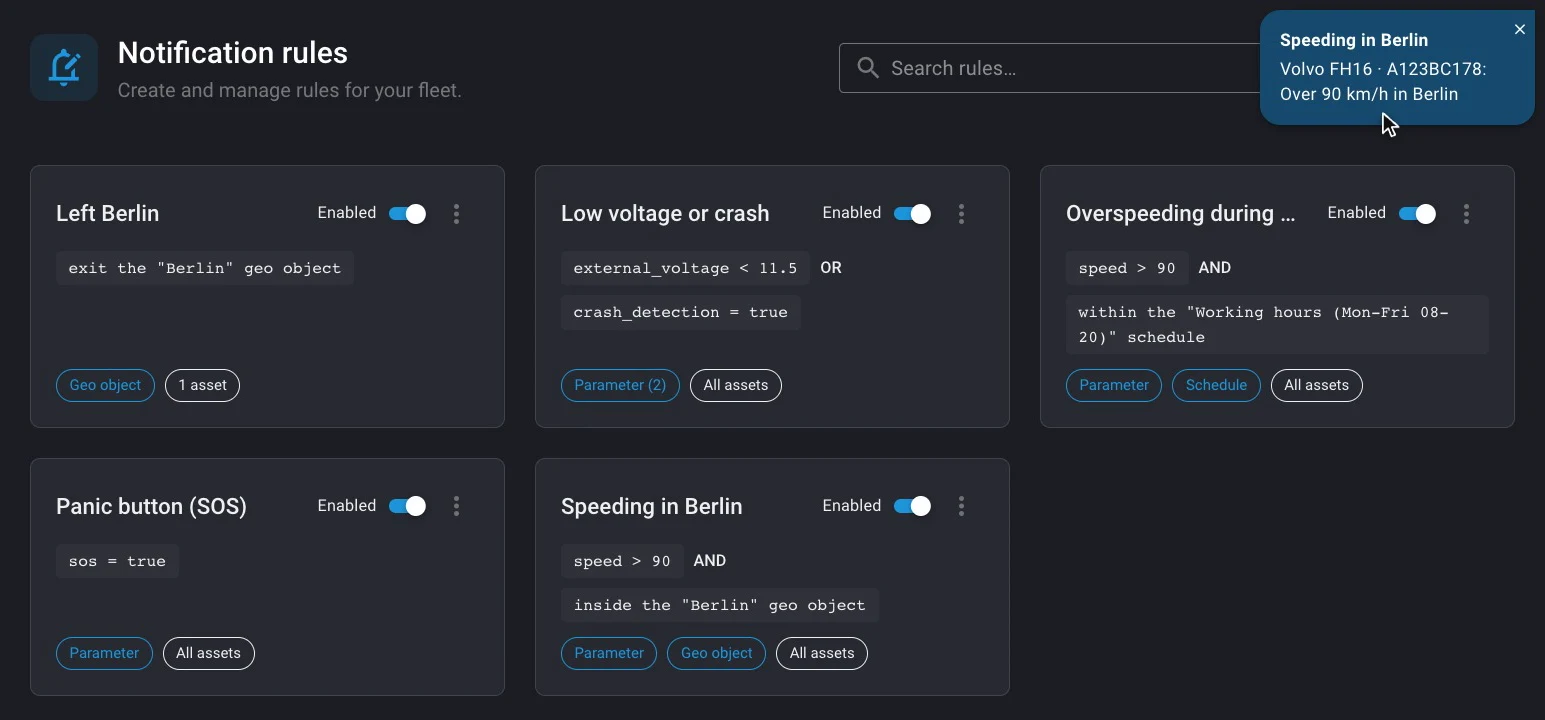
The speeding lasts four minutes, with no repeats. The speed drops to 60, and nothing arrives. At 09:25 the driver is back at 97, and a second notification arrives, because this is a new episode. Overspeeding during working hours stays quiet at 09:10: the speed hasn't dropped below 90 since 08:30, so for that rule it is still the same event. At 09:25 it fires too.
11:00. A tunnel
In the tunnel the tracker keeps sending messages without a valid position. For those the rule uses the last known position: Inside stays true, so the truck is still in Berlin. Enters and Exits are never true on a message without a position. This is the practical side of how accurate geofencing is: a lost GPS fix doesn't turn into a phantom exit and re-entry with two extra alerts.
13:00. If the truck has two devices
Say the truck carries a second device next to the main tracker, and both report speed. The rule checks each device separately and counts the event per vehicle: it triggers when the equations become true for at least one device and clears when they are false for all of them. Two devices on one vehicle give one notification. Two vehicles speeding give two.
15:10–16:30. No coverage
At 15:10 the truck speeds through Berlin in an area without mobile coverage. The tracker stores the data and sends it at 16:30. The rule checks stored data the same way as live data, so the notification arrives at 16:30, about an event more than an hour old. When a notification looks out of place, check it against the track.
17:00. The dispatcher edits the rule
The dispatcher lowers the Speeding in Berlin limit to 80 and updates the notification text. The change applies from the next message, and the rule is checked as a new one. If the truck is doing more than 80 in the city at that moment, a notification can arrive even though the driver did nothing new. Rules that fire often are easier to edit outside peak hours.
Geo objects work the same way. If someone redraws "Berlin", the rule starts checking the new border in about a minute. Notifications that arrived earlier were evaluated against the old border, which is worth remembering when someone asks why an entry alert came while the map shows the truck outside the zone.
19:40. Leaving Berlin
Left Berlin uses Exits, which is true for exactly one message: the one where the device is outside and its previous position was inside. One crossing, one geofence alert. The rule covers one vehicle, so the rest of the fleet leaves Berlin without notifications.
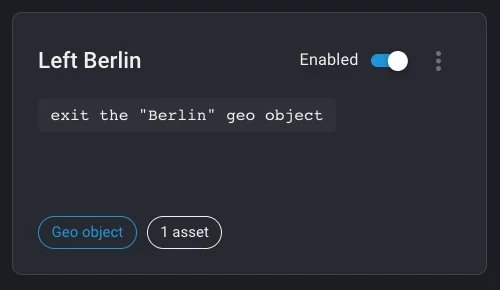
Low voltage or crash and Panic button (SOS) didn't fire once all day. A rule that stays silent until something happens is the one people keep reading, and that is the practical answer to alert fatigue.
How to set up geofence and overspeed alerts
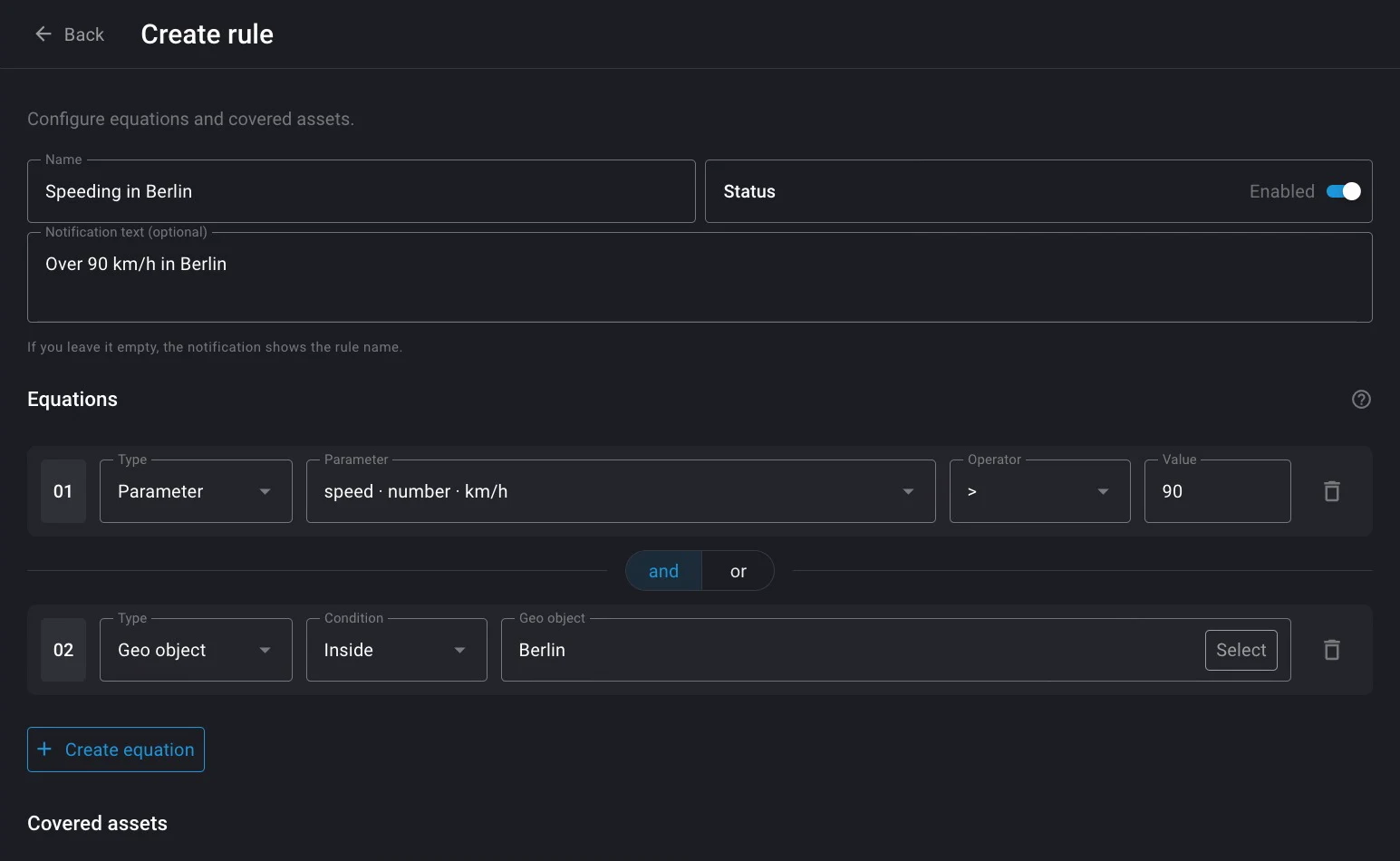
A rule starts with Create rule on the Notification rules page. The name is required, up to 255 characters. A new rule starts as Enabled and works once it's saved; if it can't be turned on, it's saved as disabled, with the fields to fix marked. The notification text is optional, up to 1,000 characters, and goes out exactly as written, so values such as the actual speed can't be inserted. With no text, the notification shows the rule name.
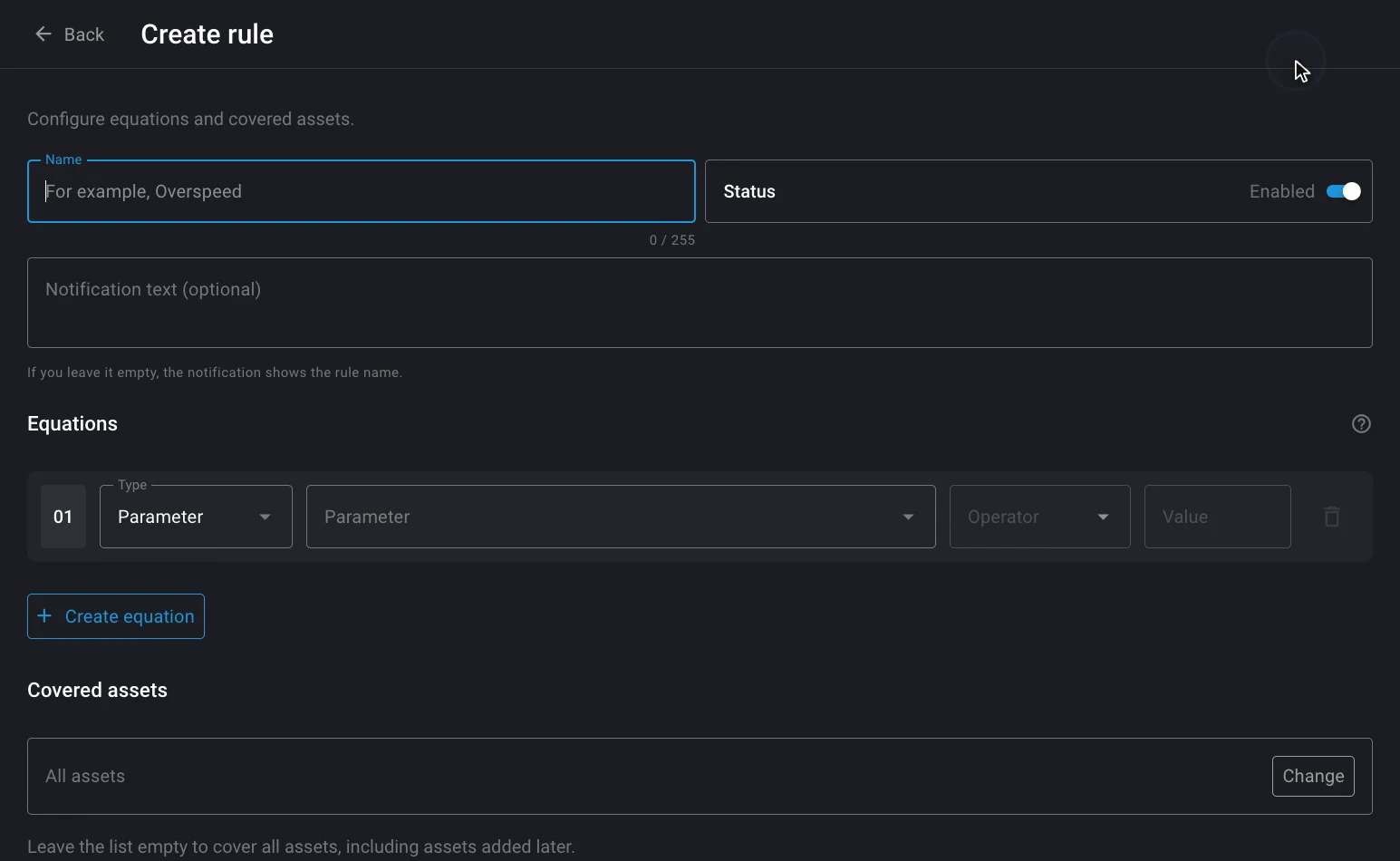
An equation is one of three types: Parameter, Geo object or Schedule. The parameter list comes from what the vehicles' devices report, with type and unit. Values are compared in the device's units, without conversion. Numbers, dates and durations take =, ≠, >, ≥, <, ≤, in range and out of range; yes/no and text values take = and ≠.
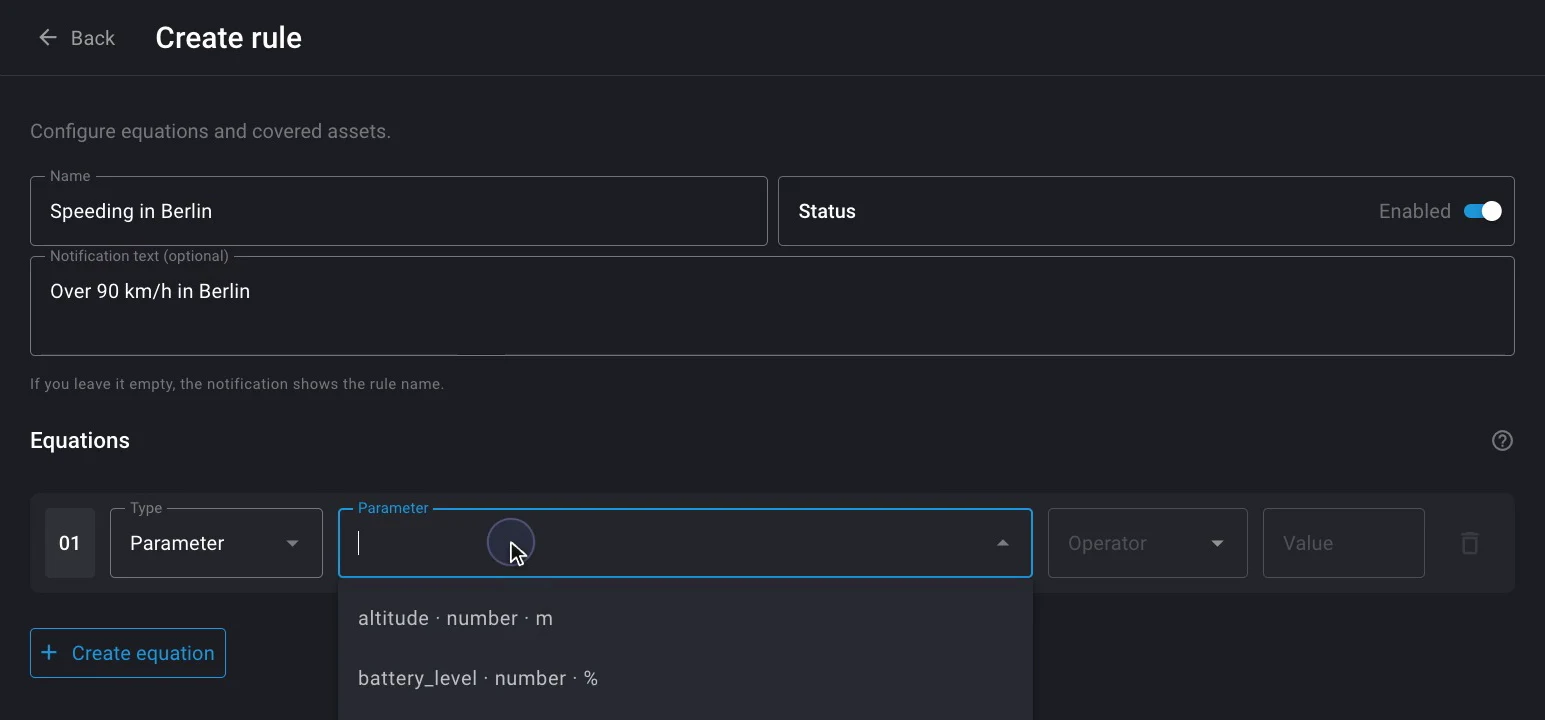
When a message lacks the parameter, the rule takes the latest value from any of the vehicle's devices, as long as it was recorded within 15 minutes of the message. Otherwise the equation is false for every operator, including ≠ and out of range.
A rule takes up to 16 equations, each one after the first joined with and or or.
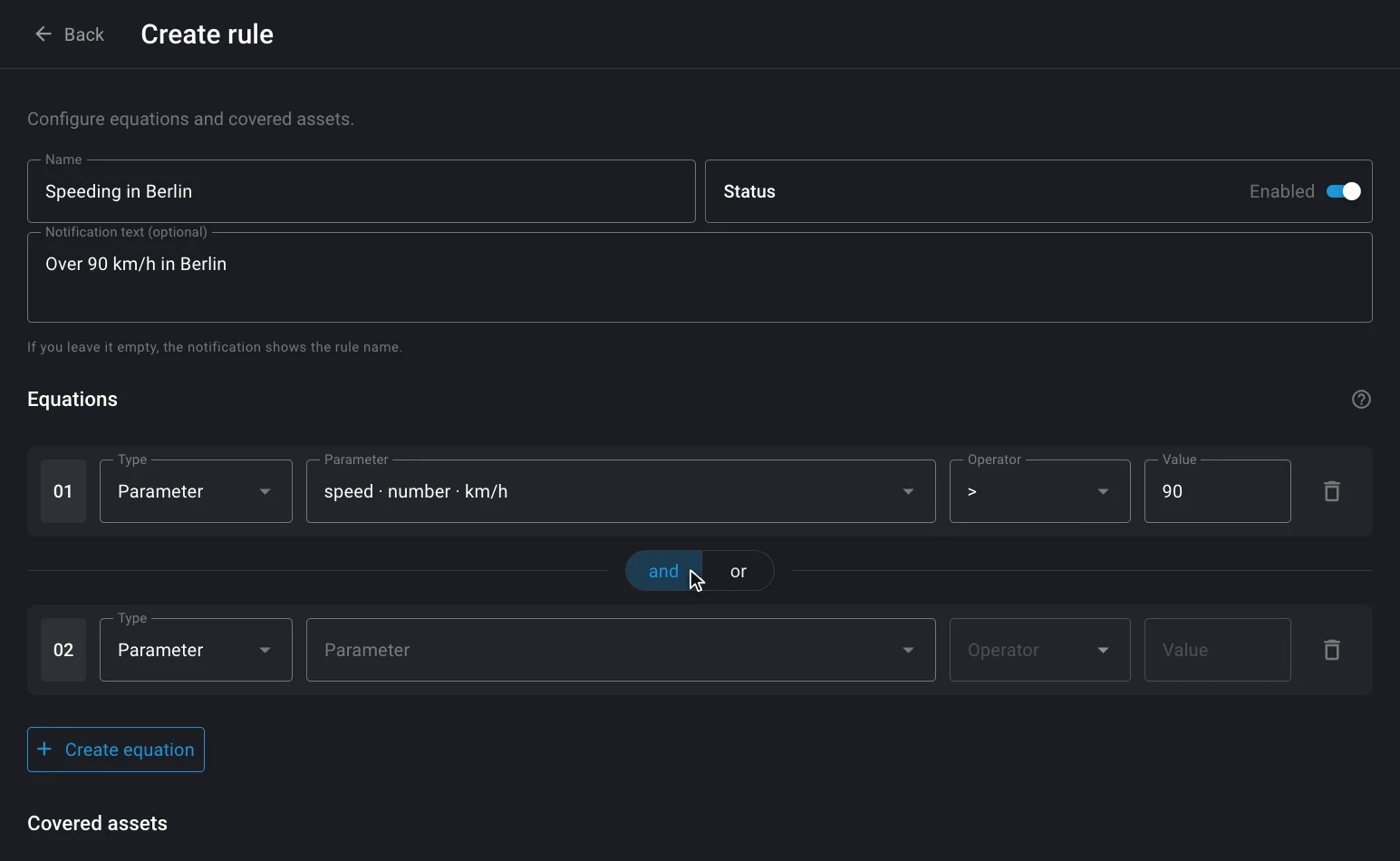
For a geo object, pick the condition (Inside, Outside, Enters, Exits) and the geo object itself. It must be one area: a polygon or a circle, or a GeoJSON Polygon or MultiPolygon. For a schedule, pick Within or Outside; the time the device recorded the message is compared with the schedule in the schedule's time zone.
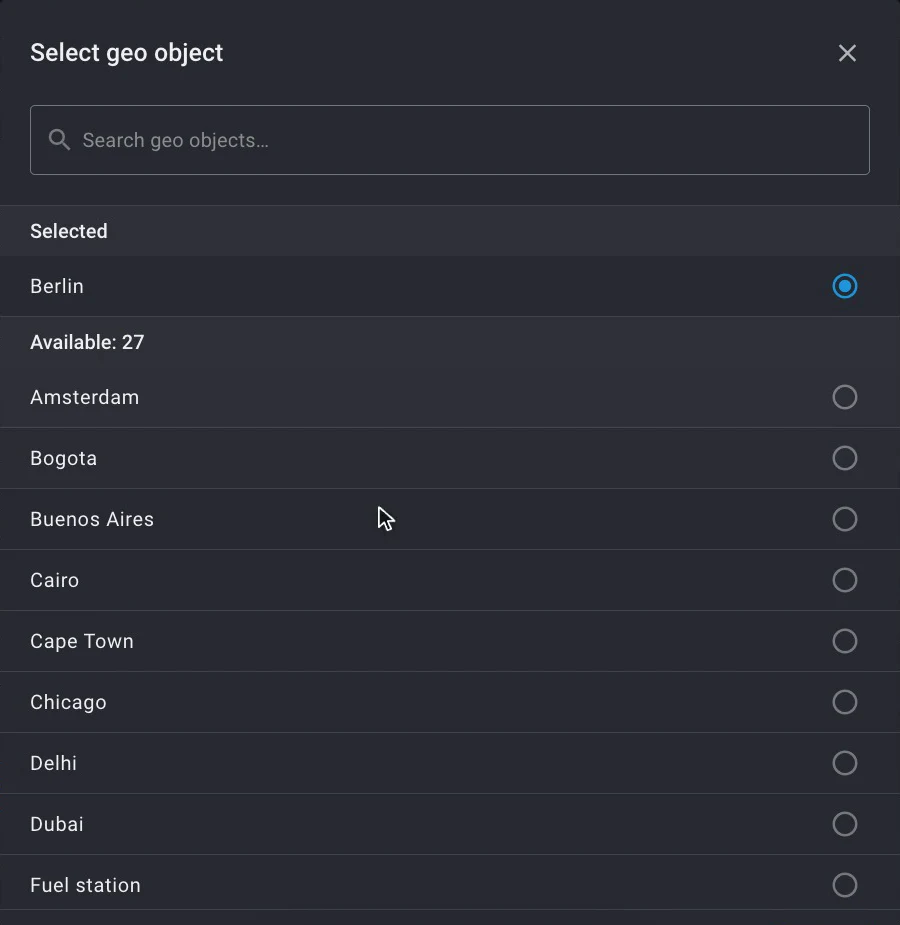
Leave Covered assets empty, and the rule covers every vehicle, including ones added later. Or pick specific ones, up to 25,000. After Save rule, Navixy starts checking the rule in about 10 seconds. The notification appears on any Location Intelligence screen for users whose role lets them see the vehicle and who have Location Intelligence open.
Read the rule aloud before saving
What order are the equations in? They're checked in order, and brackets aren't available. The rule "speed > 90 or within 'Working hours' and inside 'Depot'" means "(above 90 or during working hours) and at the depot", not "above 90, or during working hours at the depot". For the second meaning, reorder the equations.
Inside or Enters? For a state to combine with other equations, use Inside and Outside. For the moment a vehicle crosses the border, use Enters and Exits.
For example, "back at the garage after the shift" is Enters the "Garage" geo object and Outside the "Working hours" schedule: one notification at the moment of entry. To know in advance that a vehicle is approaching a point, draw a circular geo object of the needed radius around it and use Enters. The notification arrives when the vehicle is that radius away from the point in a straight line.
Who does it cover? All vehicles, including future ones, or selected ones? And which users can see those vehicles, and so will get the notifications?
The rule list is the quickest check: each rule is written there as plain text, in the order it will be checked.
What it gives a telematics service provider
For a TSP that sets up monitoring for customers, rules take some of the routine off the table:
- One setup per workspace. A rule with no vehicles selected also covers the vehicles the customer adds later.
- A tracker swap doesn't break alerts. A rule belongs to the vehicle: when its device is replaced, the rule checks the new one with no changes.
- A rule doesn't disappear quietly. A vehicle, geo object or schedule that a rule uses can't be deleted, even while the rule is off.
- Rule permissions are separate: See, Create, Edit and Delete rules. A customer can get view-only access while the TSP keeps the setup.
- Mixed fleets. A rule can compare a value calculated in an IoT Logic flow the same way as a device value, for example a parameter normalized across devices from different manufacturers.
- API. With the Navixy GraphQL API, rules can be created and changed by script, and notifications arrive as a live stream through a GraphQL subscription, along with a list of stored notifications and an unread count. That is enough to build real-time alerts into your own app or notification center. Details are in the Rules and notifications section.
Over the day the truck sent hundreds of messages, and the dispatcher got as many notifications as there were events. Each one is about something that happened, and none is about something still going on.
Try notification rules in Navixy: create an account, open Notification rules and start with one rule for one geo object.