> For the complete documentation index, see [llms.txt](https://navixy.com/docs/llms.txt). Markdown versions of documentation pages are available by appending `.md` to page URLs; this page is available as [Markdown](https://navixy.com/docs/admin/id/users/user-details.md).
# Detail pengguna
Lihat profil pengguna dan jalankan tindakan admin seperti mengedit detail, masuk sebagai pengguna, mengubah Saldo/kata sandi, dan mengelola pelacak
Untuk melihat detail akun pengguna yang dipilih, klik nama pengguna di [Daftar pengguna](https://panel.navixy.com/#users). Anda akan melihat informasi pengguna, seperti nama lengkap, saldo, perangkat, dan login, di sisi kanan layar. Anda juga akan melihat opsi berikut di bawah:
* **Edit pengguna** (juga tersedia dengan mengeklik di sisi kanan daftar pengguna saat pengguna dipilih): Membuka [Edit pengguna](#editing-users) jendela.
* **Pelacak pengguna:** Menampilkan daftar pelacak milik pengguna.
* **Login sebagai pengguna:** Masuk ke platform Navixy dengan akun pengguna tersebut.
* **Salin kunci sesi ke papan klip:** Menyalin kunci sesi (deretan heksadesimal sepanjang 32 karakter) ke papan klip dan menampilkan pesan berhasil.
* **Ubah saldo:** Membuka **Perubahan saldo** jendela. Untuk informasi lebih lanjut tentang mengubah saldo pengguna, lihat [Operasi penagihan](/docs/admin/id/users/billing-operations.md).
* **Transaksi pengguna**: Membuka **Transaksi pengguna** halaman, yang menjelaskan transaksi yang dilakukan oleh pengguna selama periode waktu tertentu. Untuk informasi lebih lanjut, lihat [Transaksi pengguna](/docs/admin/id/users/billing-operations.md#users-transactions).
* **Ubah kata sandi:** Membuka **Perubahan kata sandi** jendela. Untuk mengubah kata sandi pengguna, masukkan kata sandi baru dan ulangi.
* **Aktifkan pelacak:** Membuka panduan aktivasi perangkat. Untuk informasi lebih lanjut tentang mengaktifkan pelacak, yang dapat dilakukan baik melalui Panel admin maupun platform web, lihat [Aktivasi perangkat GPS](https://www.navixy.com/docs/user/guide/quick-start/activate-gps-device).
## Mengedit pengguna
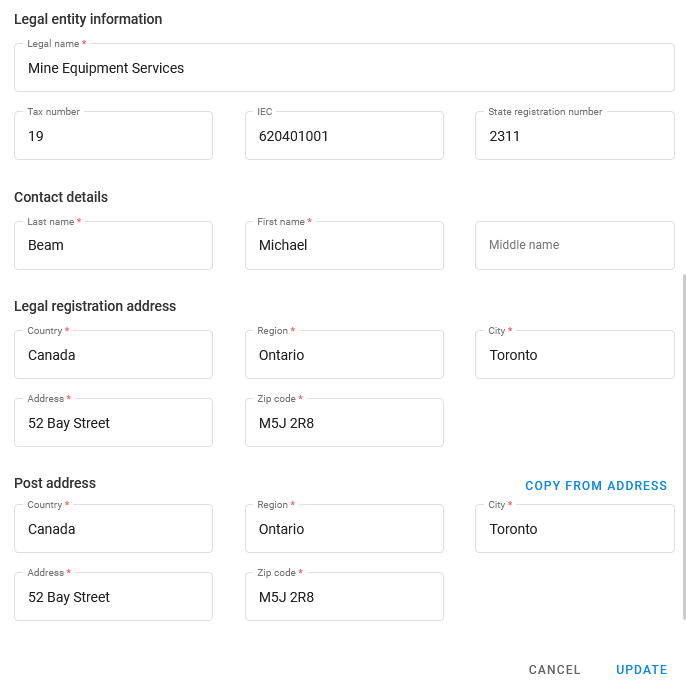
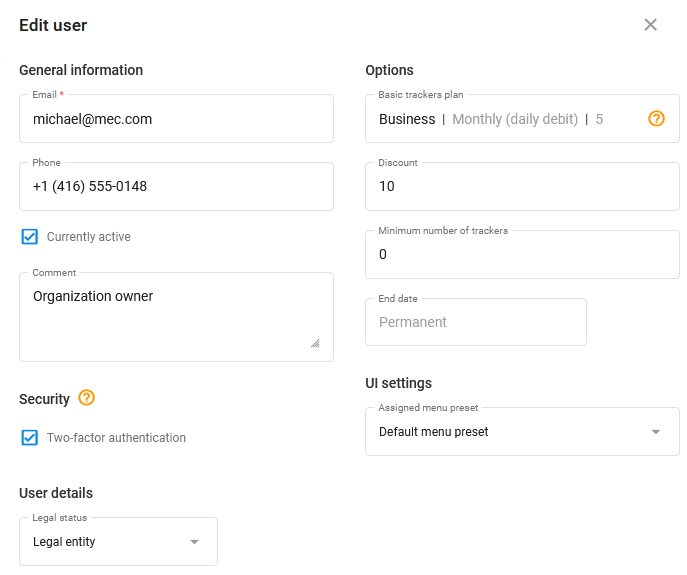
Untuk membuka **Edit pengguna** jendela, klik ganda pengguna di [Daftar pengguna](/docs/admin/id/users.md#user-list) atau klik di kolom paling kanan milik pengguna yang dipilih. Secara umum, ini mirip dengan [Buat pengguna](/docs/admin/id/users/create-user.md) jendela.
{% hint style="info" %}
Bidang yang ditampilkan berubah tergantung pada status hukum pengguna (perorangan, badan hukum, atau pengusaha perseorangan).
{% endhint %}
Jendela edit pengguna
---
# Agent Instructions
This documentation is published with GitBook. GitBook is the documentation platform designed so that both humans and AI agents can read, navigate, and reason over technical content effectively. Learn more at gitbook.com.
## Querying This Documentation
If you need additional information that is not directly available in this page, you can query the documentation by asking a question.
Perform an HTTP GET request on the following URL with the `ask` and `goal` query parameters:
```
GET https://navixy.com/docs/admin/id/users/user-details.md?ask=&goal=
```
`ask` is the immediate question: it should be specific, self-contained, and written in natural language.
`goal` is what the user is ultimately trying to achieve, the reason they need the answer. Sharing it helps GitBook give you a better, more relevant answer. A goal is most helpful when it describes the outcome the user wants rather than restating the question. For example, with `ask=how do I create an API token`, a goal like `automate deployments from our CI pipeline` lets GitBook tailor the answer to that use case.
The response will contain a direct answer to the question and relevant excerpts and sources from the documentation.
Use this mechanism when the answer is not explicitly present in the current page, you need clarification or additional context, or you want to retrieve related documentation sections.
 di sisi kanan daftar pengguna saat pengguna dipilih): Membuka [Edit pengguna](#editing-users) jendela.
* **Pelacak pengguna:** Menampilkan daftar pelacak milik pengguna.
* **Login sebagai pengguna:** Masuk ke platform Navixy dengan akun pengguna tersebut.
* **Salin kunci sesi ke papan klip:** Menyalin kunci sesi (deretan heksadesimal sepanjang 32 karakter) ke papan klip dan menampilkan pesan berhasil.
* **Ubah saldo:** Membuka **Perubahan saldo** jendela. Untuk informasi lebih lanjut tentang mengubah saldo pengguna, lihat [Operasi penagihan](/docs/admin/id/users/billing-operations.md).
* **Transaksi pengguna**: Membuka **Transaksi pengguna** halaman, yang menjelaskan transaksi yang dilakukan oleh pengguna selama periode waktu tertentu. Untuk informasi lebih lanjut, lihat [Transaksi pengguna](/docs/admin/id/users/billing-operations.md#users-transactions).
* **Ubah kata sandi:** Membuka **Perubahan kata sandi** jendela. Untuk mengubah kata sandi pengguna, masukkan kata sandi baru dan ulangi.
* **Aktifkan pelacak:** Membuka panduan aktivasi perangkat. Untuk informasi lebih lanjut tentang mengaktifkan pelacak, yang dapat dilakukan baik melalui Panel admin maupun platform web, lihat [Aktivasi perangkat GPS](https://www.navixy.com/docs/user/guide/quick-start/activate-gps-device).
## Mengedit pengguna
Untuk membuka **Edit pengguna** jendela, klik ganda pengguna di [Daftar pengguna](/docs/admin/id/users.md#user-list) atau klik
di sisi kanan daftar pengguna saat pengguna dipilih): Membuka [Edit pengguna](#editing-users) jendela.
* **Pelacak pengguna:** Menampilkan daftar pelacak milik pengguna.
* **Login sebagai pengguna:** Masuk ke platform Navixy dengan akun pengguna tersebut.
* **Salin kunci sesi ke papan klip:** Menyalin kunci sesi (deretan heksadesimal sepanjang 32 karakter) ke papan klip dan menampilkan pesan berhasil.
* **Ubah saldo:** Membuka **Perubahan saldo** jendela. Untuk informasi lebih lanjut tentang mengubah saldo pengguna, lihat [Operasi penagihan](/docs/admin/id/users/billing-operations.md).
* **Transaksi pengguna**: Membuka **Transaksi pengguna** halaman, yang menjelaskan transaksi yang dilakukan oleh pengguna selama periode waktu tertentu. Untuk informasi lebih lanjut, lihat [Transaksi pengguna](/docs/admin/id/users/billing-operations.md#users-transactions).
* **Ubah kata sandi:** Membuka **Perubahan kata sandi** jendela. Untuk mengubah kata sandi pengguna, masukkan kata sandi baru dan ulangi.
* **Aktifkan pelacak:** Membuka panduan aktivasi perangkat. Untuk informasi lebih lanjut tentang mengaktifkan pelacak, yang dapat dilakukan baik melalui Panel admin maupun platform web, lihat [Aktivasi perangkat GPS](https://www.navixy.com/docs/user/guide/quick-start/activate-gps-device).
## Mengedit pengguna
Untuk membuka **Edit pengguna** jendela, klik ganda pengguna di [Daftar pengguna](/docs/admin/id/users.md#user-list) atau klik