> For the complete documentation index, see [llms.txt](https://navixy.com/docs/llms.txt). Markdown versions of documentation pages are available by appending `.md` to page URLs; this page is available as [Markdown](https://navixy.com/docs/admin/plans.md).
# Plans
Create and manage pricing plans in Admin Panel: define billing cycles, fees, data rates, device limits, map access, and which features are available to users
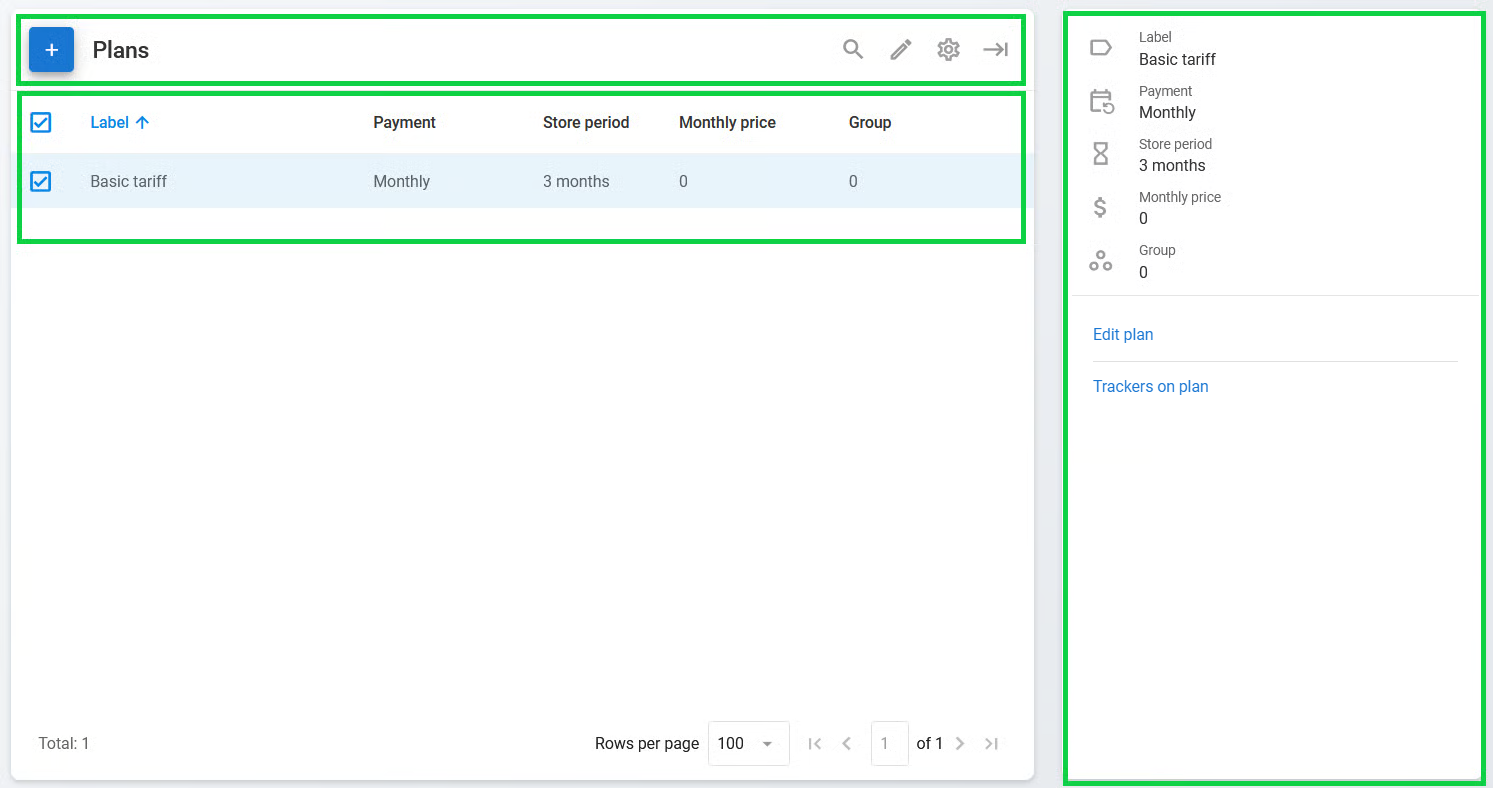
The **Plans** page is used to view, create, and edit new pricing plans for your Navixy account. The pricing plans allow you to manage features available to your end users and set up billing. You can create any number of pricing plans.
It consists of three main sections:
* **Plan toolbar:** A toolbar used to easily create, find, and edit plans
* **Plan list:** A list of existing plans formatted as a table
* **Plan details:** Information about the selected plan
{% hint style="warning" %}
The billing system uses an advance payment method, where users can only access the services when they have enough funds in their personal account.
{% endhint %}
## Plan settings
A pricing plan is a set of commercial terms that defines the structure of the service packages and their prices available to a user. Each tracker can be assigned its own pricing plan, allowing users to track assets with different pricing plans.
When a user creates an account, Navixy server automatically creates a test Demo pricing plan, which is recommended for use only during the test period.
## How to create a plan
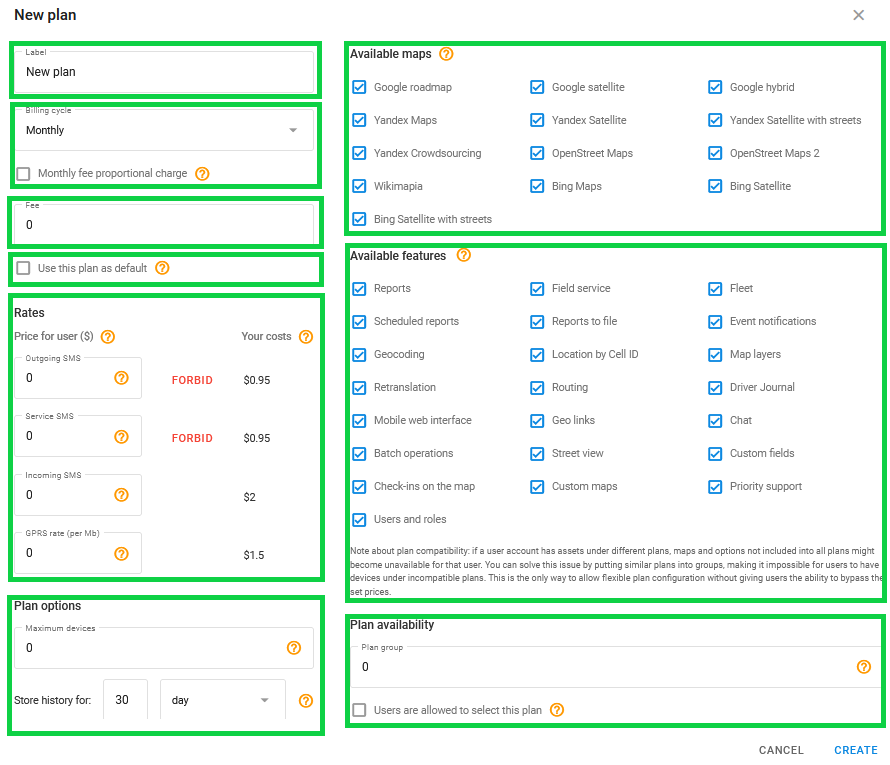
Click to create a new plan. This opens the **New plan** window:
This window contains the following settings:
* **Label:** The plan's name.
* **Billing cycle:** Payment frequency. There are four billing cycle types to choose from:
* **Monthly:** The user is charged on the first day of the month at 00:05 UTC or immediately after applying the pricing plan. If you check **Monthly fee proportional charge**, the user is charged for the number of days left in the month. Otherwise, they are charged for the full month.
* **Monthly (daily debit):** The user is charged each day at 00:05 UTC proportionally to the monthly fee.
* **Daily:** The user is charged each day at 00:05 UTC. This is a post-paid plan, meaning the user is charged only if the tracker connected to the server at least once in the last 24 hours.
* **Annual:** The user is charged on the first day of the year at 00:05 UTC. This is a pre-paid plan, meaning the user is charged for the year ahead regardless of whether the device is used or not.
* **Fee:** Your fee.
* **Use this plan as default**: Check if you want to set the created plan as default. The default pricing plan is automatically assigned to all new devices in the account and applied to trackers when transferring trackers between user accounts.
* **Rates:** Rates for various services used by your users. Includes the option to forbid some of them.
* **Plan options:**
* **Maximum number of devices:** If a user reaches this limit, they aren't able to add or track any additional assets. If a user has assets under different plans, the plan with the minimum value is applied.
* **Store history:** How far back users on this plan can look, ranging from one or several days to months or years. It limits what they can open in reports and history views. It doesn't change how long Navixy keeps their data. For the retention period, see [Data retention](/docs/user/guide/account/data-retention.md).
* **Available maps:** Select which maps are available to users who track devices under this plan.
* **Available features:** Plan settings also include the range of additional applications, such as Reports, Field service, and Fleet, as well as other features and miscellaneous options.
* **Plan availability:** Group similar plans to organize your offerings and enable user self-service. Plans within the same group allow users to switch between them independently, provided the **User are allowed to select this plan** checkbox is enabled. Nesting similar plans into groups ensures account compatibility and prevents users from mixing incompatible plans on a single account, which can cause map or feature errors, while maintaining control over your pricing structure.
## How to edit a plan
To edit an existing plan, double-click its entry in the list, select it and click on the toolbar, or click **Edit plan** in the right sidebar. This opens the **Edit plan** window, which is identical to the **New plan** window. You can change all the settings except for the billing cycle.
## Trackers on plan
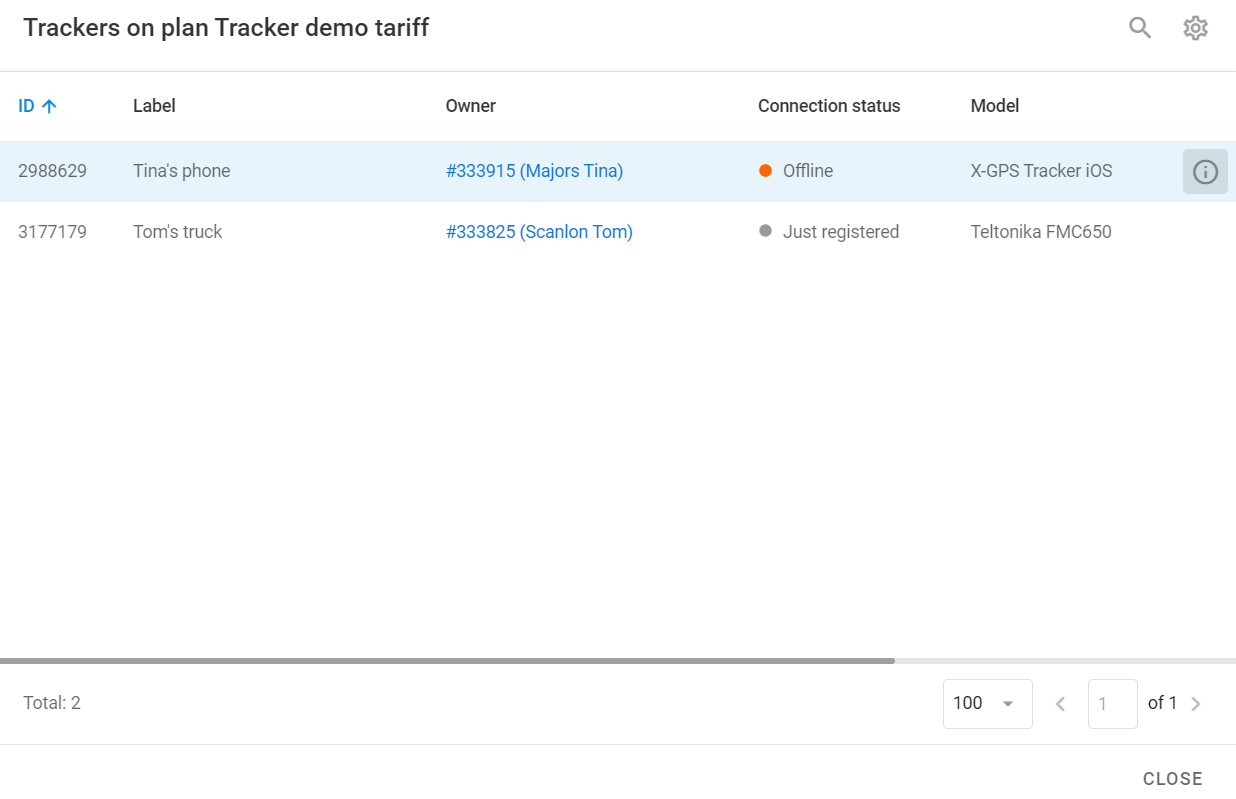
To learn which trackers are listed under the selected plan, select the plan and click **Trackers on plan** in the right sidebar. This opens the **Trackers on plan** window describing all trackers under the selected plan:
Trackers on plan
To learn more about a tracker, select it in the list and click .
---
# Agent Instructions
This documentation is published with GitBook. GitBook is the documentation platform designed so that both humans and AI agents can read, navigate, and reason over technical content effectively. Learn more at gitbook.com.
## Querying This Documentation
If you need additional information that is not directly available in this page, you can query the documentation by asking a question.
Perform an HTTP GET request on the following URL with the `ask` and `goal` query parameters:
```
GET https://navixy.com/docs/admin/plans.md?ask=&goal=
```
`ask` is the immediate question: it should be specific, self-contained, and written in natural language.
`goal` is what the user is ultimately trying to achieve, the reason they need the answer. Sharing it helps GitBook give you a better, more relevant answer. A goal is most helpful when it describes the outcome the user wants rather than restating the question. For example, with `ask=how do I create an API token`, a goal like `automate deployments from our CI pipeline` lets GitBook tailor the answer to that use case.
The response will contain a direct answer to the question and relevant excerpts and sources from the documentation.
Use this mechanism when the answer is not explicitly present in the current page, you need clarification or additional context, or you want to retrieve related documentation sections.
 to create a new plan. This opens the **New plan** window:
 on the toolbar, or click **Edit plan** in the right sidebar. This opens the **Edit plan** window, which is identical to the **New plan** window. You can change all the settings except for the billing cycle.
## Trackers on plan
To learn which trackers are listed under the selected plan, select the plan and click **Trackers on plan** in the right sidebar. This opens the **Trackers on plan** window describing all trackers under the selected plan:
on the toolbar, or click **Edit plan** in the right sidebar. This opens the **Edit plan** window, which is identical to the **New plan** window. You can change all the settings except for the billing cycle.
## Trackers on plan
To learn which trackers are listed under the selected plan, select the plan and click **Trackers on plan** in the right sidebar. This opens the **Trackers on plan** window describing all trackers under the selected plan:
 .
---
# Agent Instructions
This documentation is published with GitBook. GitBook is the documentation platform designed so that both humans and AI agents can read, navigate, and reason over technical content effectively. Learn more at gitbook.com.
## Querying This Documentation
If you need additional information that is not directly available in this page, you can query the documentation by asking a question.
Perform an HTTP GET request on the following URL with the `ask` and `goal` query parameters:
```
GET https://navixy.com/docs/admin/plans.md?ask=
.
---
# Agent Instructions
This documentation is published with GitBook. GitBook is the documentation platform designed so that both humans and AI agents can read, navigate, and reason over technical content effectively. Learn more at gitbook.com.
## Querying This Documentation
If you need additional information that is not directly available in this page, you can query the documentation by asking a question.
Perform an HTTP GET request on the following URL with the `ask` and `goal` query parameters:
```
GET https://navixy.com/docs/admin/plans.md?ask=