> For the complete documentation index, see [llms.txt](https://navixy.com/docs/llms.txt). Markdown versions of documentation pages are available by appending `.md` to page URLs; this page is available as [Markdown](https://navixy.com/docs/admin/pt-br/report.md).
# Relatório
Gere Relatórios de uso da plataforma para dispositivos ativos por intervalo de datas, filtre por Proprietário e exporte para CSV
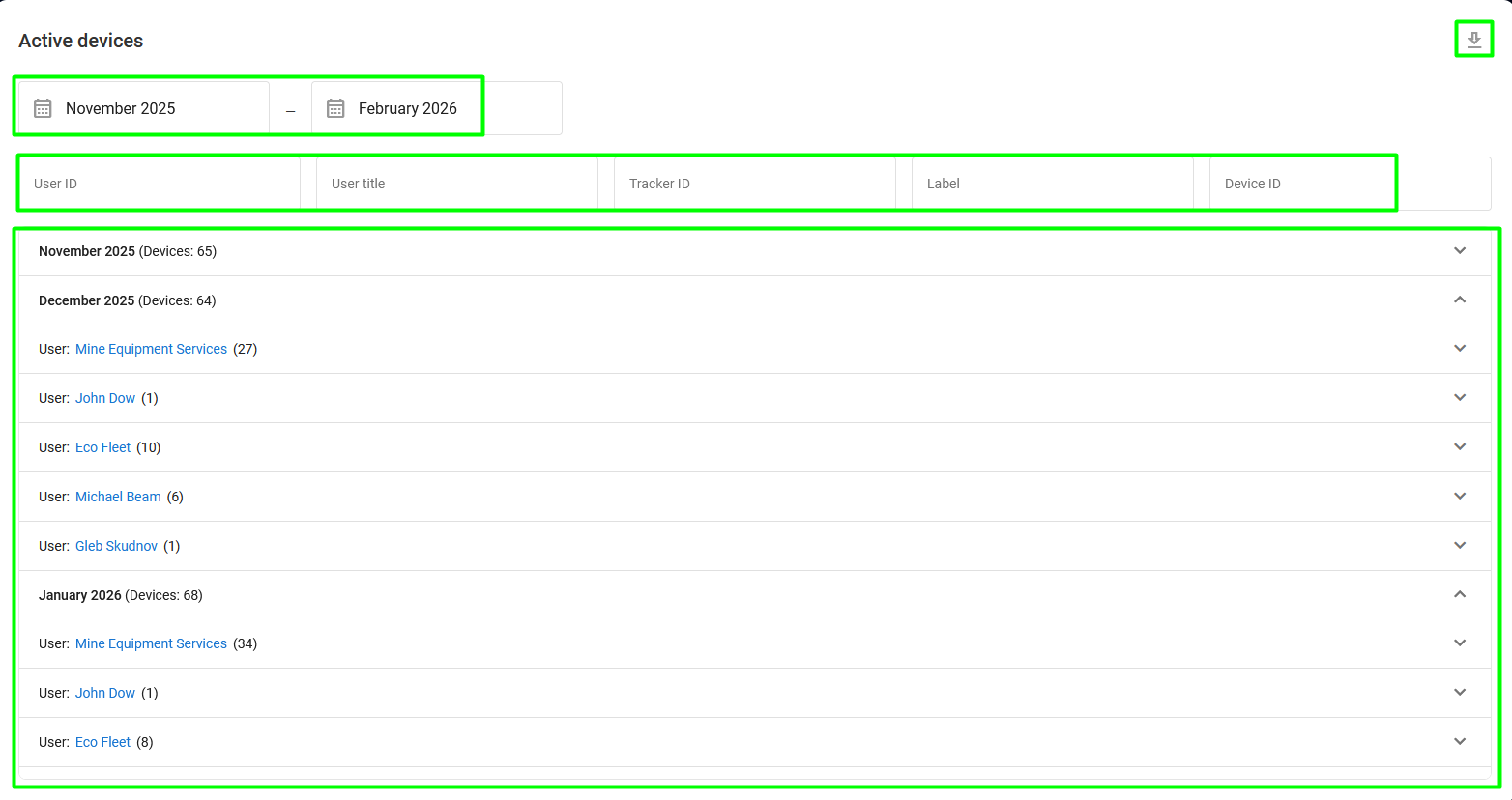
A **Relatório** A página do Painel de administração fornece uma maneira fácil de acessar dados sobre o uso da plataforma, incluindo o número de dispositivos ativos. Isso permite que você saiba quantos dispositivos ativos você e seus revendedores tiveram durante um período específico.
Página de relatório
Ela consiste em várias seções:
* **Seletor de data**: Seleciona o intervalo de datas para gerar um relatório.
* **Barra de filtros**: Permite filtrar o relatório por várias propriedades.
* **Proprietários de dispositivos** **lista**: Exibe os proprietários de dispositivos ativos durante o período selecionado, agrupados por mês. Também mostra o número de dispositivos ativos para cada usuário (entre parênteses).
* **Botão de exportação**: Exporta o relatório gerado para um arquivo CSV.
Para gerar um relatório:
1. Selecione o período de tempo para o qual você deseja gerar o relatório.
2. O relatório é gerado automaticamente, mostrando todos os usuários e o número de rastreadores ativos que eles têm durante o período de tempo especificado.
3. Salve o relatório como um arquivo CSV clicando no canto superior direito da tela.
4. Para saber mais sobre o proprietário de qualquer dispositivo ativo durante o período, clique no nome de usuário dele. Isso abre a **Usuário** janela, que fornece as mesmas informações e opções que o painel lateral direito da [Usuários](/docs/admin/pt-br/users.md) página.
---
# Agent Instructions
This documentation is published with GitBook. GitBook is the documentation platform designed so that both humans and AI agents can read, navigate, and reason over technical content effectively. Learn more at gitbook.com.
## Querying This Documentation
If you need additional information that is not directly available in this page, you can query the documentation by asking a question.
Perform an HTTP GET request on the following URL with the `ask` and `goal` query parameters:
```
GET https://navixy.com/docs/admin/pt-br/report.md?ask=&goal=
```
`ask` is the immediate question: it should be specific, self-contained, and written in natural language.
`goal` is what the user is ultimately trying to achieve, the reason they need the answer. Sharing it helps GitBook give you a better, more relevant answer. A goal is most helpful when it describes the outcome the user wants rather than restating the question. For example, with `ask=how do I create an API token`, a goal like `automate deployments from our CI pipeline` lets GitBook tailor the answer to that use case.
The response will contain a direct answer to the question and relevant excerpts and sources from the documentation.
Use this mechanism when the answer is not explicitly present in the current page, you need clarification or additional context, or you want to retrieve related documentation sections.
 : Exporta o relatório gerado para um arquivo CSV.
Para gerar um relatório:
1. Selecione o período de tempo para o qual você deseja gerar o relatório.
2. O relatório é gerado automaticamente, mostrando todos os usuários e o número de rastreadores ativos que eles têm durante o período de tempo especificado.
3. Salve o relatório como um arquivo CSV clicando
: Exporta o relatório gerado para um arquivo CSV.
Para gerar um relatório:
1. Selecione o período de tempo para o qual você deseja gerar o relatório.
2. O relatório é gerado automaticamente, mostrando todos os usuários e o número de rastreadores ativos que eles têm durante o período de tempo especificado.
3. Salve o relatório como um arquivo CSV clicando  no canto superior direito da tela.
4. Para saber mais sobre o proprietário de qualquer dispositivo ativo durante o período, clique no nome de usuário dele. Isso abre a **Usuário** janela, que fornece as mesmas informações e opções que o painel lateral direito da [Usuários](/docs/admin/pt-br/users.md) página.
no canto superior direito da tela.
4. Para saber mais sobre o proprietário de qualquer dispositivo ativo durante o período, clique no nome de usuário dele. Isso abre a **Usuário** janela, que fornece as mesmas informações e opções que o painel lateral direito da [Usuários](/docs/admin/pt-br/users.md) página.