> For the complete documentation index, see [llms.txt](https://navixy.com/docs/llms.txt). Markdown versions of documentation pages are available by appending `.md` to page URLs; this page is available as [Markdown](https://navixy.com/docs/admin/ru/report.md).
# Отчет
Создавайте отчеты об использовании платформы по активным устройствам за выбранный диапазон дат, фильтруйте по владельцу и экспортируйте в CSV
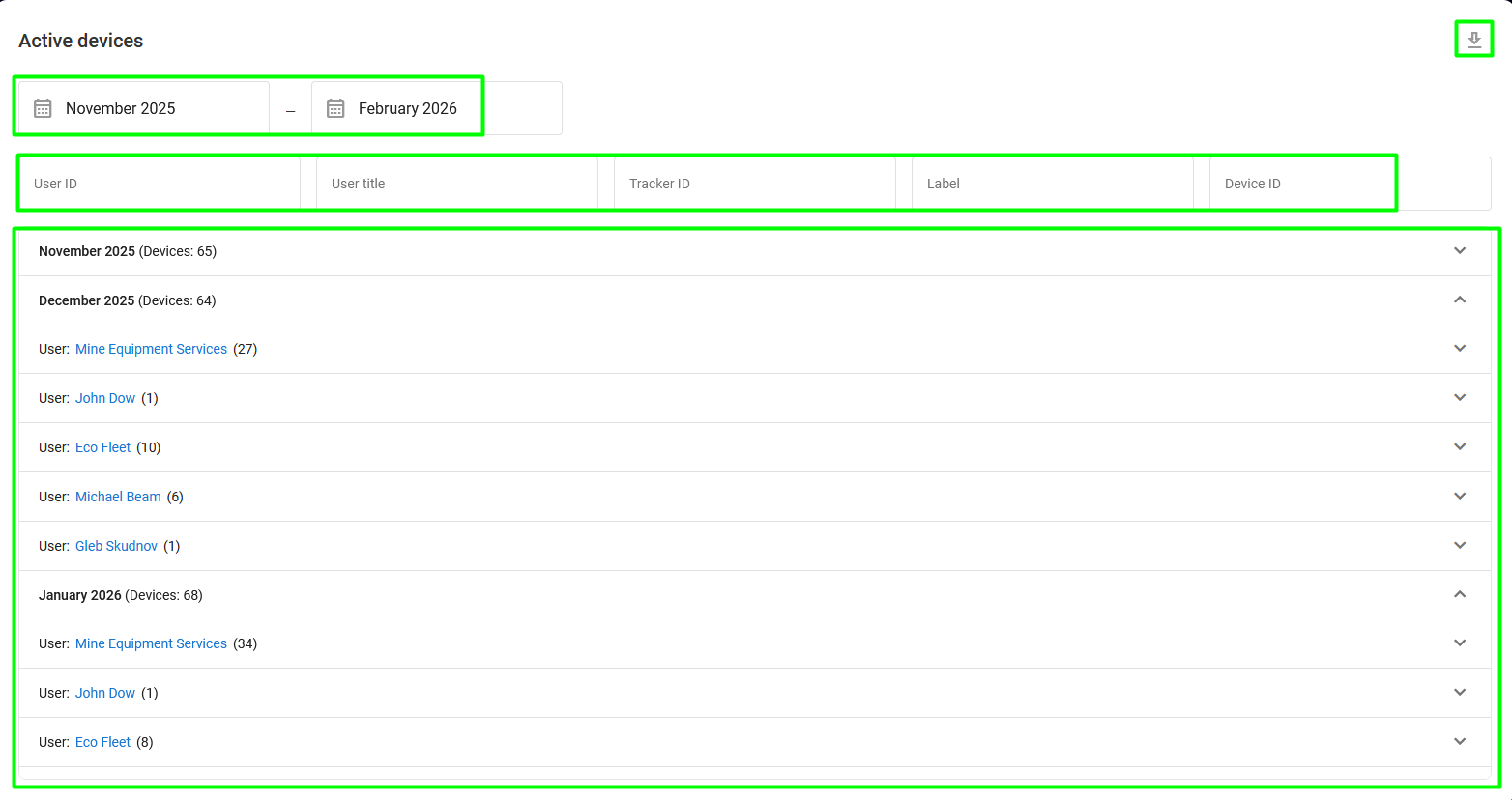
Этот **Отчет** страница Панели администратора предоставляет удобный способ доступа к данным об использовании платформы, включая количество активных устройств. Это позволяет вам узнать, сколько активных устройств было у вас и ваших дилеров за определенный период времени.
Страница отчета
Она состоит из нескольких разделов:
* **Выбор даты**: Выбирает диапазон дат для формирования отчета.
* **Панель фильтров**: Позволяет фильтровать отчет по различным свойствам.
* **Владельцы устройств** **список**: Отображает владельцев устройств, активных в выбранный период, сгруппированных по месяцам. Также показывает количество устройств, активных у каждого пользователя (в скобках).
* **Кнопка экспорта**: Экспортирует сформированный отчет в CSV-файл.
Чтобы сформировать отчет:
1. Выберите период времени, за который вы хотите сформировать отчет.
2. Отчет формируется автоматически и показывает всех пользователей и количество активных трекеров, которые у них были за указанный период времени.
3. Сохраните отчет как CSV-файл, нажав в правом верхнем углу экрана.
4. Чтобы узнать больше о владельце любого устройства, активного в этот период, нажмите его имя пользователя. Это откроет **Пользователь** окно, которое предоставляет ту же информацию и те же возможности, что и правая боковая панель [Пользователи](/docs/admin/ru/users.md) страницы.
---
# Agent Instructions
This documentation is published with GitBook. GitBook is the documentation platform designed so that both humans and AI agents can read, navigate, and reason over technical content effectively. Learn more at gitbook.com.
## Querying This Documentation
If you need additional information that is not directly available in this page, you can query the documentation by asking a question.
Perform an HTTP GET request on the following URL with the `ask` and `goal` query parameters:
```
GET https://navixy.com/docs/admin/ru/report.md?ask=&goal=
```
`ask` is the immediate question: it should be specific, self-contained, and written in natural language.
`goal` is what the user is ultimately trying to achieve, the reason they need the answer. Sharing it helps GitBook give you a better, more relevant answer. A goal is most helpful when it describes the outcome the user wants rather than restating the question. For example, with `ask=how do I create an API token`, a goal like `automate deployments from our CI pipeline` lets GitBook tailor the answer to that use case.
The response will contain a direct answer to the question and relevant excerpts and sources from the documentation.
Use this mechanism when the answer is not explicitly present in the current page, you need clarification or additional context, or you want to retrieve related documentation sections.
 : Экспортирует сформированный отчет в CSV-файл.
Чтобы сформировать отчет:
1. Выберите период времени, за который вы хотите сформировать отчет.
2. Отчет формируется автоматически и показывает всех пользователей и количество активных трекеров, которые у них были за указанный период времени.
3. Сохраните отчет как CSV-файл, нажав
: Экспортирует сформированный отчет в CSV-файл.
Чтобы сформировать отчет:
1. Выберите период времени, за который вы хотите сформировать отчет.
2. Отчет формируется автоматически и показывает всех пользователей и количество активных трекеров, которые у них были за указанный период времени.
3. Сохраните отчет как CSV-файл, нажав  в правом верхнем углу экрана.
4. Чтобы узнать больше о владельце любого устройства, активного в этот период, нажмите его имя пользователя. Это откроет **Пользователь** окно, которое предоставляет ту же информацию и те же возможности, что и правая боковая панель [Пользователи](/docs/admin/ru/users.md) страницы.
в правом верхнем углу экрана.
4. Чтобы узнать больше о владельце любого устройства, активного в этот период, нажмите его имя пользователя. Это откроет **Пользователь** окно, которое предоставляет ту же информацию и те же возможности, что и правая боковая панель [Пользователи](/docs/admin/ru/users.md) страницы.