> For the complete documentation index, see [llms.txt](https://navixy.com/docs/llms.txt). Markdown versions of documentation pages are available by appending `.md` to page URLs; this page is available as [Markdown](https://navixy.com/docs/analytics/dashboard-studio/creating-dashboards.md).

# Creating dashboards

Add visualization panels to a canvas, configure SQL queries, and arrange layouts for real-time fleet monitoring and operational decision-making

Dashboard Studio transforms IoT Query data into interactive visual reports. You build reports by adding panels to a canvas, writing SQL queries, and organizing the results into a navigable menu structure.

{% hint style="info" %}
**Prefer to describe the dashboard instead of building it?** See [Building dashboards with AI](/docs/analytics/dashboard-studio/creating-dashboards/ai-dashboards.md): the AI Assistant generates the panels and SQL from a plain-language description, and the result runs on a canvas before you save it.
{% endhint %}

Custom Dashboards provide real-time operational visibility by consolidating key metrics, KPIs, and live data streams into a single, unified workspace.<br>

* **Instant situational awareness** is achieved through live widgets that automatically refresh, helping teams monitor fleet performance, assets, and operations without running manual reports.
* **Action-oriented decision-making** is supported by interactive filters, drill-down capabilities, and dynamic components that allow users to quickly identify trends, anomalies, and bottlenecks.
* **Personalized workspace configuration** enables teams to tailor layouts, widgets, and metrics to specific roles, departments, or business objectives.
* **Continuous performance tracking** ensures stakeholders always have up-to-date insights, turning data into a proactive management tool rather than a retrospective analysis.

Watch this video to get familiar with the Dashboard Studio app interface and learn how to create your own custom fleet dashboard:

{% embed url="<https://youtu.be/dyBk7XAZsWs?si=RIaMyZBXO1Gdl817>" %}
Dashboard Studio app interface, built-in dashboard templates, custom dashboard creation.
{% endembed %}

## What are dashboards

Dashboards contain panels that display data visualizations. Each panel runs a SQL query against your IoT Query database, the same Raw data, Transformation, and Insight layers you access through SQL clients. You arrange panels on a canvas, configure their appearance, and save the complete report to your menu. Dashboard Studio updates panels continuously to reflect current IoT Query data.

{% hint style="info" %}

#### Before you start

Dashboard Studio requires IoT Query access to function. Enable IoT Query before building reports. If you don't have access yet, contact us for activation at <iotquery@navixy.com>.
{% endhint %}

### Dashboards vs. reports

Dashboard Studio provides two ways to build analytics from IoT Query data. Choosing the right one depends on how your query results are structured and how you intend to share the output.

|             | Dashboards                         | Reports                                |
| ----------- | ---------------------------------- | -------------------------------------- |
| SQL queries | Each panel has its own query       | One query powers all views             |
| Layout      | Drag-and-drop canvas               | Fixed: data table, chart, location map |
| Export      | JSON schema, PDF                   | HTML, Excel, PDF                       |
| Use case    | Multi-panel operational monitoring | Exportable, single-dataset analysis    |

Use dashboards when you need multiple independent visualizations on a single canvas, for example: combining a trip summary stat tile, a fuel consumption chart, and a zone visit table in one view. Use reports when a single dataset needs to be explored as a table, visualized as a chart, and mapped simultaneously, or when the output needs to be exported and shared outside Dashboard Studio.

For details on how to configure reports, see [Creating reports](/docs/analytics/dashboard-studio/creating-reports.md).

## What can you build?

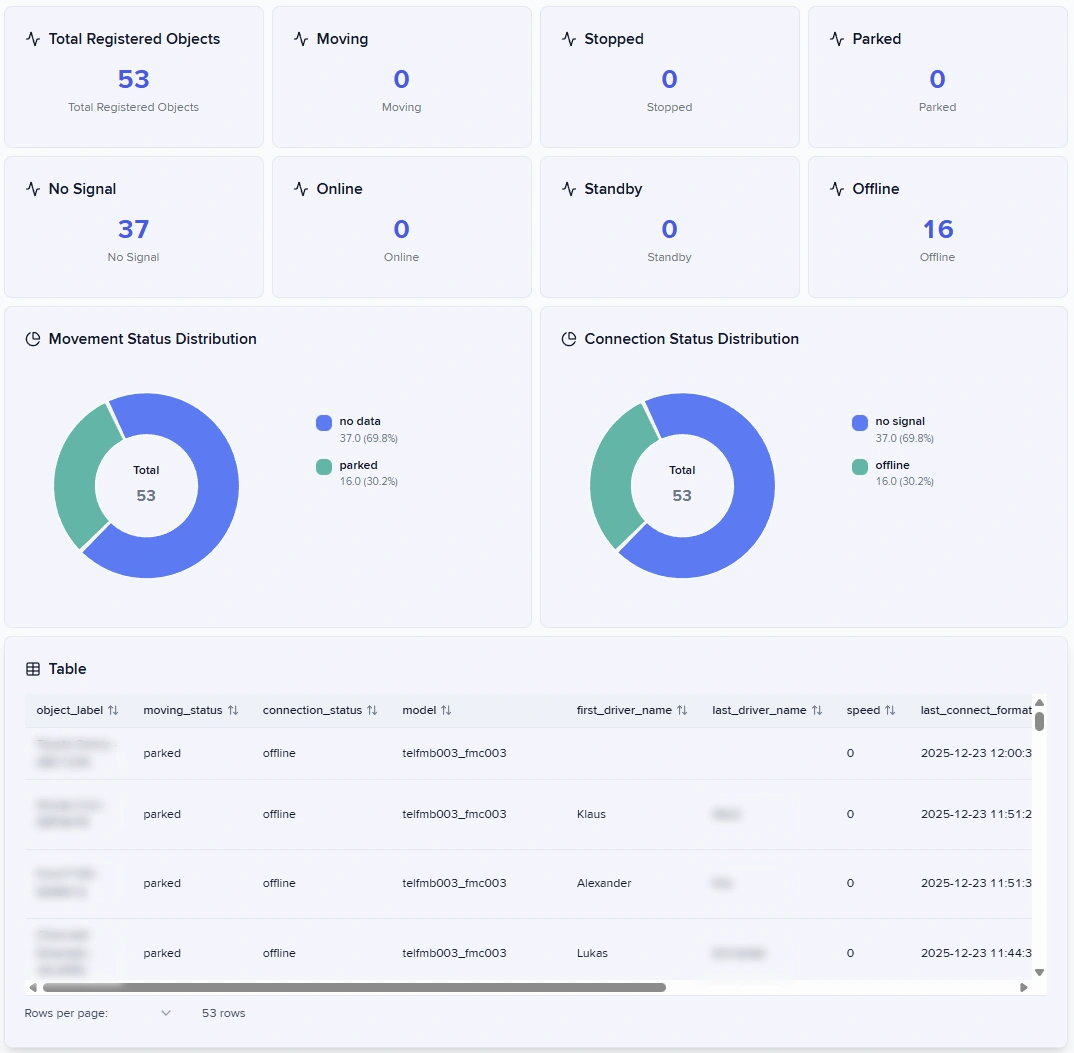
Dashboard Studio provides six visualization types. Each works best for specific analytical questions.

* **Stat tiles** display single key metrics like total distance or vehicle count. Use them to highlight critical numbers at the top of your report.
* **Bar charts** compare values across categories or show trends over time. They work well for comparing fleet utilization across regions or tracking trips per day.
* **Pie charts** show how a total breaks into parts. Use them to display fuel consumption by vehicle type or alert distribution by severity.
* **Tables** present detailed records with multiple attributes. They suit scenarios where users need to see individual records, such as recent alerts with timestamps, vehicle IDs, and messages.
* **Text panels** add explanatory content without querying data. Use them for instructions, section headers, or context using Markdown, HTML, or plain text formatting.
* **Maps** plot location data as points on an interactive map. Use them to show current vehicle positions or geofence activity.

Each visualization type serves specific analytical purposes. Stat tiles work well for KPIs like total fleet size or average utilization. Bar charts help you compare performance across regions or track metrics over time. Pie charts show how totals divide into categories, such as fuel consumption by vehicle type. Tables present detailed records when users need to see multiple attributes together. Text panels add context, instructions, or section headers to your reports. Maps show where your fleet is or where events happened.

Imported dashboards can also contain additional panel types, such as time series charts, that render correctly but can't be added from the panel gallery.

<figure><img src="https://3441668799-files.gitbook.io/~/files/v0/b/gitbook-x-prod.appspot.com/o/spaces%2FoFNFEIINiGFbhi3Px3dE%2Fuploads%2Fgit-blob-46013db8fc1e093ca6a87fdca253a0674d15eb6c%2Fdashboard_example.webp?alt=media" alt=""><figcaption></figcaption></figure>

Query requirements vary by visualization type. Stat tiles need one numeric value. Bar and pie charts require exactly two columns: categories and values. Tables accept any number of columns. Text panels don't query data at all. Maps need latitude and longitude columns. For complete query requirements and examples, see [Writing SQL queries.](/docs/analytics/dashboard-studio/writing-sql-queries.md#how-to-write-sql-for-visualizations)

## Creating dashboards

Let's walk through the steps from an empty canvas to a structured and informative dashboard.

### How to create your first dashboard

{% stepper %}
{% step %}
**Create a new dashboard**

<figure><img src="https://3441668799-files.gitbook.io/~/files/v0/b/gitbook-x-prod.appspot.com/o/spaces%2FoFNFEIINiGFbhi3Px3dE%2Fuploads%2Fgit-blob-39c139dab466c5412b557b08e1c90e7375e56a59%2Fimage%20(6).png?alt=media" alt=""><figcaption></figcaption></figure>

* Click <img src="https://3441668799-files.gitbook.io/~/files/v0/b/gitbook-x-prod.appspot.com/o/spaces%2FoFNFEIINiGFbhi3Px3dE%2Fuploads%2Fgit-blob-61e501903eae308393e8a556371277de8c591659%2Fimage%20(1).png?alt=media" alt="" data-size="line"> in the lower-left corner of the app and select **New dashboard**.
* Add **Title**.
* Click **Create dashboard**, a **Get Started** message appears.
* Select **Start with a blank dashboard** to open an empty canvas in edit mode.
  {% endstep %}

{% step %}
**Add a panel**

<figure><img src="https://3441668799-files.gitbook.io/~/files/v0/b/gitbook-x-prod.appspot.com/o/spaces%2FoFNFEIINiGFbhi3Px3dE%2Fuploads%2Fgit-blob-2cd84e12f590252f8a9cf58ab0fc152f77d8bb63%2Fimage%20(7).png?alt=media" alt=""><figcaption></figcaption></figure>

Now you can add your first panel by selecting a visualization type.

1. Select <img src="https://3441668799-files.gitbook.io/~/files/v0/b/gitbook-x-prod.appspot.com/o/spaces%2FoFNFEIINiGFbhi3Px3dE%2Fuploads%2Fgit-blob-849931c5ee09346eef83cb446ca5c8dbb1ff7fbf%2Fimage%20(2).png?alt=media" alt="" data-size="line"> on the editing toolbar.
2. Choose **Panel Type** and click **Add panel**. The new panel appears on the canvas.
   {% endstep %}

{% step %}
**Configure the visual**

<figure><img src="https://3441668799-files.gitbook.io/~/files/v0/b/gitbook-x-prod.appspot.com/o/spaces%2FoFNFEIINiGFbhi3Px3dE%2Fuploads%2Fgit-blob-f0d6d461b3c5a4faf9850c0d8ca580578621b26f%2Fimage%20(5).png?alt=media" alt=""><figcaption></figcaption></figure>

Now it's time to add the diagram settings:

1. Hover your mouse over the tile and click <img src="https://3441668799-files.gitbook.io/~/files/v0/b/gitbook-x-prod.appspot.com/o/spaces%2FoFNFEIINiGFbhi3Px3dE%2Fuploads%2Fgit-blob-40078e957cb2cab6455e8c3bb944214a877af060%2Fimage%20(3).png?alt=media" alt="" data-size="line">.
2. Dashboard Studio opens a panel editor with three tabs:
   1. **Panel Properties** controls the title and type
   2. **SQL Query** defines what data to display
   3. **Visualization Settings** adjust how that data appears
3. Name your panel in **Panel Properties**.
4. Write a **SQL query** that fetches data from IoT Query tables, and test it to verify the results.
5. Adjust the **Visualization Settings**.
6. When satisfied, save the panel to add it to your canvas.
   {% endstep %}
   {% endstepper %}

### How to write effective SQL queries

Now that you understand the basic workflow, let's explore SQL queries in detail. Write PostgreSQL queries that reference IoT Query tables in the SQL Query tab. All Raw data, Transformation, and Insight layer tables are available. Test queries before applying them to verify results match your visualization requirements.

<figure><img src="https://3441668799-files.gitbook.io/~/files/v0/b/gitbook-x-prod.appspot.com/o/spaces%2FoFNFEIINiGFbhi3Px3dE%2Fuploads%2Fgit-blob-e0648cf843ae5d39993031c1d6f2cb81f594ba03%2Fimage%20(8).png?alt=media" alt=""><figcaption></figcaption></figure>

Query results must match visualization requirements. The SQL Query tab includes a "Dataset Requirements" section explaining what your chosen visualization expects. Use Common Table Expressions (CTEs) to define parameters at the query start for flexibility. This approach keeps your queries maintainable and allows you to adjust parameters without rewriting complex logic.

For detailed query patterns, examples, and best practices, see [Writing SQL queries](/docs/analytics/dashboard-studio/writing-sql-queries.md).

### How to arrange panels on the canvas

Drag panels to reposition them on the canvas. Panels snap to a grid that keeps everything aligned. Resize panels by dragging their corners. The canvas uses a 24-column grid, so panels can occupy 1 to 24 columns in width.

Group related panels into rows for organization. Drag a panel to the canvas edge until a blue line appears, then release to create a new row. Add more panels to the row by dragging them beside existing ones. Collapse rows using the arrow icon at the row's left edge.

### How to undo layout changes

In edit mode, the editing toolbar on the right edge of the screen has **Undo** and **Redo** buttons, right below **Exit edit mode**. **Undo** reverses your last change to the layout, and **Redo** restores a change that you undid. A button is dimmed when there is nothing to undo or redo.

You can also use keyboard shortcuts:

| Action | Windows and Linux      | macOS |
| ------ | ---------------------- | ----- |
| Undo   | Ctrl+Z                 | ⌘Z    |
| Redo   | Ctrl+Shift+Z or Ctrl+Y | ⇧⌘Z   |

The shortcuts don't work while a dialog is open or while you type in a text field or in the SQL editor.

**Undo** covers the changes you make on the canvas:

* Moving and resizing panels and rows
* Adding panels and rows, including charts from the **Chart library**
* Duplicating and deleting panels
* Renaming, packing, and deleting rows
* **Tidy up layout**

**Undo** doesn't cover changes that you save in a dialog: panel settings in the panel editor, **Dashboard filters**, and the dashboard title. Saving the panel editor or the dashboard filters also clears the undo history. After that save, you can't undo the layout changes you made before it.

Dashboard Studio remembers up to 50 changes. The history is cleared when you exit edit mode or reload the page.

{% hint style="info" %}
Dashboard Studio saves each layout change as soon as you make it, including each undo and redo. The layout has no separate **Save** or **Cancel** button, so use **Undo** to go back before you exit edit mode.
{% endhint %}

### How to customize visualization appearance

Configure visualization-specific options in the **Visualization Settings** tab:

* **Bar charts:** horizontal or vertical orientation
* **Pie charts:** standard or donut modes
* **Tables:** sortable columns, pagination, row highlighting, visible columns

These settings control how data appears visually but don't change what data is displayed. The available options depend on your panel type.

<figure><img src="https://3441668799-files.gitbook.io/~/files/v0/b/gitbook-x-prod.appspot.com/o/spaces%2FoFNFEIINiGFbhi3Px3dE%2Fuploads%2Fgit-blob-ff4741adba540ac0842755fcd7b144aff7168938%2Fimage%20(9).png?alt=media" alt=""><figcaption><p>Table Visualization Settings example</p></figcaption></figure>

To hide a table column, clear its checkbox in **Visible columns**, in the **Table configuration** section. To show the column again, select the checkbox. A hidden column stays in the query, so dashboard filters can still use it. Viewers don't see the column in the table, and the files from **Export CSV**, **Export Excel**, and **Export as PDF** don't include it. At least one column stays visible.

**Visible columns** lists the columns from the panel's last result. For a new panel, or after you change the query, click **Test query** on the **SQL query** tab first.

### How to add dashboard filters

A dashboard filter lets dashboard viewers narrow the panels without editing the dashboard. A date filter selects a period, for example, the last 7 days. A value filter selects values in one column, for example, a few vehicles. Viewers find the filters in **Parameters**, change them, and click **Apply**.

You add, change, and delete filters in the **Dashboard filters** window. Open it from the editing toolbar in edit mode.

A date filter changes only the panels that use it. A filter with the variable name `period` gives the panel queries two parameters: `${period_from}` and `${period_to}`.

To add a date filter, follow these steps:

1. In the editing toolbar, click **Dashboard filters**.
2. Click **Add date filter**.
3. Enter a **Label** and a **Variable name**.
4. In **Default range**, select the period that the dashboard opens with. The options are **Today**, **Yesterday**, **Last 7 days**, **Last 30 days**, **Last 90 days**, and **This month**.
5. Click **Add filter**.
6. Click **Save changes**.

To make a panel use a date filter, do one of the following:

* Write the filter's parameters in the panel query, for example, `WHERE trip_start_time BETWEEN ${period_from} AND ${period_to}`.
* Open the panel editor, go to the **Filters** tab, turn on the filter, and select the result column that it filters.

The variable name starts with a letter and has only letters, digits, and underscores. Each filter needs its own variable name. The label can have up to 120 characters, and the variable name can have up to 63 characters.

A value filter applies to the panels whose result has the filter's column when you add the filter. Panels that show one number don't get value filters. Viewers select one or more of the values that the panels return when the dashboard opens. **All**, the default, shows every row.

To add a value filter, follow these steps:

1. In the editing toolbar, click **Dashboard filters**.
2. Click **Add value filter**.
3. In **Column**, select the column that viewers filter on. Dashboard Studio fills in **Label** and **Variable name** from the column name. You can change them.
4. Click **Add filter**.
5. Click **Save changes**.

To stop a panel from using a value filter, open the panel editor, go to the **Filters** tab, and turn off the filter.

A panel that you add later doesn't use an existing value filter. To include the panel, open the filter with the edit icon in **Dashboard filters**, click **Update filter**, and click **Save changes**. When you update a value filter this way or change its column, the filter applies again to every panel that has the column, including panels where you turned it off.

### How to change or delete a dashboard filter

To change a filter, follow these steps:

1. In the editing toolbar, click **Dashboard filters**.
2. Click the edit icon next to the filter.
3. Make the change and click **Update filter**.
4. Click **Save changes**.

To delete a filter, click the delete icon next to it. The row then says that the filter was deleted and shows **Undo**, which brings the filter back to its place. The row's **Undo** stays until you save or close the window.

Changes in the **Dashboard filters** window reach the dashboard only when you click **Save changes**. Dashboard Studio saves them immediately, and **Undo** in the editing toolbar can't reverse them. To leave without saving, click **Cancel** and confirm with **Discard**. **Discard** removes every change that you made in the window since the last save. Filters that you deleted come back.

{% hint style="warning" %}
When you delete a filter, the panels stop using it. Dashboard Studio doesn't warn about a panel query that still contains the deleted filter's parameters, such as `${period_from}`. Viewers then see that parameter in **Parameters** as a text field, and the panel shows an error until someone enters a value. Remove the parameter from each query that contains it.
{% endhint %}

### How to organize dashboards in sections

Dashboard Studio uses a hierarchical menu in the left sidebar. Create sections to group related dashboards/reports. For example, create a "Fleet Management" section containing reports for vehicle status, utilization, and maintenance.

{% columns %}
{% column width="41.66666666666667%" %}
Use the menu editing mode to create sections, drag reports between them, and reorder items. Sections cannot be nested. You have one organizational level: sections contain reports, reports contain panels.
{% endcolumn %}

{% column width="58.33333333333333%" %}

<figure><img src="https://3441668799-files.gitbook.io/~/files/v0/b/gitbook-x-prod.appspot.com/o/spaces%2FoFNFEIINiGFbhi3Px3dE%2Fuploads%2Fgit-blob-9756cbcaa4eed09ed1a97be5b017133f0fe43c07%2Fimage%20(10).png?alt=media" alt=""><figcaption></figcaption></figure>
{% endcolumn %}
{% endcolumns %}

### How to find a dashboard

The search box at the top of Dashboard Studio finds dashboards and reports by their content, not only by their names. Type one or more words, and the list shows up to eight dashboards and reports that contain all of them.

Search looks in:

* Dashboard and report names
* Dashboard descriptions
* Panel titles
* The SQL queries of panels and filters, if you have the admin or editor role

Search isn't case-sensitive, and each word can match in a different place of the same dashboard. For example, `fuel` also finds a dashboard that has a panel titled "Fuel consumption per vehicle". Each result shows its section and what matched: panel titles or a part of the SQL query.

Search covers only your own dashboards and reports, and skips the ones in the trash. It doesn't search the names of IoT Query tables and columns.

Use the arrow keys to move through the results, press Enter to open one, and press Esc to close the list.

To filter the sidebar menu instead, type in the **Search…** box above the menu. It matches dashboard and section names only.

### How to save and share dashboards

Dashboard Studio adds a dashboard to your menu as soon as you create it, with the title and section you choose. After that, layout changes save automatically as you make them. Changes in the panel editor, the dashboard filters, the dashboard title, and the Full Schema window take effect when you save them in that window. Reports save automatically as you work.

Dashboard Studio offers two ways to export a dashboard.

**Export the JSON schema** to share it with other users or create a backup:

1. Click <img src="https://3441668799-files.gitbook.io/~/files/v0/b/gitbook-x-prod.appspot.com/o/spaces%2FoFNFEIINiGFbhi3Px3dE%2Fuploads%2Fgit-blob-4699d8b12a00990018b1bb3891dc331e5429dafb%2Fimage%20(11).png?alt=media" alt="" data-size="line"> to enter edit mode.
2. Click <img src="https://3441668799-files.gitbook.io/~/files/v0/b/gitbook-x-prod.appspot.com/o/spaces%2FoFNFEIINiGFbhi3Px3dE%2Fuploads%2Fgit-blob-616617b07777c04bd6902392858b9cb2f6a0900a%2Fimage%20(12).png?alt=media" alt="" data-size="line"> to open the Full Schema window.
3. Select **Export**.

Dashboard Studio downloads a JSON file containing the dashboard's structure, including panels, queries, and visualization settings. You can import an existing schema as well.

<figure><img src="https://3441668799-files.gitbook.io/~/files/v0/b/gitbook-x-prod.appspot.com/o/spaces%2FoFNFEIINiGFbhi3Px3dE%2Fuploads%2Fgit-blob-12f60c5716859d9f755a5905073ba81b3841c37d%2Fimage%20(13).png?alt=media" alt=""><figcaption></figcaption></figure>

**Export a PDF** to share a static snapshot outside Dashboard Studio:

1. Exit edit mode if you're in it.
2. Wait for the dashboard to finish loading, then click **Export PDF** in the toolbar.

Dashboard Studio renders the current panel layout into a paginated PDF document.

## How data refresh works

Dashboards display current data from IoT Query. Dashboard Studio queries the database each time you open a report. Data freshness matches your IoT Query updates, which happen continuously as devices send readings.

You can refresh data manually using the **Refresh** button in the top toolbar.

{% hint style="info" %}
Panel results may be cached for up to five minutes, so values can briefly lag behind the underlying data. Failed queries are never cached, so a panel that fails to load always runs again.
{% endhint %}


---

# Agent Instructions
This documentation is published with GitBook. GitBook is the documentation platform designed so that both humans and AI agents can read, navigate, and reason over technical content effectively. Learn more at gitbook.com.

## Querying This Documentation
If you need additional information that is not directly available in this page, you can query the documentation by asking a question.

Perform an HTTP GET request on the following URL with the `ask` and `goal` query parameters:

```
GET https://navixy.com/docs/analytics/dashboard-studio/creating-dashboards.md?ask=<question>&goal=<user_goal>
```

`ask` is the immediate question: it should be specific, self-contained, and written in natural language.
`goal` is what the user is ultimately trying to achieve, the reason they need the answer. Sharing it helps GitBook give you a better, more relevant answer. A goal is most helpful when it describes the outcome the user wants rather than restating the question. For example, with `ask=how do I create an API token`, a goal like `automate deployments from our CI pipeline` lets GitBook tailor the answer to that use case.

The response will contain a direct answer to the question and relevant excerpts and sources from the documentation.

Use this mechanism when the answer is not explicitly present in the current page, you need clarification or additional context, or you want to retrieve related documentation sections.
