> For the complete documentation index, see [llms.txt](https://navixy.com/docs/llms.txt). Markdown versions of documentation pages are available by appending `.md` to page URLs; this page is available as [Markdown](https://navixy.com/docs/expert-center/faq-and-troubleshooting/gps-devices/parking-detection-logic.md).
# Parking detection logic
Parking detection combines speed, inactivity time, and ignition status to mark trip ends. Configure per-device thresholds for accurate stop detection.
## Introduction
Parking detection is a core setting that defines trips, stops, idling, and other movement-related events for a unit in Navixy. The logic combines speed, minimum inactivity time, and, when available, additional data such as ignition or motion sensor status.
Before reviewing reports or alerts, make sure the device sends consistent data and that the configuration matches the fleet’s real operation.
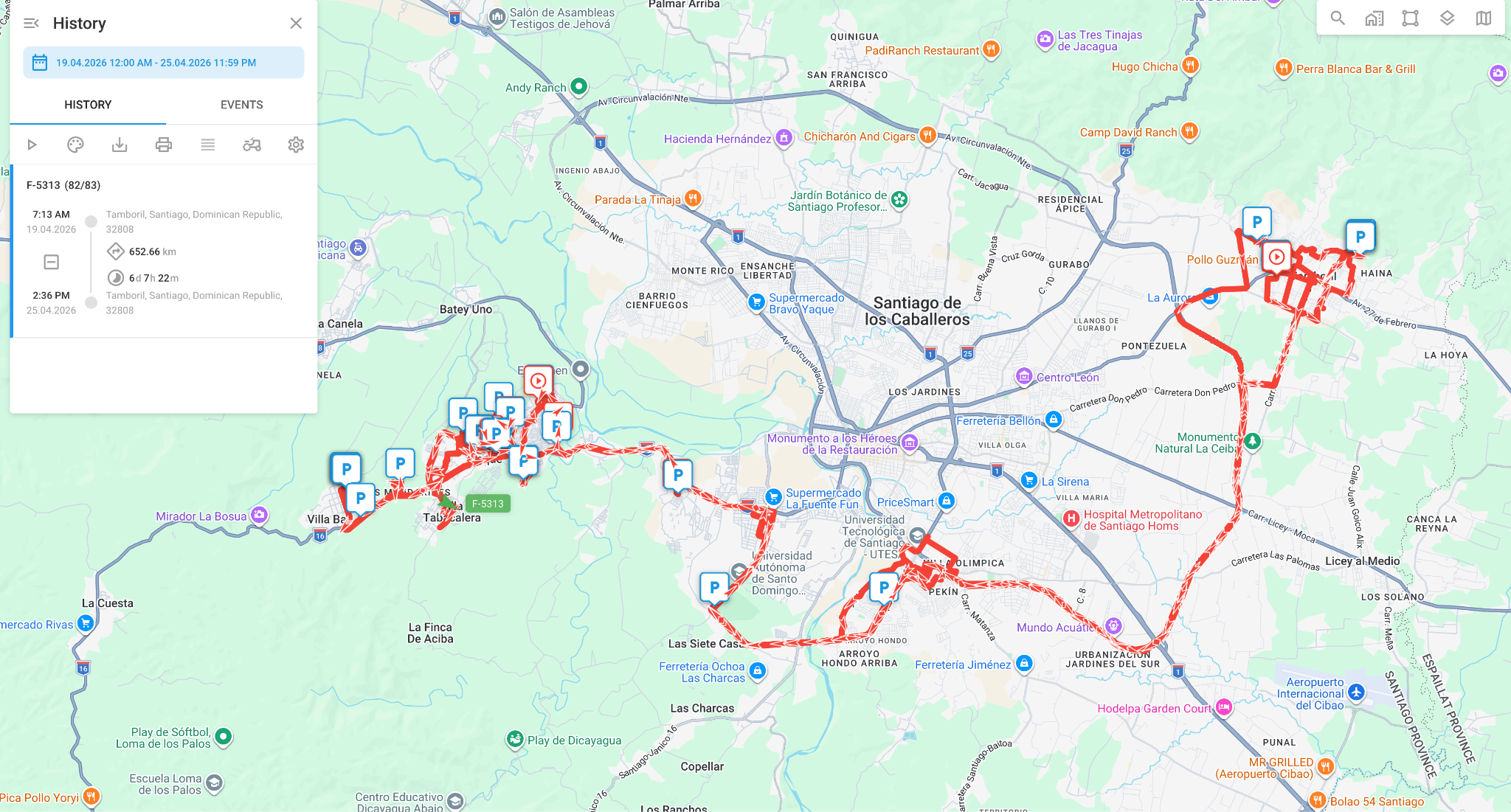 Configure this from **Parking Detection**. It directly affects:
* Trip report
* Stops report
* Excessive idling
* Stops inside or outside geofences
* Rules that depend on movement or parking status
Configure this from **Parking Detection**. It directly affects:
* Trip report
* Stops report
* Excessive idling
* Stops inside or outside geofences
* Rules that depend on movement or parking status
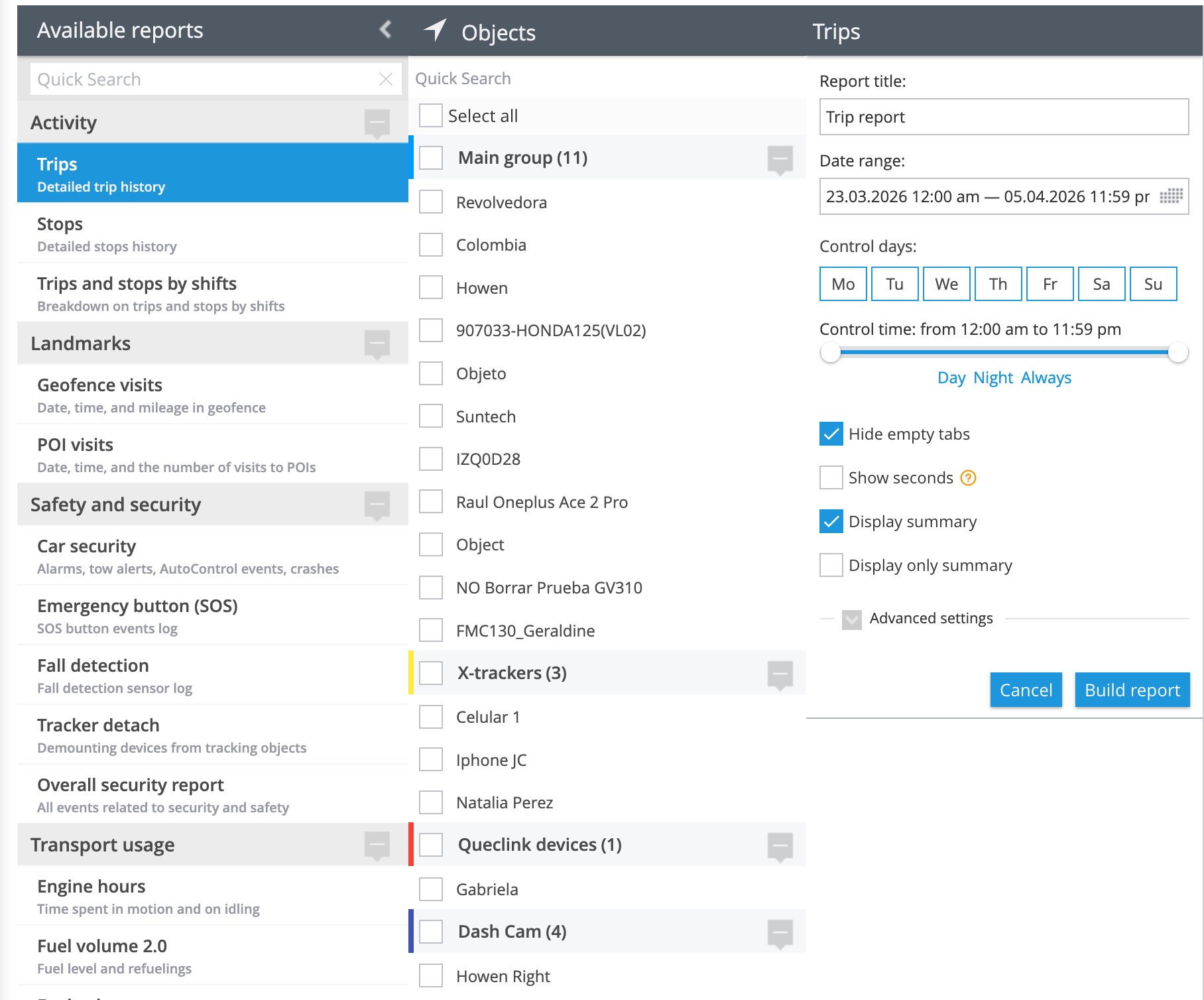 The platform only interprets the data it receives. Low reporting frequency, GPS noise, incorrect ignition status, or unreliable motion data will affect the result.
## Main configuration
In **Parking Detection**, you define when the platform should treat a unit as parked.
The platform only interprets the data it receives. Low reporting frequency, GPS noise, incorrect ignition status, or unreliable motion data will affect the result.
## Main configuration
In **Parking Detection**, you define when the platform should treat a unit as parked.
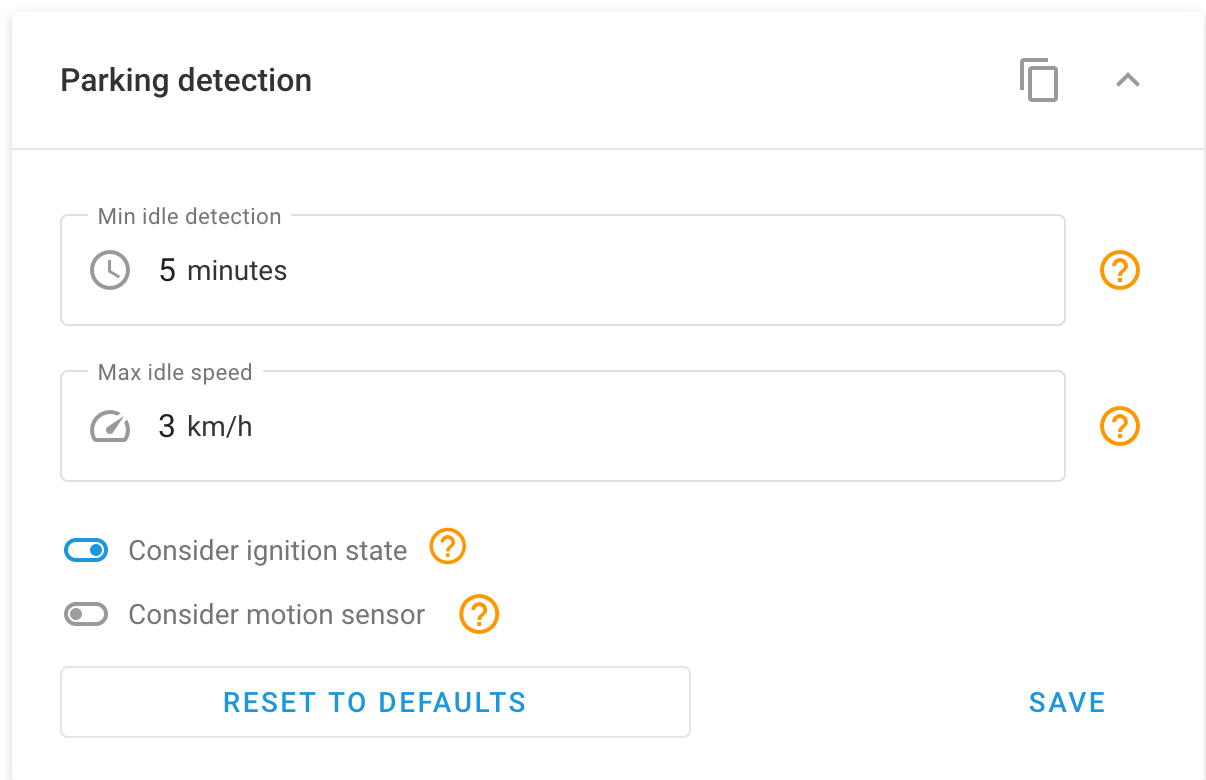 * **Minimum inactivity detection**: The minimum time the unit must stay idle before the platform marks it as parked. If this is set to 5 minutes, the condition must hold for the full 5 minutes before the status changes. Allowed range: 1 to 1440 minutes.
* **Maximum idle speed**: The speed threshold used to treat the unit as idle. If this is set to 3 km/h, the platform treats speeds below 3 km/h as idle. If this is set to 0, idle speed detection is disabled.
* **Consider ignition status**: Includes engine status in **Parking Detection**. For this to work correctly, the ignition sensor must be physically connected and configured under **Sensors and Buttons**. If you enable this without a valid sensor, results may be incorrect.
* **Consider motion sensor**: Includes device-reported movement in addition to speed and time. This can help when GPS noise causes false movement, but only if the sensor data is reliable.
## How the logic works without ignition or a motion sensor
* **Minimum inactivity detection**: The minimum time the unit must stay idle before the platform marks it as parked. If this is set to 5 minutes, the condition must hold for the full 5 minutes before the status changes. Allowed range: 1 to 1440 minutes.
* **Maximum idle speed**: The speed threshold used to treat the unit as idle. If this is set to 3 km/h, the platform treats speeds below 3 km/h as idle. If this is set to 0, idle speed detection is disabled.
* **Consider ignition status**: Includes engine status in **Parking Detection**. For this to work correctly, the ignition sensor must be physically connected and configured under **Sensors and Buttons**. If you enable this without a valid sensor, results may be incorrect.
* **Consider motion sensor**: Includes device-reported movement in addition to speed and time. This can help when GPS noise causes false movement, but only if the sensor data is reliable.
## How the logic works without ignition or a motion sensor
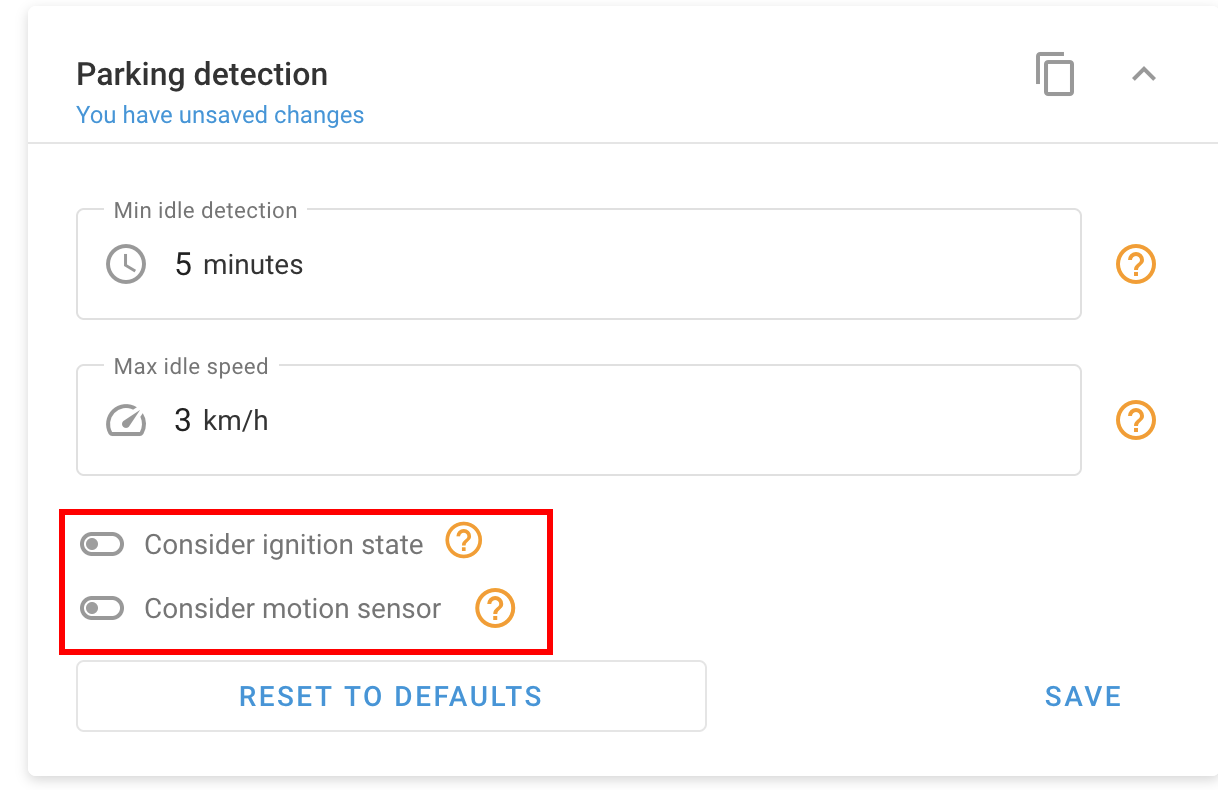 If these options are disabled, the platform uses only speed and time:
1. The speed drops below the **Maximum idle speed**.
2. The platform starts counting time.
3. If the **Minimum inactivity detection** is met, the unit is marked as parked.
4. If a packet arrives with speed above the threshold, the count resets.
Example:
If inactivity is set to 5 minutes and speed is set to 3 km/h, the platform must receive data below 3 km/h for 5 continuous minutes before it marks the unit as parked. One packet above the threshold resets the count.
## How the logic changes when considering ignition
Speed alone cannot always distinguish between an operational stop, traffic, waiting with the engine on, or the end of a trip. Ignition adds context and helps separate these scenarios.
When this option is enabled, the platform evaluates speed, time, and engine status. If the ignition status is inverted, missing, or intermittent, detection may be wrong.
Example:
The unit has been at 0 km/h for several minutes.
* **Ignition off** → the platform can confirm parking with greater certainty
* **Ignition on** → it may be waiting with the engine running, which can feed rules such as excessive idling
* **Ignition incorrectly configured** → the platform may misinterpret both cases
## How the logic changes when considering the motion sensor
When this option is enabled, the platform uses the movement status reported by the device to complement speed and time data.
This helps when the unit is stopped but GPS noise creates small position shifts or false low speeds. In that case, the sensor can confirm that the unit is not actually moving.
If the sensor reports incorrect data, the effect can be the opposite: split trips, delayed stops, or false movement while the unit is stationary. Validate the sensor before enabling it.
## Recommended values
Use these values as a starting point for urban operations:
* **Minimum inactivity detection**: 3 to 5 minutes
* **Maximum idle speed**: 3 to 6 km/h
These are not universal values. They depend on the operation and on what you consider a stop.
* For operations where short stops matter, a lower time can be used.
* For operations with frequent traffic or slow routes, use a higher time to reduce noise in reports.
* Validate the speed threshold with real data. If the GPS reports between 1 and 4 km/h while the unit is stopped, a threshold that is too low may prevent correct detection.
## Best practices
* **Configure Parking Detection first**: Before reviewing alerts such as excessive idling or stops in geofences, validate that the base detection works correctly.
* **Validate ignition before enabling it**: The sensor must exist under **Sensors and Buttons** and report correct values. Otherwise, it may affect trips, stops, and alerts.
* **Do not enable the motion sensor without validating the data**: First confirm that the device sends this status correctly. Otherwise, it may affect trip recording and stop detection.
* **Review the reporting frequency**: If the device sends data every 60 seconds, an inactivity time of 1 minute is not suitable. The minimum time should be longer than the reporting interval.
* **Validate with real reports**: After changing the configuration, review reports from the operating day:
* Trip report
* Stops report
* Parking report, if applicable
* **Document the changes**: Record the previous value, new value, date, reason, and affected devices. Otherwise, it becomes hard to explain later changes in reports.
If you see split trips, ghost stops, or events that do not match the operation, adjust the values and validate again.
## Common cases
* **The unit is stopped but appears to be moving**: The **Maximum idle speed** may be too low, or there may be GPS noise. If the device reports between 1 and 4 km/h while the unit is stationary, raise the threshold.
* **Too many short trips appear**: The **Minimum inactivity detection** is too low. The platform closes trips because of traffic lights or short pauses. Increase the time and review again.
* **The unit appears parked even though it is moving slowly**: The **Maximum idle speed** is too high. If the unit operates at low speed and the threshold is above it, the platform interprets it as idle.
* **Excessive idling does not trigger**: The alert depends on the parked status being confirmed first and on the ignition status arriving correctly. If **Parking Detection** is not working correctly, the alert will not trigger even if the ignition is on. Review **Parking Detection** first, then the alert.
* **Difference between platform idling and hardware idling**: Platform idling depends on Navixy logic, parking detection, and the received ignition status. Hardware idling comes from an event generated directly by the device.
* **The trip is not recorded correctly when using motion sensor**: If the sensor reports incorrect data, the trip may not be delimited as expected. Review the sensor data first.
* **Detection changes after enabling ignition**: Before assuming this is a platform issue, review the ignition status arriving from the device.
## Recommendation to prevent route gaps
Review these items first:
* Minimum inactivity detection
* Maximum idle speed
* Device reporting frequency
* Reported speed during the period
* GPS signal quality
* Use of GPS or LBS
* Ignition status, if applicable, and its configuration under **Sensors and Buttons**
* Motion sensor, if applicable, and whether it reports correctly
* Platform and hardware rules active at the same time
The platform applies the configured logic to the data it receives. If packets arrive with low frequency, noise, or inconsistent values, the result will reflect those conditions.
## Final note
**Parking Detection** does not correct device data. It only interprets incoming data based on the configured values. If ignition or motion sensor is enabled, that data also becomes part of the logic.
Before adjusting rules or reports, make sure the device sends enough consistent data to match the real operation.
---
# Agent Instructions
This documentation is published with GitBook. GitBook is the documentation platform designed so that both humans and AI agents can read, navigate, and reason over technical content effectively. Learn more at gitbook.com.
## Querying This Documentation
If you need additional information that is not directly available in this page, you can query the documentation by asking a question.
Perform an HTTP GET request on the following URL with the `ask` and `goal` query parameters:
```
GET https://navixy.com/docs/expert-center/faq-and-troubleshooting/gps-devices/parking-detection-logic.md?ask=&goal=
```
`ask` is the immediate question: it should be specific, self-contained, and written in natural language.
`goal` is what the user is ultimately trying to achieve, the reason they need the answer. Sharing it helps GitBook give you a better, more relevant answer. A goal is most helpful when it describes the outcome the user wants rather than restating the question. For example, with `ask=how do I create an API token`, a goal like `automate deployments from our CI pipeline` lets GitBook tailor the answer to that use case.
The response will contain a direct answer to the question and relevant excerpts and sources from the documentation.
Use this mechanism when the answer is not explicitly present in the current page, you need clarification or additional context, or you want to retrieve related documentation sections.
If these options are disabled, the platform uses only speed and time:
1. The speed drops below the **Maximum idle speed**.
2. The platform starts counting time.
3. If the **Minimum inactivity detection** is met, the unit is marked as parked.
4. If a packet arrives with speed above the threshold, the count resets.
Example:
If inactivity is set to 5 minutes and speed is set to 3 km/h, the platform must receive data below 3 km/h for 5 continuous minutes before it marks the unit as parked. One packet above the threshold resets the count.
## How the logic changes when considering ignition
Speed alone cannot always distinguish between an operational stop, traffic, waiting with the engine on, or the end of a trip. Ignition adds context and helps separate these scenarios.
When this option is enabled, the platform evaluates speed, time, and engine status. If the ignition status is inverted, missing, or intermittent, detection may be wrong.
Example:
The unit has been at 0 km/h for several minutes.
* **Ignition off** → the platform can confirm parking with greater certainty
* **Ignition on** → it may be waiting with the engine running, which can feed rules such as excessive idling
* **Ignition incorrectly configured** → the platform may misinterpret both cases
## How the logic changes when considering the motion sensor
When this option is enabled, the platform uses the movement status reported by the device to complement speed and time data.
This helps when the unit is stopped but GPS noise creates small position shifts or false low speeds. In that case, the sensor can confirm that the unit is not actually moving.
If the sensor reports incorrect data, the effect can be the opposite: split trips, delayed stops, or false movement while the unit is stationary. Validate the sensor before enabling it.
## Recommended values
Use these values as a starting point for urban operations:
* **Minimum inactivity detection**: 3 to 5 minutes
* **Maximum idle speed**: 3 to 6 km/h
These are not universal values. They depend on the operation and on what you consider a stop.
* For operations where short stops matter, a lower time can be used.
* For operations with frequent traffic or slow routes, use a higher time to reduce noise in reports.
* Validate the speed threshold with real data. If the GPS reports between 1 and 4 km/h while the unit is stopped, a threshold that is too low may prevent correct detection.
## Best practices
* **Configure Parking Detection first**: Before reviewing alerts such as excessive idling or stops in geofences, validate that the base detection works correctly.
* **Validate ignition before enabling it**: The sensor must exist under **Sensors and Buttons** and report correct values. Otherwise, it may affect trips, stops, and alerts.
* **Do not enable the motion sensor without validating the data**: First confirm that the device sends this status correctly. Otherwise, it may affect trip recording and stop detection.
* **Review the reporting frequency**: If the device sends data every 60 seconds, an inactivity time of 1 minute is not suitable. The minimum time should be longer than the reporting interval.
* **Validate with real reports**: After changing the configuration, review reports from the operating day:
* Trip report
* Stops report
* Parking report, if applicable
* **Document the changes**: Record the previous value, new value, date, reason, and affected devices. Otherwise, it becomes hard to explain later changes in reports.
If you see split trips, ghost stops, or events that do not match the operation, adjust the values and validate again.
## Common cases
* **The unit is stopped but appears to be moving**: The **Maximum idle speed** may be too low, or there may be GPS noise. If the device reports between 1 and 4 km/h while the unit is stationary, raise the threshold.
* **Too many short trips appear**: The **Minimum inactivity detection** is too low. The platform closes trips because of traffic lights or short pauses. Increase the time and review again.
* **The unit appears parked even though it is moving slowly**: The **Maximum idle speed** is too high. If the unit operates at low speed and the threshold is above it, the platform interprets it as idle.
* **Excessive idling does not trigger**: The alert depends on the parked status being confirmed first and on the ignition status arriving correctly. If **Parking Detection** is not working correctly, the alert will not trigger even if the ignition is on. Review **Parking Detection** first, then the alert.
* **Difference between platform idling and hardware idling**: Platform idling depends on Navixy logic, parking detection, and the received ignition status. Hardware idling comes from an event generated directly by the device.
* **The trip is not recorded correctly when using motion sensor**: If the sensor reports incorrect data, the trip may not be delimited as expected. Review the sensor data first.
* **Detection changes after enabling ignition**: Before assuming this is a platform issue, review the ignition status arriving from the device.
## Recommendation to prevent route gaps
Review these items first:
* Minimum inactivity detection
* Maximum idle speed
* Device reporting frequency
* Reported speed during the period
* GPS signal quality
* Use of GPS or LBS
* Ignition status, if applicable, and its configuration under **Sensors and Buttons**
* Motion sensor, if applicable, and whether it reports correctly
* Platform and hardware rules active at the same time
The platform applies the configured logic to the data it receives. If packets arrive with low frequency, noise, or inconsistent values, the result will reflect those conditions.
## Final note
**Parking Detection** does not correct device data. It only interprets incoming data based on the configured values. If ignition or motion sensor is enabled, that data also becomes part of the logic.
Before adjusting rules or reports, make sure the device sends enough consistent data to match the real operation.
---
# Agent Instructions
This documentation is published with GitBook. GitBook is the documentation platform designed so that both humans and AI agents can read, navigate, and reason over technical content effectively. Learn more at gitbook.com.
## Querying This Documentation
If you need additional information that is not directly available in this page, you can query the documentation by asking a question.
Perform an HTTP GET request on the following URL with the `ask` and `goal` query parameters:
```
GET https://navixy.com/docs/expert-center/faq-and-troubleshooting/gps-devices/parking-detection-logic.md?ask=&goal=
```
`ask` is the immediate question: it should be specific, self-contained, and written in natural language.
`goal` is what the user is ultimately trying to achieve, the reason they need the answer. Sharing it helps GitBook give you a better, more relevant answer. A goal is most helpful when it describes the outcome the user wants rather than restating the question. For example, with `ask=how do I create an API token`, a goal like `automate deployments from our CI pipeline` lets GitBook tailor the answer to that use case.
The response will contain a direct answer to the question and relevant excerpts and sources from the documentation.
Use this mechanism when the answer is not explicitly present in the current page, you need clarification or additional context, or you want to retrieve related documentation sections.