> For the complete documentation index, see [llms.txt](https://navixy.com/docs/llms.txt). Markdown versions of documentation pages are available by appending `.md` to page URLs; this page is available as [Markdown](https://navixy.com/docs/user/es/guide/devices-and-settings/vehicle-sensors/specialized-sensors-by-manufacturer/teltonika-sensors/ble-fuel-level-sensors-teltonika.md).
# Sensores BLE de nivel de Combustible (Teltonika)
Agregue sensores BLE de combustible de Teltonika a Navixy: seleccione la entrada de nivel LLS, configure la calibración y monitoree combustible, temperatura, humedad y carga de la batería.
Muchos [Dispositivos GPS Teltonika](https://www.navixy.com/devices/teltonika/) admiten sensores inalámbricos de combustible que se conectan por Bluetooth. Las ventajas de usar estos sensores de combustible Bluetooth son significativas:
* **Sin cables**: El sensor y el dispositivo GPS no necesitan una conexión física, lo que simplifica la instalación.
* **Independencia de fuentes de alimentación externas**: Estos sensores incluyen una batería integrada que puede durar varios años sin necesidad de recarga.
* **Datos adicionales**: Además de los niveles de combustible, el sensor también transmite datos sobre temperatura, humedad y el nivel de carga de la batería.
## Preparación del dispositivo GPS
Para preparar su dispositivo GPS Teltonika para la integración de un sensor de combustible Bluetooth, siga estos pasos.
1. **Descargar el configurador de Teltonika**: Obtenga la aplicación desde el sitio web oficial de Teltonika.
2. **Actualizar el firmware**: Asegúrese de que su dispositivo esté ejecutando la versión más reciente del firmware.
3. **Ejecutar el configurador**:
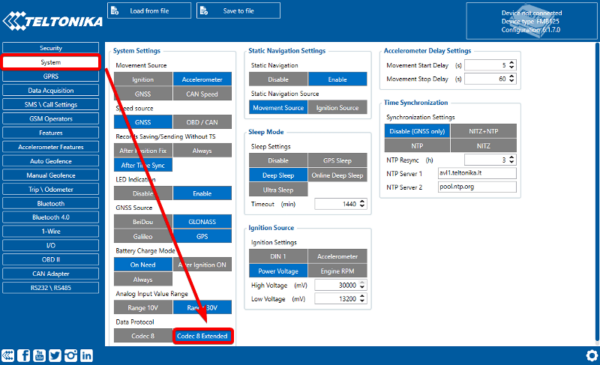
* Vaya a la **Sistema** pestaña.
* Cambie el protocolo de transferencia de datos a **Codec 8 Extended** (consulte la nota a continuación para saber por qué esto es necesario).
4. **Conectar el sensor de combustible**:
* Vaya al **Bluetooth** pestaña del configurador.
* Conecte el sensor de combustible al dispositivo GPS.
5. **Habilitar los parámetros necesarios**:
* Vaya a la **E/S** pestaña.
* Asegúrese de que el parámetro correspondiente al sensor de combustible esté habilitado.
{% hint style="warning" %}
**Codec 8 Extended** es el protocolo de comunicación propietario de Teltonika que admite hasta 65,535 parámetros de datos (IDs AVL), lo que permite una transmisión de datos más detallada en comparación con Codec 8 estándar, que admite solo 255.
{% endhint %}
## Configuración del sensor en Navixy
Una vez que el dispositivo GPS esté conectado y transmitiendo datos de combustible, siga estos pasos para configurar los sensores correspondientes en la plataforma Navixy.
{% stepper %}
{% step %}
### Crear un nuevo sensor de medición
1. Vaya a Dispositivos → Sensores y botones.
2. Haga clic en Crear un nuevo [sensor de medición](/docs/user/es/guide/devices-and-settings/vehicle-sensors/measurement-sensors.md).
{% endstep %}
{% step %}
### Configurar el sensor
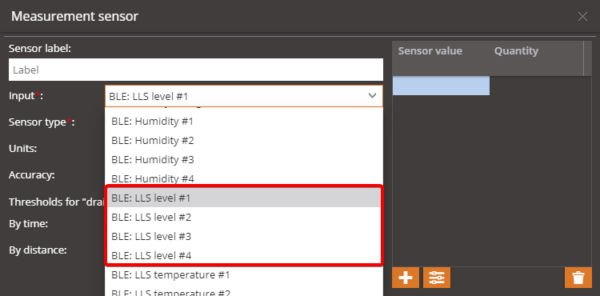
1. Seleccione la entrada etiquetada "BLE: nivel LLS".
2. Configure el tipo y las unidades del sensor. Si es necesario, complete la tabla de calibración y ajuste otras configuraciones.
{% endstep %}
{% step %}
### Repetir para sensores adicionales
Si tiene varios sensores de combustible, repita el proceso de configuración para cada sensor, seleccionando la entrada adecuada para cada uno.
{% endstep %}
{% step %}
### Monitorear y generar reportes
Una vez configurado, podrá monitorear el nivel de combustible en el widget correspondiente de la plataforma. También podrá generar reportes detallados sobre el consumo de combustible.
{% endstep %}
{% endstepper %}
---
# Agent Instructions
This documentation is published with GitBook. GitBook is the documentation platform designed so that both humans and AI agents can read, navigate, and reason over technical content effectively. Learn more at gitbook.com.
## Querying This Documentation
If you need additional information that is not directly available in this page, you can query the documentation by asking a question.
Perform an HTTP GET request on the following URL with the `ask` and `goal` query parameters:
```
GET https://navixy.com/docs/user/es/guide/devices-and-settings/vehicle-sensors/specialized-sensors-by-manufacturer/teltonika-sensors/ble-fuel-level-sensors-teltonika.md?ask=&goal=
```
`ask` is the immediate question: it should be specific, self-contained, and written in natural language.
`goal` is what the user is ultimately trying to achieve, the reason they need the answer. Sharing it helps GitBook give you a better, more relevant answer. A goal is most helpful when it describes the outcome the user wants rather than restating the question. For example, with `ask=how do I create an API token`, a goal like `automate deployments from our CI pipeline` lets GitBook tailor the answer to that use case.
The response will contain a direct answer to the question and relevant excerpts and sources from the documentation.
Use this mechanism when the answer is not explicitly present in the current page, you need clarification or additional context, or you want to retrieve related documentation sections.