> For the complete documentation index, see [llms.txt](https://navixy.com/docs/llms.txt). Markdown versions of documentation pages are available by appending `.md` to page URLs; this page is available as [Markdown](https://navixy.com/docs/user/es/guide/x-gps-mobile-apps/x-gps-monitor/quick-start.md).
# Inicio rápido
Descargue X-GPS Monitor desde Google Play o la App Store y luego inicie sesión con sus credenciales de Navixy para comenzar a monitorear su flota en el móvil.
{% columns %}
{% column %}
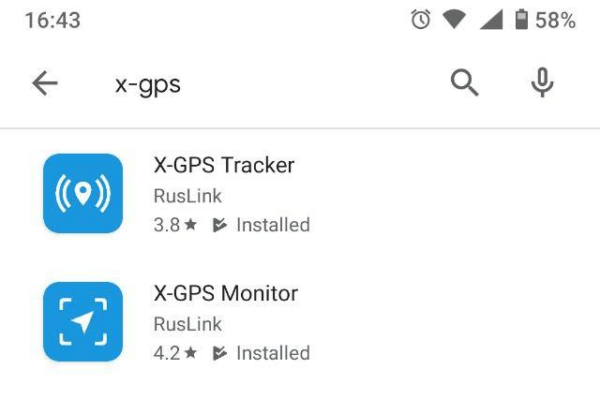
Puede descargar la aplicación gratis desde Google Play o App Store.
Vaya a la tienda y escriba X-GPS en el campo de búsqueda.
Seleccione **X-GPS Monitor** y haga clic en "Instalar".
{% endcolumn %}
{% column %}
{% endcolumn %}
{% endcolumns %}
### Iniciar sesión
{% columns %}
{% column %}
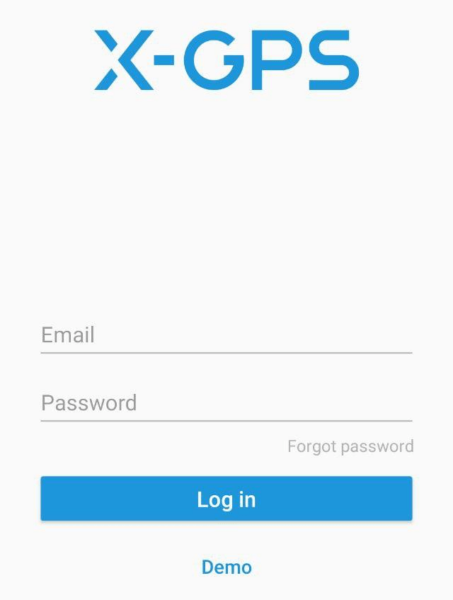
En el primer inicio, la aplicación le ofrecerá escanear un código QR. Para obtener el código QR, haga clic en el  botón debajo del [formulario de inicio de sesión de la plataforma Navixy](https://tracking.navixy.com/).
Después de escanear el código QR, introduzca su nombre de usuario y contraseña y haga clic en el **Iniciar sesión** botón.
Si olvidó su contraseña, haga clic en el botón correspondiente, introduzca su dirección de correo electrónico y el captcha. Después de eso, recibirá un correo electrónico con un enlace para restablecer su contraseña.
Después de iniciar sesión correctamente, verá la pantalla del mapa.
{% endcolumn %}
{% column %}
{% endcolumn %}
{% endcolumns %}
### Herramientas principales
{% columns %}
{% column %}
Los siguientes elementos están disponibles en la pantalla principal:
1. **Barra lateral.** Al presionar un botón, aparece un menú donde puede acceder a información sobre el usuario, el saldo, la lista de dispositivos y otros controles.
2. **Mostrar rastreadores.** Haga clic para seleccionar qué rastreadores mostrar: todos, uno o un Grupo. También puede activar **Seguir el Objeto**, y el mapa se centrará automáticamente en un dispositivo.
3. **Tipo de mapa.** Le permite seleccionar de la lista de mapas disponibles y también activar la visualización del tráfico.
4. **Lista de notificaciones.** Muestra todas las notificaciones sin leer.
5. **Mostrar ubicación.** Centre el mapa en su ubicación actual.
6. **Escala.** Puede cambiar la escala del mapa con los botones "+" y "-".
{% endcolumn %}
{% column %}

{% endcolumn %}
{% endcolumns %}
---
# Agent Instructions
This documentation is published with GitBook. GitBook is the documentation platform designed so that both humans and AI agents can read, navigate, and reason over technical content effectively. Learn more at gitbook.com.
## Querying This Documentation
If you need additional information that is not directly available in this page, you can query the documentation by asking a question.
Perform an HTTP GET request on the following URL with the `ask` and `goal` query parameters:
```
GET https://navixy.com/docs/user/es/guide/x-gps-mobile-apps/x-gps-monitor/quick-start.md?ask=&goal=
```
`ask` is the immediate question: it should be specific, self-contained, and written in natural language.
`goal` is what the user is ultimately trying to achieve, the reason they need the answer. Sharing it helps GitBook give you a better, more relevant answer. A goal is most helpful when it describes the outcome the user wants rather than restating the question. For example, with `ask=how do I create an API token`, a goal like `automate deployments from our CI pipeline` lets GitBook tailor the answer to that use case.
The response will contain a direct answer to the question and relevant excerpts and sources from the documentation.
Use this mechanism when the answer is not explicitly present in the current page, you need clarification or additional context, or you want to retrieve related documentation sections.
botón debajo del [formulario de inicio de sesión de la plataforma Navixy](https://tracking.navixy.com/).
Después de escanear el código QR, introduzca su nombre de usuario y contraseña y haga clic en el **Iniciar sesión** botón.
Si olvidó su contraseña, haga clic en el botón correspondiente, introduzca su dirección de correo electrónico y el captcha. Después de eso, recibirá un correo electrónico con un enlace para restablecer su contraseña.
Después de iniciar sesión correctamente, verá la pantalla del mapa.
{% endcolumn %}
{% column %}

{% endcolumn %}
{% endcolumns %}
### Herramientas principales
{% columns %}
{% column %}
Los siguientes elementos están disponibles en la pantalla principal:
1. **Barra lateral.** Al presionar un botón, aparece un menú donde puede acceder a información sobre el usuario, el saldo, la lista de dispositivos y otros controles.
2. **Mostrar rastreadores.** Haga clic para seleccionar qué rastreadores mostrar: todos, uno o un Grupo. También puede activar **Seguir el Objeto**, y el mapa se centrará automáticamente en un dispositivo.
3. **Tipo de mapa.** Le permite seleccionar de la lista de mapas disponibles y también activar la visualización del tráfico.
4. **Lista de notificaciones.** Muestra todas las notificaciones sin leer.
5. **Mostrar ubicación.** Centre el mapa en su ubicación actual.
6. **Escala.** Puede cambiar la escala del mapa con los botones "+" y "-".
{% endcolumn %}
{% column %}

{% endcolumn %}
{% endcolumns %}
---
# Agent Instructions
This documentation is published with GitBook. GitBook is the documentation platform designed so that both humans and AI agents can read, navigate, and reason over technical content effectively. Learn more at gitbook.com.
## Querying This Documentation
If you need additional information that is not directly available in this page, you can query the documentation by asking a question.
Perform an HTTP GET request on the following URL with the `ask` and `goal` query parameters:
```
GET https://navixy.com/docs/user/es/guide/x-gps-mobile-apps/x-gps-monitor/quick-start.md?ask=&goal=
```
`ask` is the immediate question: it should be specific, self-contained, and written in natural language.
`goal` is what the user is ultimately trying to achieve, the reason they need the answer. Sharing it helps GitBook give you a better, more relevant answer. A goal is most helpful when it describes the outcome the user wants rather than restating the question. For example, with `ask=how do I create an API token`, a goal like `automate deployments from our CI pipeline` lets GitBook tailor the answer to that use case.
The response will contain a direct answer to the question and relevant excerpts and sources from the documentation.
Use this mechanism when the answer is not explicitly present in the current page, you need clarification or additional context, or you want to retrieve related documentation sections.