> For the complete documentation index, see [llms.txt](https://navixy.com/docs/llms.txt). Markdown versions of documentation pages are available by appending `.md` to page URLs; this page is available as [Markdown](https://navixy.com/docs/user/guide/account/iot-logic/nodes/initiate-attribute-node.md).
# Initiate Attribute
Create new data attributes from incoming telemetry using the Navixy Expression Language. Rename parameters, apply formulas, and enrich data before forwarding.
## Technical overview and capabilities
{% columns %}
{% column %}
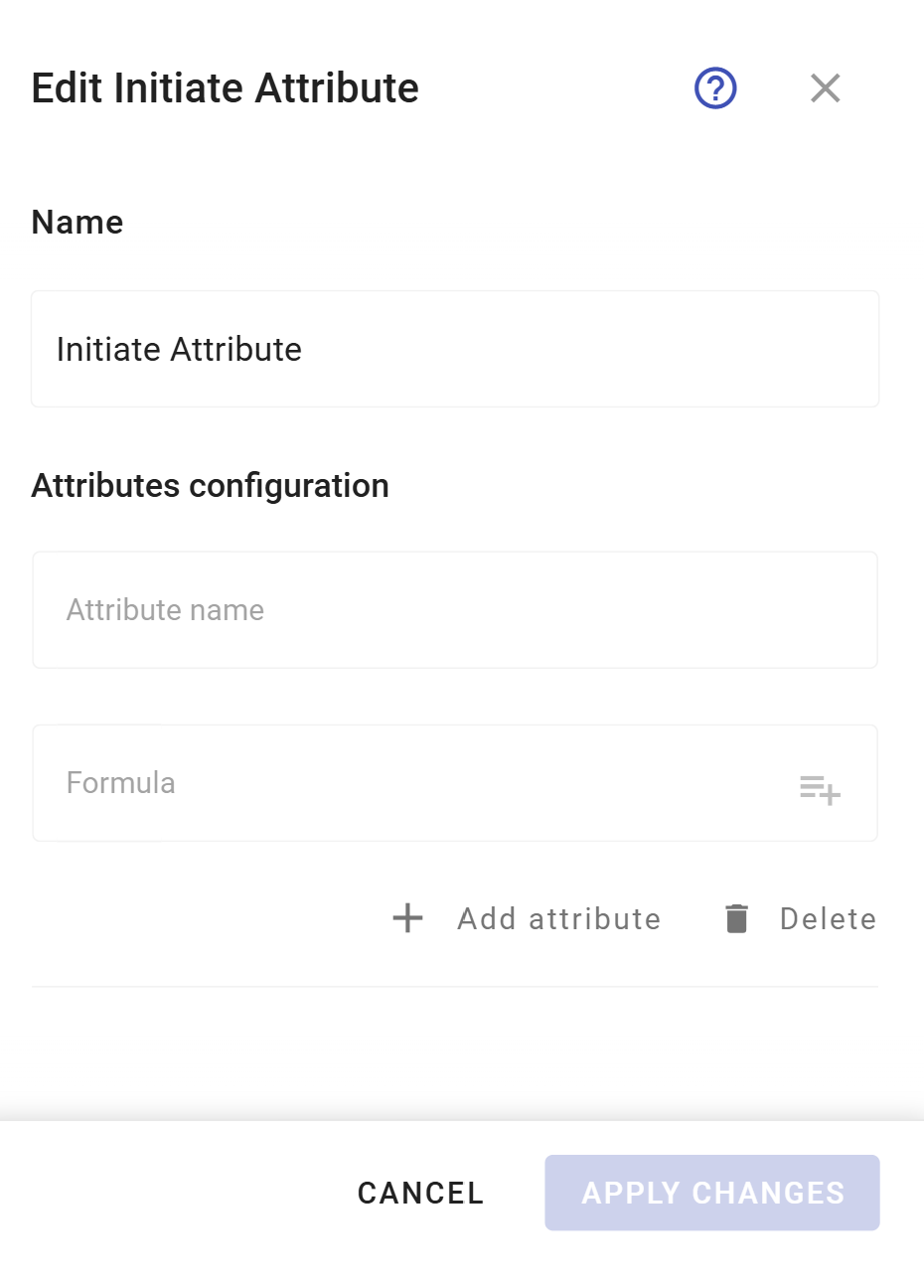
In IoT Logic, **Initiate Attribute** node transforms device readings by creating new data attributes based on incoming telemetry. This node enables you to manipulate data through mathematical formulas, rename existing parameters, and perform bit-level operations using the [Navixy Expression Language](/docs/iot-logic-api/technologies/navixy-iot-logic-expression-language.md). The node serves as a key component in a flow, allowing you to enrich data before sending it to your target systems.
{% endcolumn %}
{% column %}

{% endcolumn %}
{% endcolumns %}
**Initiate Attribute** node is configured for each flow in the Navixy platform UI. For specific syntax options and detailed expression language reference, see [Navixy Expression Language](/docs/iot-logic-api/technologies/navixy-iot-logic-expression-language.md) in the user documentation.
### Flow architecture integration
**Initiate Attribute** node functions within the flow architecture by providing data transformation capabilities and enabling:
* Processing raw telemetry data into meaningful business metrics
* Creating calculated fields based on multiple parameter values
* Converting units of measurement (e.g., kilometers to miles)
* Computing differences between current and previous readings
* Generating time-based analytics on device behavior
{% hint style="info" %}
The Initiate attribute node requires at least one **Data Source** node to be connected to it. No calculations will be performed without input data connections.
{% endhint %}
### Node capabilities
The **Initiate Attribute** node by itself offers:
* **Data attribute transformation**: Create completely new attributes by applying mathematical operations to the ones coming from data sources
* **Unit conversion**: Convert measurement units (e.g., speed from *km/h* to *mph*, or temperature from *°C* to *°F*)
* **Time-based calculations**: Compare current readings with previous values to determine changes
* **Time manipulation**: Customize timestamps for when attribute was generated on a device and when it was received by the server to avoid timeline inconsistencies and unify time formats
* **Geofence lookup**: Write the name of the geofence a device is in into an attribute with `geofenceName()`, a paid option. See [Geofence functions](/docs/user/guide/account/iot-logic/nodes/geofence-functions.md)
## Configuration options
{% columns %}
{% column valign="middle" %}
**Initiate Attribute** node allows you to define how device parameters are transformed into attributes, which will be available for further processing in your data flow.
{% endcolumn %}
{% column %}
{% endcolumn %}
{% endcolumns %}
Let's see what elements this node uses and what you can configure when working with it:
### Configuration steps
{% stepper %}
{% step %}
#### Specify node Name
Enter a descriptive name to highlight the node’s purpose. Use a name that helps you identify the calculations that will be made within this node, it will be displayed in the flow diagram for easy identification.
{% endstep %}
{% step %}
#### Define Attribute name
Add a distinctive identifier of the attribute.
* This name will be displayed in [Data Stream Analyzer](/docs/user/guide/account/iot-logic/data-stream-analyzer.md),
* You can also use this name to create custom sensors in the [Tracking](/docs/user/guide/tracking.md) module. To do it, the **Initiate Attribute** node containing this attribute must be connected to an **Output Endpoint** node set to **Default endpoint** mode.
{% endstep %}
{% step %}
#### Define Formula
Add mathematical expressions to calculate attribute values.
* Use `value('parameter_name' 0, 'valid')` format to reference existing device parameters.\
**Note**. Click  inside the **Formula** field to open the list of available attributes and select the needed one. It will be added to the field automatically in the ready-to-use format. For details on autofilling attribute names, see [Autofill attribute names](/docs/user/guide/account/iot-logic/nodes/initiate-attribute-node/managing-attributes.md#autofill-attribute-names).
* Apply mathematical operations based on [Navixy IoT Logic Expression Language](/docs/iot-logic-api/technologies/navixy-iot-logic-expression-language.md) to transform values.
* Use different depth index values to access historical values (the default is 0).
* Handle values that might be missing. If a value that the formula needs is missing, the formula produces nothing, and the attribute then has no value for that packet. See [Missing values in expressions](/docs/user/guide/account/iot-logic/nodes/missing-values-in-expressions.md).
{% endstep %}
{% step %}
#### (optional) Add more attributes
Click **Add Attribute** to open a new attribute configuration dialog. Here you can create a new data attribute if you need multiple calculations to be performed within the same node.
{% endstep %}
{% step %}
#### Save the node configuration
Click **Apply changes** to complete the node creation.
{% endstep %}
{% endstepper %}
Let's look at a practical example of configuring attributes:
{% columns %}
{% column valign="middle" %}
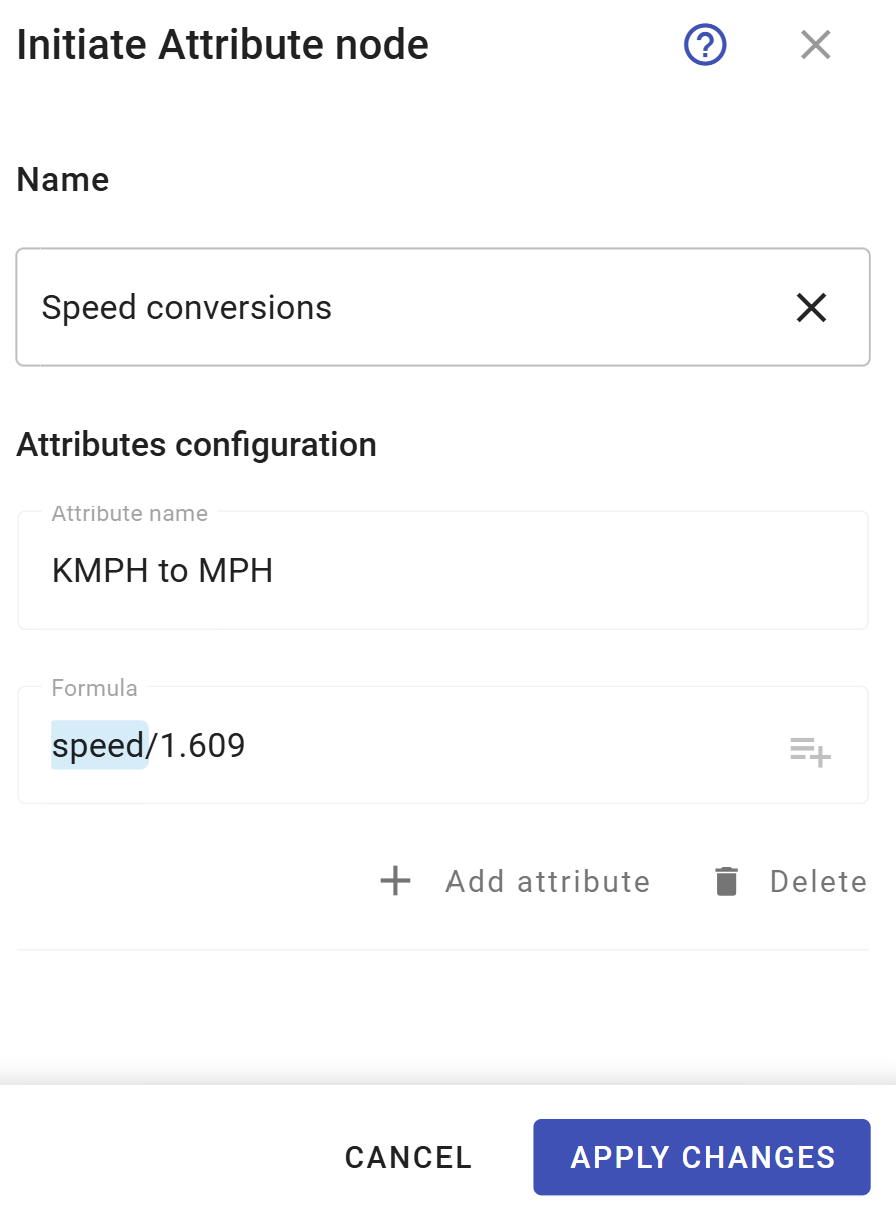
This example creates an attribute that converts speed from kilometers to miles per hour by dividing the CAN speed parameter by 1.609.
For details on calculations for new attributes, see [Calculation examples](/docs/user/guide/account/iot-logic/nodes/initiate-attribute-node/calculation-examples.md).
Also, you can find a detailed example of using calculated attributes in a flow in [Flow configuration example → steps 3 and 4](/docs/user/guide/account/iot-logic/flow-management/flow-configuration-example.md#flow-configuration-steps).
{% endcolumn %}
{% column %}
{% endcolumn %}
{% endcolumns %}
## Display options
New attributes calculated within **Initiate Attribute** node can be monitored just like the actual data attributes coming from devices in **Data Stream Analyzer (DSA)** and the **Tracking** module.
For more information on the display options, see [Displaying new calculated attributes on the Navixy platform](/docs/user/guide/account/iot-logic/nodes/initiate-attribute-node/displaying-new-calculated-attributes-on-the-navixy-platform.md).
## Data flow considerations
After configuring your **Initiate Attribute** node, make sure to:
1. Connect the node to at least one **Data Source** node as input
2. Connect the output to an **Output Endpoint** node to send the transformed data
Inside the **Initiate Attribute** node, parameter values are processed according to your expressions each time the device provides data. On output, you'll receive:
* All original device parameters
* All calculated attributes with their values
* Updated generation time and server time values as configured
If you use the same name for a calculated attribute as an existing parameter, the attribute replaces the original parameter in the output data packet.
An attribute whose formula couldn't be calculated has no value for that packet. Nothing marks it as an error. If the attribute uses the same name as a device parameter, the original parameter value stays in the packet instead, so the packet looks normal and the calculation silently didn't happen. See [Missing values in expressions](/docs/user/guide/account/iot-logic/nodes/missing-values-in-expressions.md).
## Frequently asked questions
#### Can I reference non-latest values in my calculations?
Yes. Use the index parameter in the value function to access historical values. For example, `value('temperature', 1, 'valid')` refers to the previous valid value of the temperature parameter.
#### How do I perform calculations involving time?
Use the `genTime()` and `srvTime()` functions to work with timestamps. You can calculate time differences, add time offsets, or format timestamps for display.
#### What happens if I delete an attribute?
The attribute is no longer calculated for newly received data, but historical data remains unchanged. The attribute doesn't appear in any new data packets after deletion.
#### Can I use attributes created in one Initiate attribute node in another?
Yes. Attributes created earlier in the flow can be referenced in subsequent **Initiate Attribute** nodes, allowing for multi-stage calculations. All created attributes are also available using the [autofill feature](/docs/user/guide/account/iot-logic/nodes/initiate-attribute-node/managing-attributes.md#autofill-attribute-names) to ensure correct naming.
#### How do I avoid typos when referencing attribute names in formulas?
Use the autofill feature in the Formula field to select from available attributes. For detailed instructions, see [Autofill attribute names](/docs/user/guide/account/iot-logic/nodes/initiate-attribute-node/managing-attributes.md#autofill-attribute-names).
#### Why is one of my calculated attributes sometimes missing?
The formula couldn't be calculated for those packets, most often because a value that it reads was missing from the packet. The attribute then has no value, and no error is reported. See [Missing values in expressions](/docs/user/guide/account/iot-logic/nodes/missing-values-in-expressions.md).
---
# Agent Instructions
This documentation is published with GitBook. GitBook is the documentation platform designed so that both humans and AI agents can read, navigate, and reason over technical content effectively. Learn more at gitbook.com.
## Querying This Documentation
If you need additional information that is not directly available in this page, you can query the documentation by asking a question.
Perform an HTTP GET request on the following URL with the `ask` and `goal` query parameters:
```
GET https://navixy.com/docs/user/guide/account/iot-logic/nodes/initiate-attribute-node.md?ask=&goal=
```
`ask` is the immediate question: it should be specific, self-contained, and written in natural language.
`goal` is what the user is ultimately trying to achieve, the reason they need the answer. Sharing it helps GitBook give you a better, more relevant answer. A goal is most helpful when it describes the outcome the user wants rather than restating the question. For example, with `ask=how do I create an API token`, a goal like `automate deployments from our CI pipeline` lets GitBook tailor the answer to that use case.
The response will contain a direct answer to the question and relevant excerpts and sources from the documentation.
Use this mechanism when the answer is not explicitly present in the current page, you need clarification or additional context, or you want to retrieve related documentation sections.