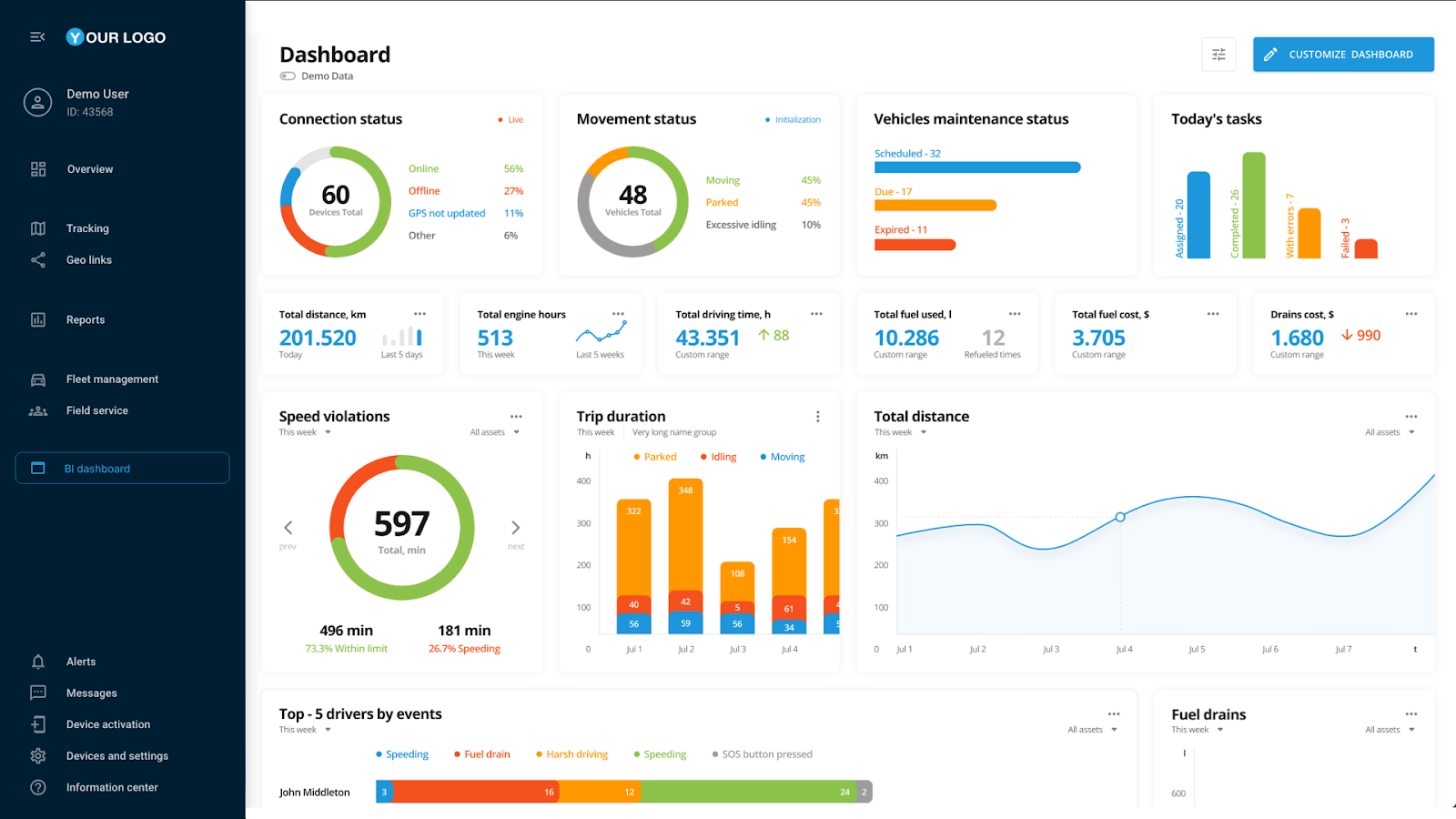
Embedded User application view example
 button in the **User applications** list. In the appeared configuration form, proceed with the following steps:
{% stepper %}
{% step %}
## Set up the URL
Specify your application URL, the address where your application is hosted, it serves as the foundation for the integration.
{% hint style="danger" %}
* Ensure the URL is valid, uses an HTTPS connection, leads to a trustworthy resource, and contains no more than 1000 characters.
* Make sure the application has the iFrame setting enabled on its side, otherwise you won't be able to open it in the platform interface.
{% endhint %}
{% endstep %}
{% step %}
## Configure basic parameters
To personalize your application, you can include various parameters in the URL. You can manually add parameters in the URL field or use one of our suggestions: language, user ID, or time zone. Click on a parameter suggestion to add it to the end of the URL. Expand the description below to learn more about the suggested parameters and examples.
button in the **User applications** list. In the appeared configuration form, proceed with the following steps:
{% stepper %}
{% step %}
## Set up the URL
Specify your application URL, the address where your application is hosted, it serves as the foundation for the integration.
{% hint style="danger" %}
* Ensure the URL is valid, uses an HTTPS connection, leads to a trustworthy resource, and contains no more than 1000 characters.
* Make sure the application has the iFrame setting enabled on its side, otherwise you won't be able to open it in the platform interface.
{% endhint %}
{% endstep %}
{% step %}
## Configure basic parameters
To personalize your application, you can include various parameters in the URL. You can manually add parameters in the URL field or use one of our suggestions: language, user ID, or time zone. Click on a parameter suggestion to add it to the end of the URL. Expand the description below to learn more about the suggested parameters and examples.
 to display a preview.
{% endhint %}
{% endstep %}
{% step %}
## Adjust appearance
Create a recognizable identity for your application to make it easy to access. The following settings will help you to do so:
* **Label**: Add a unique, descriptive name for your app (up to 24 characters). It is shown in the platform sidebar.
* **Description**: Add a brief explanation with details about the app’s functionality or highlight important information (up to 50 characters). An informative description helps your users to get a clearer understanding of the app’s purpose.
* **Icon**: Select an icon that represents your application's function for even more native navigation.
{% endstep %}
{% step %}
## Select display method
Decide how your application opens by choosing one of the two options in the **Open in** dropdown:
* **Embedded**: App appears within the platform interface
* **New tab**: App opens in a separate browser tab
{% hint style="info" %}
The Navixy platform uses iFrame for embedding. Since not all URLs can be successfully processed with this technology, be sure to preview the embedding result. If you encounter any issues with this display method, consider using **New tab**.
{% endhint %}
{% endstep %}
{% step %}
## Set up authentication (optional)
Configure authentication if your application relies on the platform’s API. In this case, the platform will provide the authentication data directly to the application when it is opened, eliminating the need to implement additional login functionality on your application side.\
You can choose one of the two authentication methods:
* **API key**
* This method is for applications where role management or user permissions are not required.
* The API key corresponds to the account owner’s access level. This means providing a common user with an API key may grant them access to **all data** available to the main user.\
For example, if your application works with GPS devices to which a user has limited rights or no access at all, using the API key still exposes all GPS devices from the main account.
* **Session key**
* This method is recommended when role management is involved.
* Transmits the current user session key to the application.
{% hint style="info" %}
Selecting the **API key** method automatically disables the **Session key** method, and vice versa. Only one method can be used at a time.
{% endhint %}
When authentication is enabled, the platform appends the `?session_key=` parameter to your application’s URL.
* If you’ve selected an **API key**, the parameter’s value contains this key.
* If you’ve opted for a **Session key**, the parameter value includes the key of the current user session from which the application is being accessed.
Make sure the application is capable of reading and using this parameter.
{% endstep %}
{% step %}
## Save the new application
Click the **Save** button. Your application appears in the **User applications** list and the platform sidebar. Enabled applications automatically become available to the account users.
{% endstep %}
{% endstepper %}
to display a preview.
{% endhint %}
{% endstep %}
{% step %}
## Adjust appearance
Create a recognizable identity for your application to make it easy to access. The following settings will help you to do so:
* **Label**: Add a unique, descriptive name for your app (up to 24 characters). It is shown in the platform sidebar.
* **Description**: Add a brief explanation with details about the app’s functionality or highlight important information (up to 50 characters). An informative description helps your users to get a clearer understanding of the app’s purpose.
* **Icon**: Select an icon that represents your application's function for even more native navigation.
{% endstep %}
{% step %}
## Select display method
Decide how your application opens by choosing one of the two options in the **Open in** dropdown:
* **Embedded**: App appears within the platform interface
* **New tab**: App opens in a separate browser tab
{% hint style="info" %}
The Navixy platform uses iFrame for embedding. Since not all URLs can be successfully processed with this technology, be sure to preview the embedding result. If you encounter any issues with this display method, consider using **New tab**.
{% endhint %}
{% endstep %}
{% step %}
## Set up authentication (optional)
Configure authentication if your application relies on the platform’s API. In this case, the platform will provide the authentication data directly to the application when it is opened, eliminating the need to implement additional login functionality on your application side.\
You can choose one of the two authentication methods:
* **API key**
* This method is for applications where role management or user permissions are not required.
* The API key corresponds to the account owner’s access level. This means providing a common user with an API key may grant them access to **all data** available to the main user.\
For example, if your application works with GPS devices to which a user has limited rights or no access at all, using the API key still exposes all GPS devices from the main account.
* **Session key**
* This method is recommended when role management is involved.
* Transmits the current user session key to the application.
{% hint style="info" %}
Selecting the **API key** method automatically disables the **Session key** method, and vice versa. Only one method can be used at a time.
{% endhint %}
When authentication is enabled, the platform appends the `?session_key=` parameter to your application’s URL.
* If you’ve selected an **API key**, the parameter’s value contains this key.
* If you’ve opted for a **Session key**, the parameter value includes the key of the current user session from which the application is being accessed.
Make sure the application is capable of reading and using this parameter.
{% endstep %}
{% step %}
## Save the new application
Click the **Save** button. Your application appears in the **User applications** list and the platform sidebar. Enabled applications automatically become available to the account users.
{% endstep %}
{% endstepper %}
Embedded User application view example