> For the complete documentation index, see [llms.txt](https://navixy.com/docs/llms.txt). Markdown versions of documentation pages are available by appending `.md` to page URLs; this page is available as [Markdown](https://navixy.com/docs/user/guide/devices-and-settings/object-management/commands.md).
# Commands
Define custom device and software commands for a GPS device in Navixy and send them on demand from the Object widget.
The **Commands** block lets you define custom commands for a device in Navixy and send them on demand from the device's [Object widget](/docs/user/guide/tracking/objects-list/object-widget.md) or the [X-GPS Mobile](/docs/user/guide/x-gps-mobile-apps/x-gps-mobile.md) app. Use it to send a firmware-level instruction directly to a device, such as sending a CAN command or activating an output, or to call any external system that accepts HTTP requests, such as a Slack channel, a notification service, a CRM, or a custom API endpoint. Once configured, commands can be dispatched with a single click.
The Commands block supports two command types:
* **Device command** sends a protocol-level instruction string directly to the device, for example to send a CAN command or activate an output.
* **Software command** sends an HTTP POST request with a JSON body to any URL, optionally including current device data such as location, speed, or device ID in the payload.
Commands are saved per device and remain available for repeated use.
{% hint style="info" %}
**When to use Commands vs. IoT Logic**
Commands is designed for ad-hoc, manual actions targeting a single device. Use it when you need to send a one-off command without configuring an automation flow.
For automated, rule-based command sending, such as triggering a device action or a webhook when a sensor threshold is crossed, or sending the same command across multiple devices, use [IoT Logic](/docs/user/guide/account/iot-logic.md). The **Device action** and **Webhook** nodes in IoT Logic provide the same underlying capabilities with full flow automation and multi-device targeting.
{% endhint %}
## Configuration
To configure Commands for a device, follow these steps:
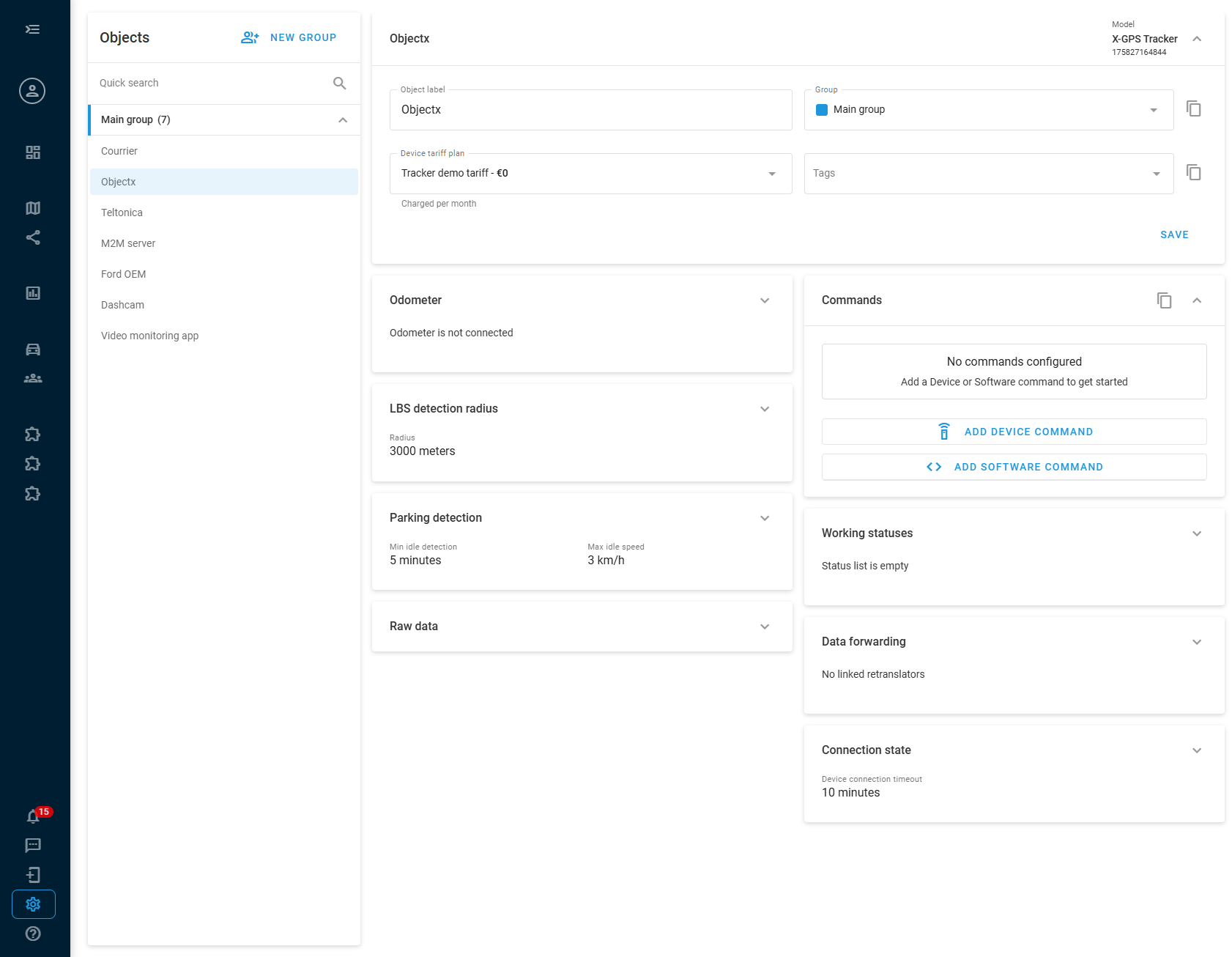
1. Go to **Devices and settings** in the left sidebar.
2. Select the device you want to configure.
3. Locate and expand the **Commands** block.
You can add multiple commands of each type. Each command is saved individually.
### Device commands
A **device command** sends a protocol-level instruction string directly to the device over its communication channel.
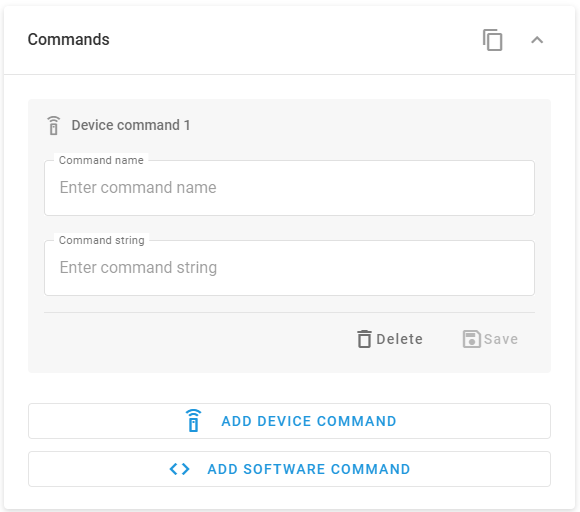
To add a device command, click **Add device command** at the bottom of the block. Configure the following fields:
1. **Command name**: a label for the command as it appears in the Object widget, for example `device reboot`. Choose a name that clearly describes what the command does.
2. **Command string**: the exact instruction string that is sent to the device, for example `cpureset`.
{% hint style="warning" %}
Valid command strings are device-specific and defined by the device manufacturer. Always refer to the official documentation for your device model to find the correct command strings. Entering incorrect values may have unintended effects on the device.
{% endhint %}
Click **Save** to store the command. Click **Delete** to remove it.
### Software commands
A **software command** sends an HTTP POST request with a JSON body to a URL you specify. This can be an external service endpoint, such as Slack, a custom webhook receiver, or any REST API, or a Navixy API endpoint.
The request body is JSON and must be structured according to what the destination endpoint expects. You can include device data attributes in the body using the `{{attribute_name}}` syntax.
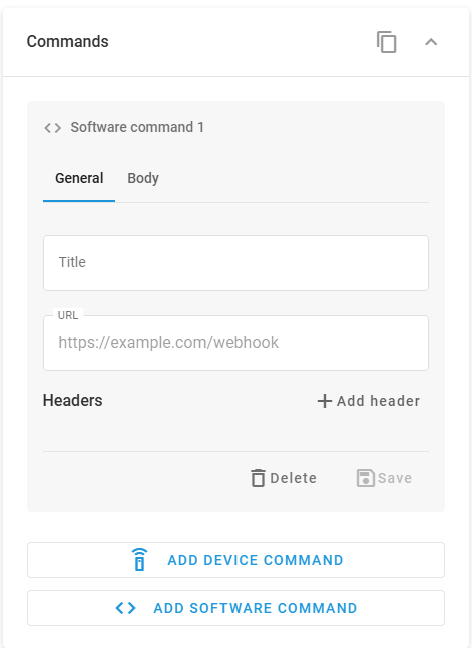
Software commands are configured across two tabs: **General** and **Body**.
To add a software command, click **Add software command** at the bottom of the block.
#### General tab
{% columns %}
{% column width="58.333333333333336%" %}
Configure the following:
1. **Title**: a label for the command as it appears in the Object widget.
2. **URL**: the full endpoint URL where the POST request is sent, for example `https://hooks.slack.com/services/...` or `https://api.eu.navixy.com/v2/...`.
3. **Headers**: key-value pairs sent as HTTP request headers. Add headers as needed for the destination endpoint. Click **Add header** to insert a new row.
* Use the `Authorization` header for token-based authentication, for example `Authorization` set to `Bearer your_token`.
* Other authentication methods supported by the destination, such as API keys passed as query parameters in the URL, can also be used.
{% endcolumn %}
{% column width="41.666666666666664%" %}
{% endcolumn %}
{% endcolumns %}
#### Body tab
{% columns %}
{% column width="58.333333333333336%" %}
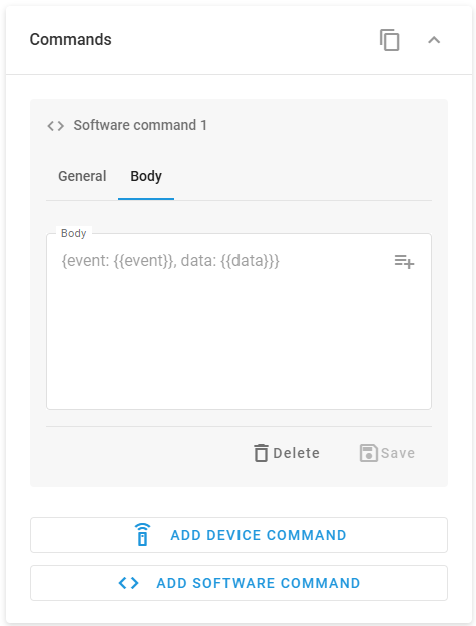
The **Body** field is where you compose the JSON payload. Write valid JSON that matches the format expected by the destination endpoint.
To include live device data in the payload, use the `{{attribute_name}}` syntax. Click the attribute picker button at the top-right of the body field to open a searchable list of available attributes for the device. Selecting an attribute inserts the corresponding `{{attribute_name}}` placeholder into the body at the cursor position.
{% endcolumn %}
{% column width="41.666666666666664%" %}
{% endcolumn %}
{% endcolumns %}
{% hint style="info" %}
The available attributes depend on the specific device and the data it transmits to the Navixy platform. Only attributes actually sent by the device appear in the list. Use the picker to avoid typos or incorrect attribute names.
{% endhint %}
Click **Save** to store the command. Click **Delete** to remove it.
#### Example: sending a Slack notification
Slack supports receiving messages from external services via Incoming Webhooks. Once you have set up a webhook in your Slack workspace and obtained the webhook URL (see the [Slack Incoming Webhooks guide](https://docs.slack.dev/messaging/sending-messages-using-incoming-webhooks/)), create a software command with the following configuration.
**General tab:**
* **Title**: `Notify Slack`
* **URL**: your Slack Incoming Webhook URL, for example `https://hooks.slack.com/services/T00000000/B00000000/XXXXXXXXXXXX`
* **Headers**: no headers required
**Body tab:**
{% code overflow="wrap" %}
```json
{
"text": "Device {{device_id}}: speed {{speed}} km/h at {{latitude}}, {{longitude}}"
}
```
{% endcode %}
Slack expects a JSON object with a `text` field. The `{{device_id}}`, `{{speed}}`, `{{latitude}}`, and `{{longitude}}` placeholders are replaced with the current values for the device at the moment the command is sent. When triggered from the Object widget, the message appears in the Slack channel configured for your webhook.
### Dynamic command values
A command string or software command body can include a single `<>` placeholder to prompt for a value each time you send the command, instead of hard-coding a fixed value.
* In a device command, add `<>` inside the **Command string** field, for example `relay,<>` to send a different relay state on each send.
* In a software command, add `<>` inside the **Body** field, for example `{"value": "<>"}`.
Only one `<>` placeholder is allowed per command. Saving a command with more than one placeholder returns the error "Only one value is allowed per command. Remove the extra < >."
When you send a command that contains `<>` from the Object widget, a dialog asks for the value before dispatch. See [Sending commands from the Object widget](#sending-commands-from-the-object-widget) for the full flow.
{% hint style="info" %}
Click the help icon in the Commands block to open **How command values work**, a summary of the `<>` syntax.
{% endhint %}
## Sending commands from the Object widget
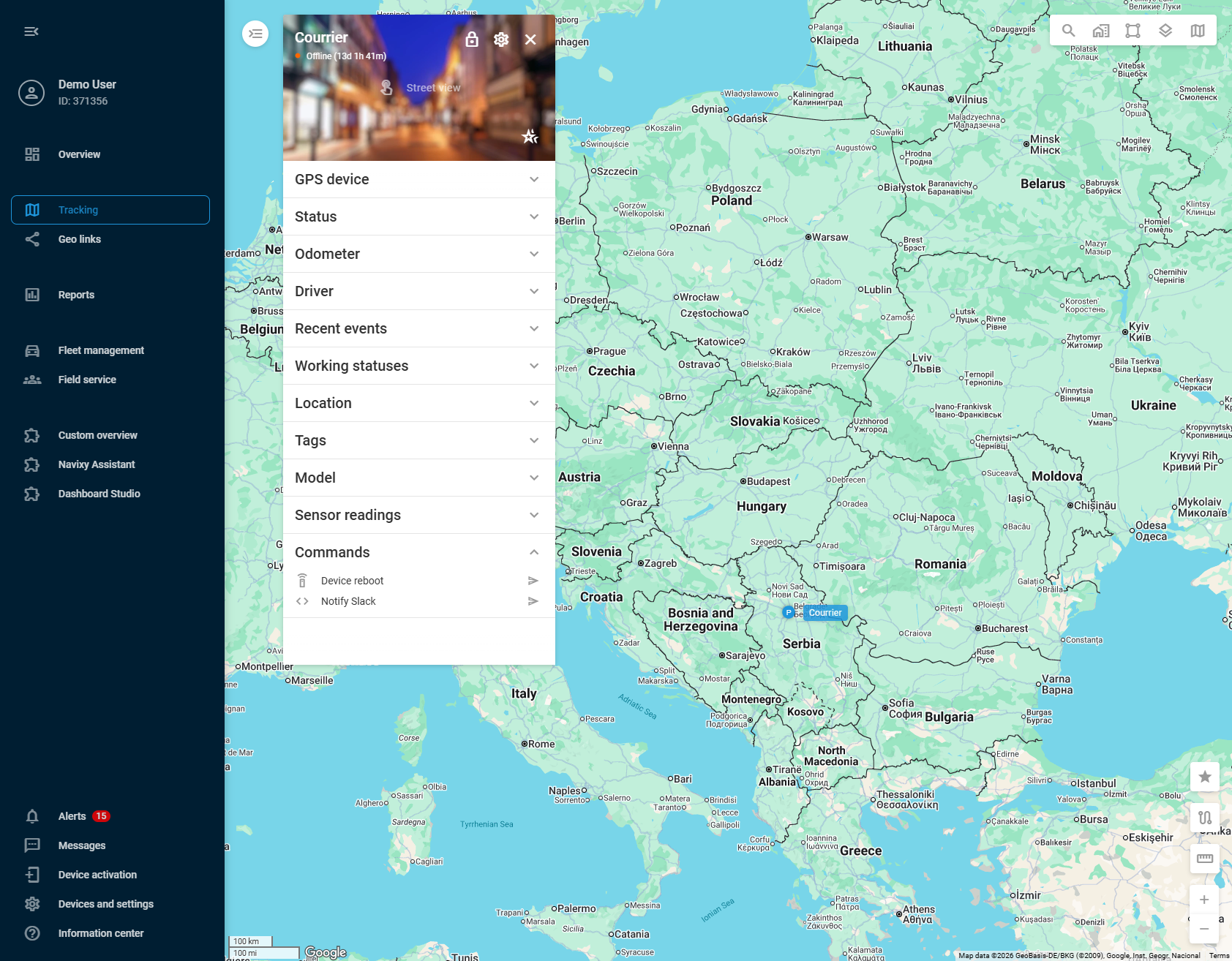
Once commands are saved, they appear in the **Commands** block of the device's [Object widget](/docs/user/guide/tracking/objects-list/object-widget.md) in the Tracking module.
Click the **send** button next to a command name to dispatch it. The Commands block shows all device commands and software commands configured for that device.
* If the command doesn't contain a [dynamic value placeholder](#dynamic-command-values), Navixy sends it immediately. There is no confirmation dialog.
* If the command contains `<>`, a dialog opens asking you to enter a value. Enter a value of up to 500 characters and click **Send** to dispatch the command with the value substituted for `<>`. The **Send** button stays disabled until you enter a value, and empty or whitespace-only values aren't accepted.
After the command runs, Navixy shows a notification with the result:
* **Device commands** show only whether the command succeeded, as `{ "success": true }` or `{ "success": false }`.
* **Software commands** show the command name and the raw response from the destination endpoint, as `{status, body}`. Long responses scroll inside the notification.
Sent commands also appear in the [Recent events](/docs/user/guide/tracking/objects-list/object-widget.md#data-blocks) block of the Object widget, with their result available in an expandable view. If the command included a [dynamic value placeholder](#dynamic-command-values), the entry's title also shows the value that was sent, for example `Update status `.
{% hint style="info" %}
Commands are per-device. Commands configured for one device do not appear in other devices' Object widgets. To send commands to multiple devices based on rules or conditions, use IoT Logic.
{% endhint %}
---
# Agent Instructions
This documentation is published with GitBook. GitBook is the documentation platform designed so that both humans and AI agents can read, navigate, and reason over technical content effectively. Learn more at gitbook.com.
## Querying This Documentation
If you need additional information that is not directly available in this page, you can query the documentation by asking a question.
Perform an HTTP GET request on the following URL with the `ask` and `goal` query parameters:
```
GET https://navixy.com/docs/user/guide/devices-and-settings/object-management/commands.md?ask=&goal=
```
`ask` is the immediate question: it should be specific, self-contained, and written in natural language.
`goal` is what the user is ultimately trying to achieve, the reason they need the answer. Sharing it helps GitBook give you a better, more relevant answer. A goal is most helpful when it describes the outcome the user wants rather than restating the question. For example, with `ask=how do I create an API token`, a goal like `automate deployments from our CI pipeline` lets GitBook tailor the answer to that use case.
The response will contain a direct answer to the question and relevant excerpts and sources from the documentation.
Use this mechanism when the answer is not explicitly present in the current page, you need clarification or additional context, or you want to retrieve related documentation sections.
 at the top-right of the body field to open a searchable list of available attributes for the device. Selecting an attribute inserts the corresponding `{{attribute_name}}` placeholder into the body at the cursor position.
{% endcolumn %}
{% column width="41.666666666666664%" %}
at the top-right of the body field to open a searchable list of available attributes for the device. Selecting an attribute inserts the corresponding `{{attribute_name}}` placeholder into the body at the cursor position.
{% endcolumn %}
{% column width="41.666666666666664%" %}