> For the complete documentation index, see [llms.txt](https://navixy.com/docs/llms.txt). Markdown versions of documentation pages are available by appending `.md` to page URLs; this page is available as [Markdown](https://navixy.com/docs/user/guide/devices-and-settings/vehicle-sensors/specialized-sensors-by-manufacturer/teltonika-sensors/ble-beacons-teltonika.md).
# BLE Beacons (Teltonika)
Configure Teltonika BLE beacons in Navixy as temperature, magnet detection, or driver ID sensors. Works without wiring, with battery life up to 19 years.
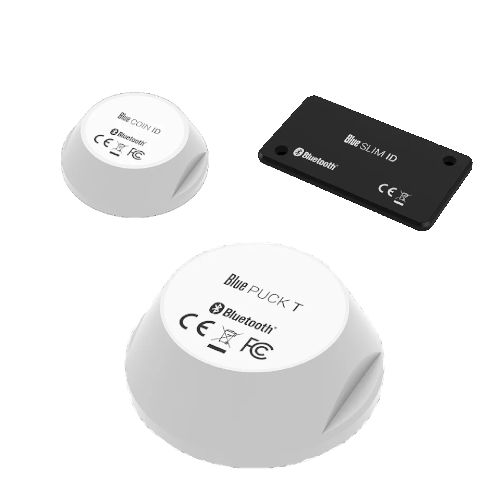
Teltonika BLE beacons are versatile devices that can collect data on temperature, magnetic state, and transmit their identifiers over long distances, reaching up to 200 meters in open areas.
These beacons use **Bluetooth Low Energy** technology (BLE 4.0+, a short-range wireless standard optimized for low power consumption), allowing them to run for extended periods on their internal batteries: up to 2 years for SLIM (card-sized) models, up to 5 years for COIN (small disc) models, and up to 19 years for PUCK (large rugged) models.
The beacons are housed in IP68-rated cases (sealed against dust and safe to submerge in water).
## Supported beacon models
* **Blue COIN MAG**: Small magnetic beacon
* **Blue PUCK MAG**: Large magnetic beacon
* **Blue COIN ID**: Small ID beacon
* **Blue PUCK ID**: Large ID beacon
* **Blue SLIM ID**: Card-sized beacon for employee identification
* **Blue COIN T**: Small temperature beacon
* **Blue PUCK T**: Large temperature beacon
### Temperature sensors
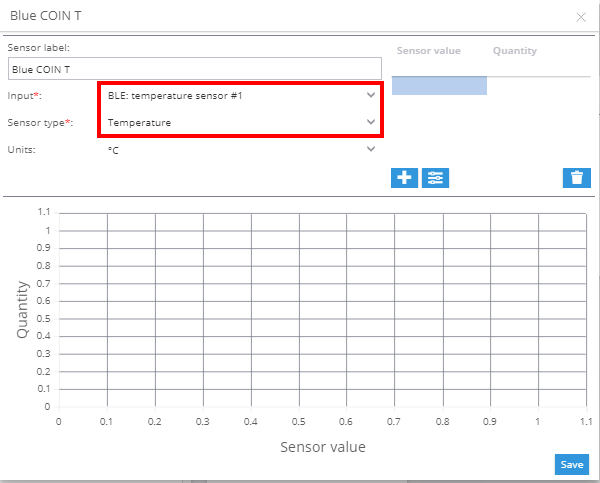
To add a temperature sensor:
1. Navigate to the measuring sensors section in the input tab.
2. Select **BLE: Temperature** as the input type.
3. Choose **Temperature** as the sensor type.
### Magnetic sensors
Magnetic (MAG) beacons detect whether a magnet is present or absent, useful for monitoring container doors, toolbox lids, or other assets. Configure them as a virtual sensor using the **Source value** method:
1. Navigate to **Sensors and buttons** and click **+** → **Virtual sensor**.
2. Select the **BLE: Magnetic field** input that corresponds to the beacon's slot number.
3. Choose **Source value** as the calculation method.
4. Map the two states (for example, `0` → `Open`, `1` → `Closed`) and save.
The sensor status appears in the **Sensor readings** block of the [Object widget](/docs/user/guide/tracking/objects-list/object-widget.md).
### Driver identification sensors
ID beacons (COIN ID, PUCK ID, SLIM ID) work like iButton or RFID but over Bluetooth. No physical reader required. When a beacon comes within range of the GPS device, its identifier is read automatically. Configure them as a virtual sensor using the **Source value** method:
1. Navigate to **Sensors and buttons** and click **+** → **Virtual sensor**.
2. Select the **BLE: Hardware key** input.
3. Choose **Source value** as the calculation method.
4. Map each beacon's MAC address or identifier to a driver name and save.
Once configured, the identified driver appears in the **Sensor readings** block and can be used in driver identification rules.
**See also:**
* [Assigning driver ID keys in the Driver’s profile](/docs/user/guide/fleet-management/drivers.md)
* [Driver identification (Rules and notifications)](/docs/user/guide/events-and-notifications/scheduling-and-dispatching/driver-identification.md)
---
# Agent Instructions
This documentation is published with GitBook. GitBook is the documentation platform designed so that both humans and AI agents can read, navigate, and reason over technical content effectively. Learn more at gitbook.com.
## Querying This Documentation
If you need additional information that is not directly available in this page, you can query the documentation dynamically by asking a question.
Perform an HTTP GET request on the current page URL with the `ask` query parameter, and the optional `goal` query parameter:
```
GET https://navixy.com/docs/user/guide/devices-and-settings/vehicle-sensors/specialized-sensors-by-manufacturer/teltonika-sensors/ble-beacons-teltonika.md?ask=&goal=
```
`ask` is the immediate question: it should be specific, self-contained, and written in natural language.
`goal` is optional and describes the broader end goal you are ultimately trying to accomplish on behalf of the user. GitBook uses it to tailor the answer towards what is most useful for that goal.
The response will contain a direct answer to the question and relevant excerpts and sources from the documentation.
Use this mechanism when the answer is not explicitly present in the current page, you need clarification or additional context, or you want to retrieve related documentation sections.