Virtual sensors
Virtual sensors in Navixy convert raw telemetry into plain labels, derive ignition from voltage, and map multi-value device states to readable indicators.
Virtual sensors allow you to process telemetry data more effectively. By mapping board voltage, they can help you calculate engine hours based on set conditions and values. Additionally, they allow you to convert multiple data points from different sensors connected to a device into easier-to-understand indicators such as "hot," "cold," "open" and "closed," regardless of the device's manufacturer or model.

Availability
Available when the device has inputs or states to derive values from. Each device supports up to 100 virtual sensors.
How to create a virtual sensor
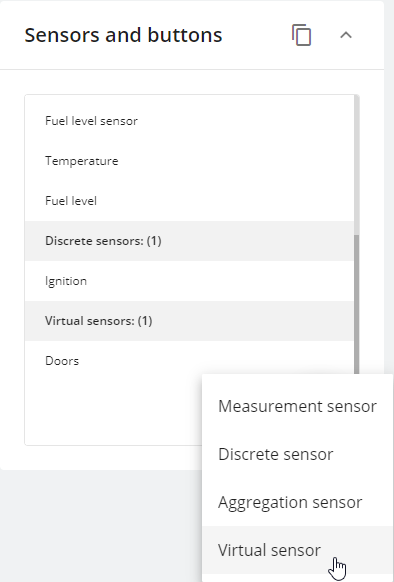
Virtual sensors can be created via the Sensors and buttons block located in the Devices and settings module. To create a virtual sensor:
Enter the devices and settings section
Select a GPS device
Click the + button
Select Virtual sensor
Every device may have up to 100 virtual sensors.

The next steps depend on the use case that should be solved via the virtual sensor. Below you can find examples and instructions for different calculation methods.
Calculation methods
Virtual sensors have three different calculation types:
Value in range
Source value
Bit index
All values for virtual sensors must match the form in which they are received from the device. All states are your definitions for these values.
This section describes how different calculation methods work. Click on the calculation method name to expand.
Value in range
This type of virtual sensor helps customers keep important parameters such as virtual ignition, temperature, humidity, and fuel level within a specified range.
Here's how it works:
If the sensor value is inside the specified boundaries (the min/max range you set), Navixy treats it as 1 (meaning the condition is active) and displays your A label.
If the sensor value is outside that range, Navixy treats it as 0 (condition is inactive) and displays your B label.
Example of virtual ignition
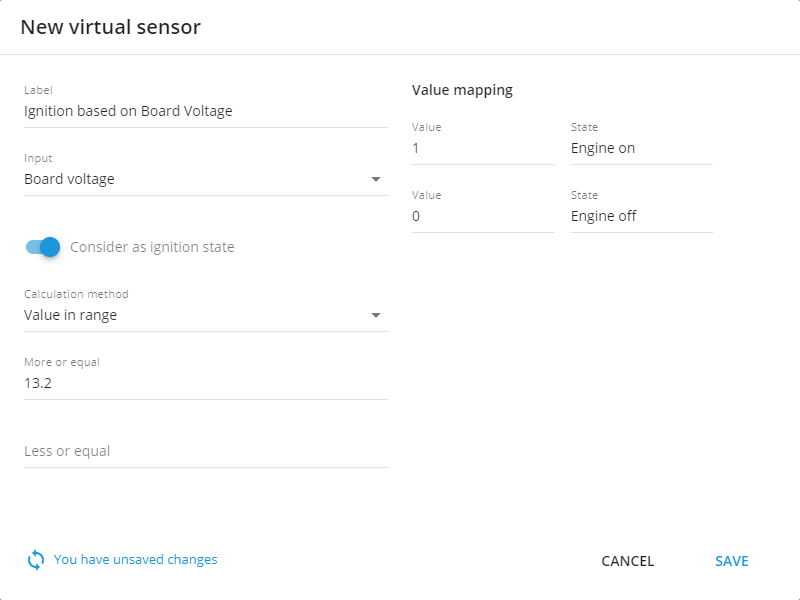
If you don't have an ignition input or your device is already running at full capacity, you can use a virtual ignition tool to detect the ignition state. The onboard voltage of the car increases significantly when the engine is switched on, allowing the voltage threshold to be used as an indicator of whether or not the engine is running. Generally, the board voltage should exceed 13.2 V to indicate that the engine is functioning.
To create this sensor:
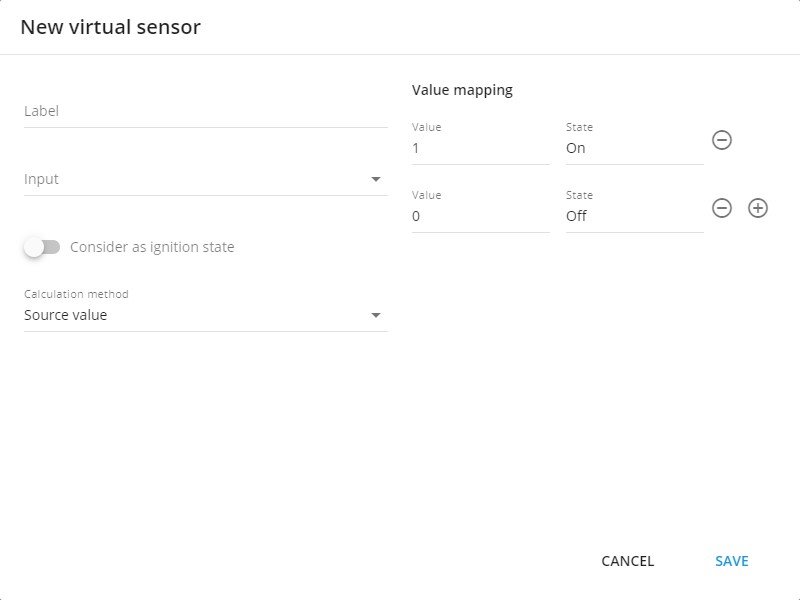
Start by giving it a name.
Set the input to Board voltage or any other sensor if needed.
Enable Consider as ignition state in the settings.
Choose “Value in range” as the calculation method.
Specify a minimum range value, such as 13.2V. Maximum isn’t necessary there since the board voltage can vary with ignition on.
Finally, set the 0 and 1 state values. Usually, they are on and off, respectively.

Once you set your voltage threshold range, if the incoming on-board value is within that range, the platform switches the ignition state on. Conversely, if it's outside of that range, it is switched off. The virtual ignition created using this method is also taken into account in reports and notifications based on its status. For example, you can use it to generate engine hours reports or alerts for excessive idling.
Additionally, this ignition is used for trip and parking detection with ignition consideration.
Example with an analog sensor
This example is similar to the previous one, but instead of monitoring the vehicle's ignition, it monitors temperature.
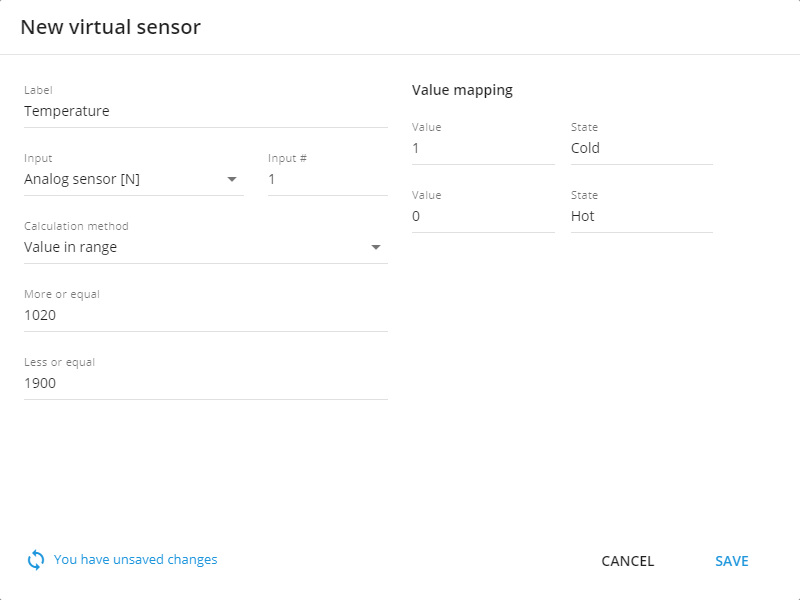
Suppose you have an analog sensor that collects temperature data. Let's say it outputs 1020 for -10°C, and 1900 = 0°C. The data coming from the analog sensors is non-calibrated and so must also be specified in this form for the virtual sensor.
The range can be configured: anything between 1020 and 1900 would be categorized as "cold" (1), and anything above 1900 would be considered "hot" (0).

Source value
With virtual sensors, you can assign your definition to any received values. This method works with predefined sets of values and strings, which makes it easy to work with static values without having to specify different ranges. In addition, it can work with any data you need. For example:
0/1,
true/false,
on/off,
open/close,
armed/disarmed,
state 1/state 2/state 3,
key 1/key 2/key 3, etc.
The mode works like this:
when value 1 comes in, that's your value A.
when value 2 comes in, that's your value B.
and when value 3 arrives, that's your C value and so on.
Let’s illustrate this type of functionality with a specific example.
Example with car CAN readings
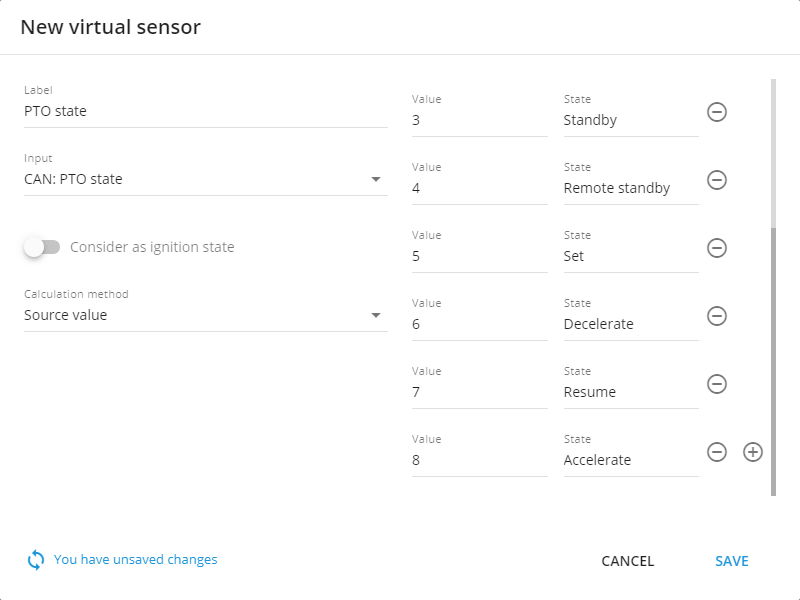
Some CAN sensors may provide different numerical values to the Navixy platform. For instance, a truck with a CAN: PTO state sensor may output only the following values:
0: Off
1: Hold
2: Remote hold
3: Standby
4: Remote Standby
5: Set
6: Decelerate
7: Resume
8: Accelerate
To configure this sensor:
Enter its name.
Choose the input.
Consider as ignition state should be toggled off.
Select Source value as the calculation method.
Fill out the table with your own values on the left side and its respective sensor values on the right. Add rows by clicking the + button and delete them using the trash can button.

Hardware key readings for drivers, equipment, and trailers
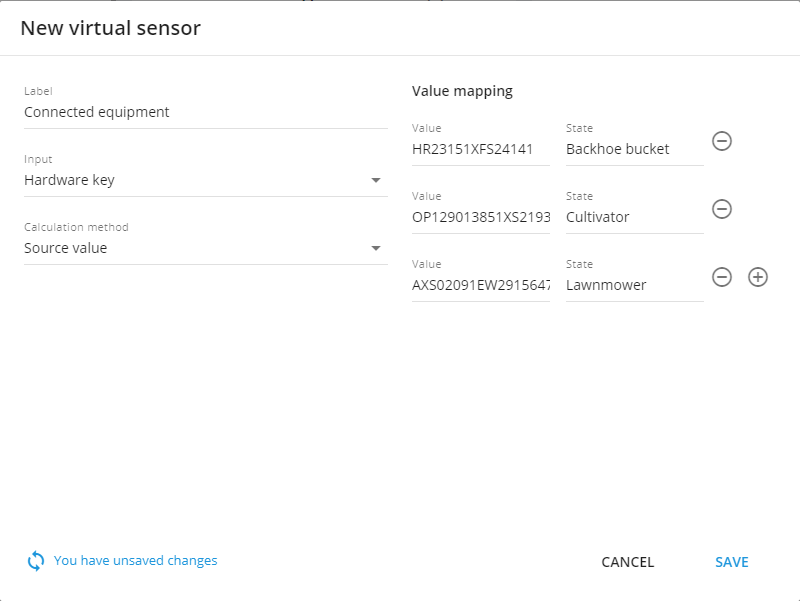
Some devices may be able to read drivers and their iButtons, RFID keys, or equipment connected via Bluetooth sensors to the device. The platform can detect the nearest equipment or driver to the device, and the Virtual Sensor is capable of displaying such names.
The simplest way of identification is through tags: each unit connected to heavy equipment has its own sensor with a tag attached, which is recognized by the platform as a hardware key. When connected to the machine, this key is sent to the platform and its associated name can be displayed in an understandable manner, similar to how values for PTO were named.

Bit index
Some devices may provide advanced data in their packets, sometimes merging several parameters into one value. The Virtual Sensors tool allows you to work with individual bits within those combined values, decoding what each position means according to the device's protocol.
For example, the transmitted value is 011. Devices like this encode multiple states into a single number using a bit-by-bit layout read right-to-left (little-endian order, as defined in the device protocol):
Bit 0 (rightmost digit): value 1 means the driver's belt is unfastened (0 = fastened, 1 = unfastened).
Bit 1 (middle digit): value 1 means the driver's door is open (0 = closed, 1 = open).
Bit 2 (leftmost digit): value 0 means the hood is closed (0 = closed, 1 = open).
Each bit position encodes a different vehicle system state. To configure and display them, create one virtual sensor for each parameter you want to track.
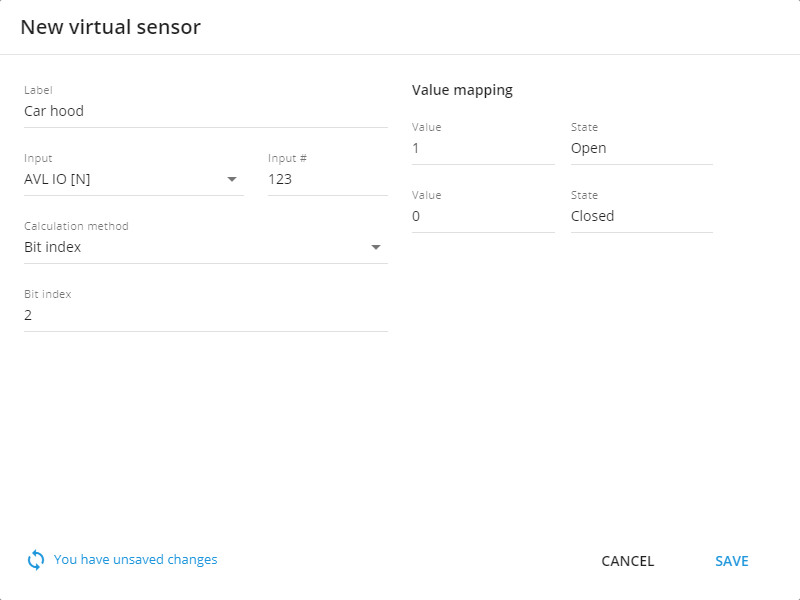
For a sensor that shows the condition of the car hood in this example:
Set the sensor’s name
Choose the input according to the device’s documentation
Select Bit index as the calculation method (this tells Navixy to read a single bit position from the combined value)
Choose bit 2 for this field (the position that encodes the hood state)
Below is an example of a sensor that shows the condition of the car hood.

Once a virtual sensor is configured and its associated device sensor has provided data, it can be viewed in the Sensor readings widget on the device's Information tab.
Last updated
Was this helpful?