> For the complete documentation index, see [llms.txt](https://navixy.com/docs/llms.txt). Markdown versions of documentation pages are available by appending `.md` to page URLs; this page is available as [Markdown](https://navixy.com/docs/user/guide/devices-and-settings/vehicle-sensors/virtual-sensors/eye-sensor-configuration.md).

# Eye sensor configuration

Set up virtual sensors in Navixy for Teltonika Eye accessories to expose motion state, temperature, humidity, and magnet data collected over Bluetooth.

This page shows how to set up virtual sensors for [Teltonika Eye Sensors](https://teltonika-gps.com/products/accessories/sensors-beacons/eye), which record temperature, humidity, motion, and magnet state data. Motion state, in particular, requires a virtual sensor to become accessible in Navixy.

## Availability

Available on Teltonika devices paired with Eye BLE sensors.

## Sensor configuration on a device

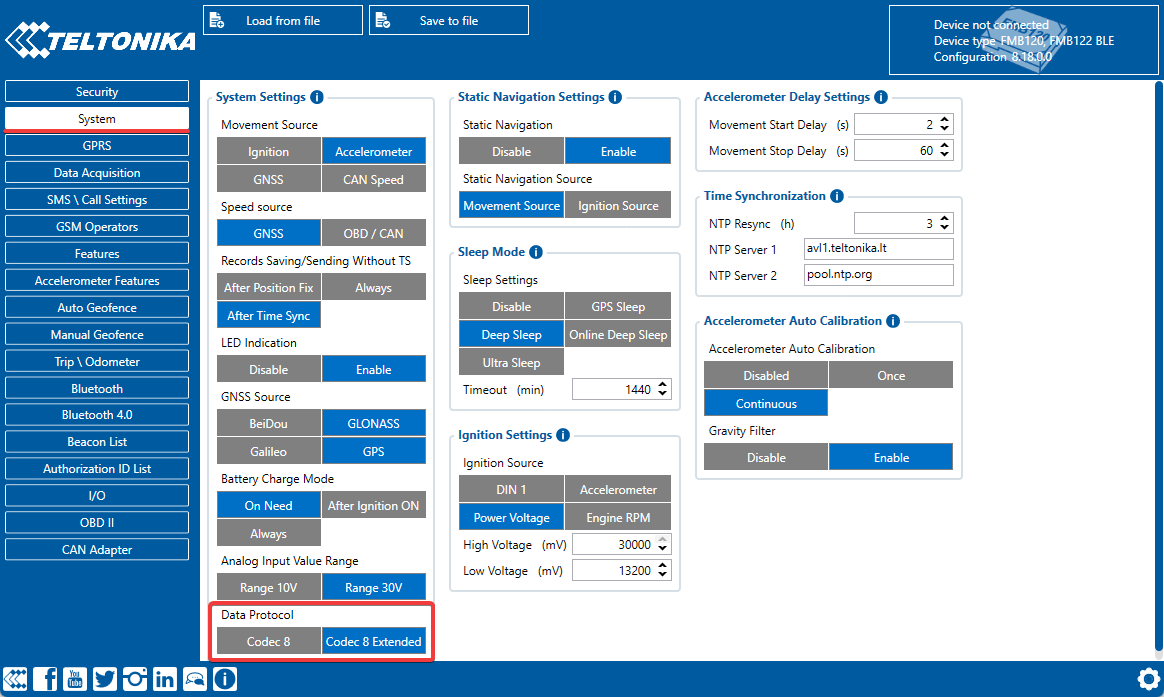
To configure data transmission from the sensor to the Navixy platform, use the [Teltonika Configurator](https://wiki.teltonika-gps.com/view/Teltonika_Configurator_Introduction). Make sure to [download the version](https://wiki.teltonika-gps.com/view/Teltonika_Configurator_versions) that corresponds to the current firmware and device model. Once you've downloaded and launched the configurator, navigate to the system settings and select the **Codec 8 Extended** data protocol (Teltonika's extended data format that supports far more sensor parameters than the standard Codec 8).

<figure><img src="https://www.navixy.com/wp-content/uploads/2023/03/1-4.png" alt="Enabling Codec 8 Extended in the Teltonika configurator"><figcaption><p>Enabling Codec 8 Extended in the Teltonika configurator</p></figcaption></figure>

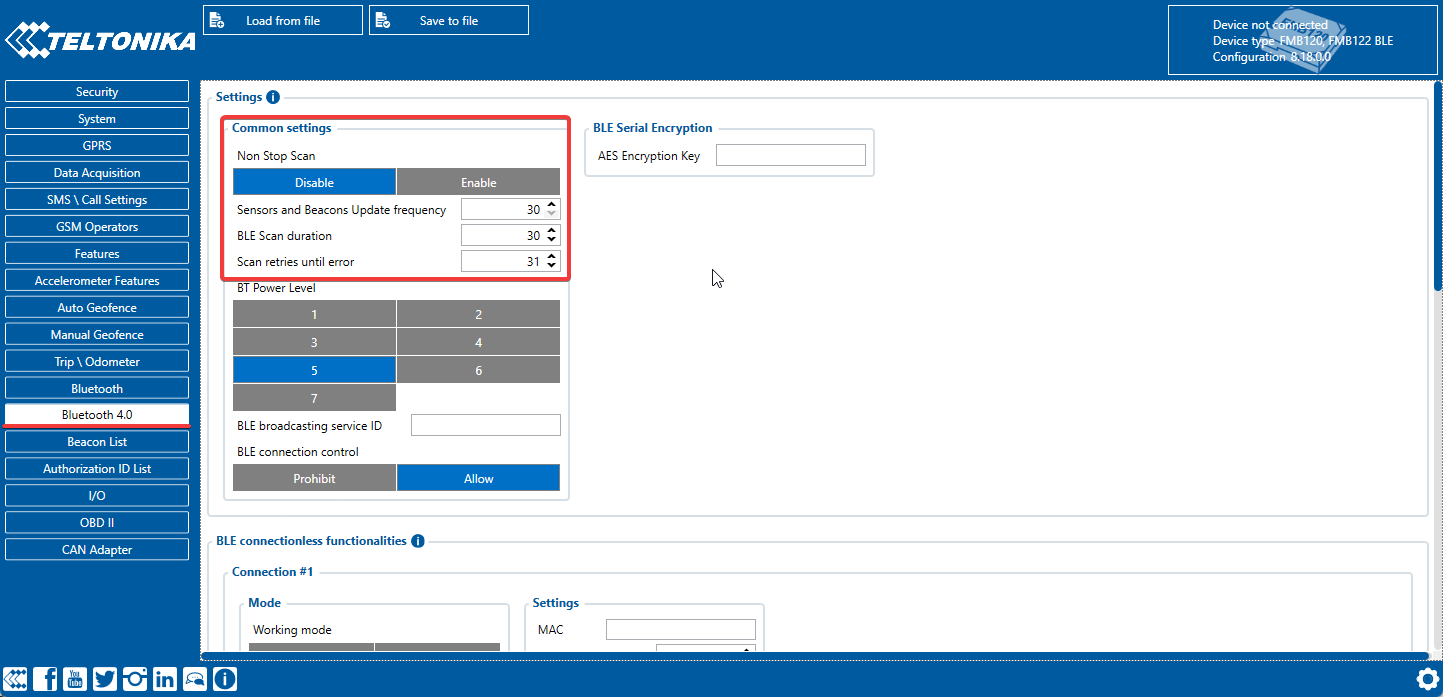
In the Bluetooth 4.0 section, disable the **Non-Stop Scan** feature and set the **Update Frequency** and **Scan Duration** to every 30 seconds.

<figure><img src="https://www.navixy.com/wp-content/uploads/2023/03/2-4.png" alt="Scan frequency for BLE sensors"><figcaption><p>Scan frequency for BLE sensors</p></figcaption></figure>

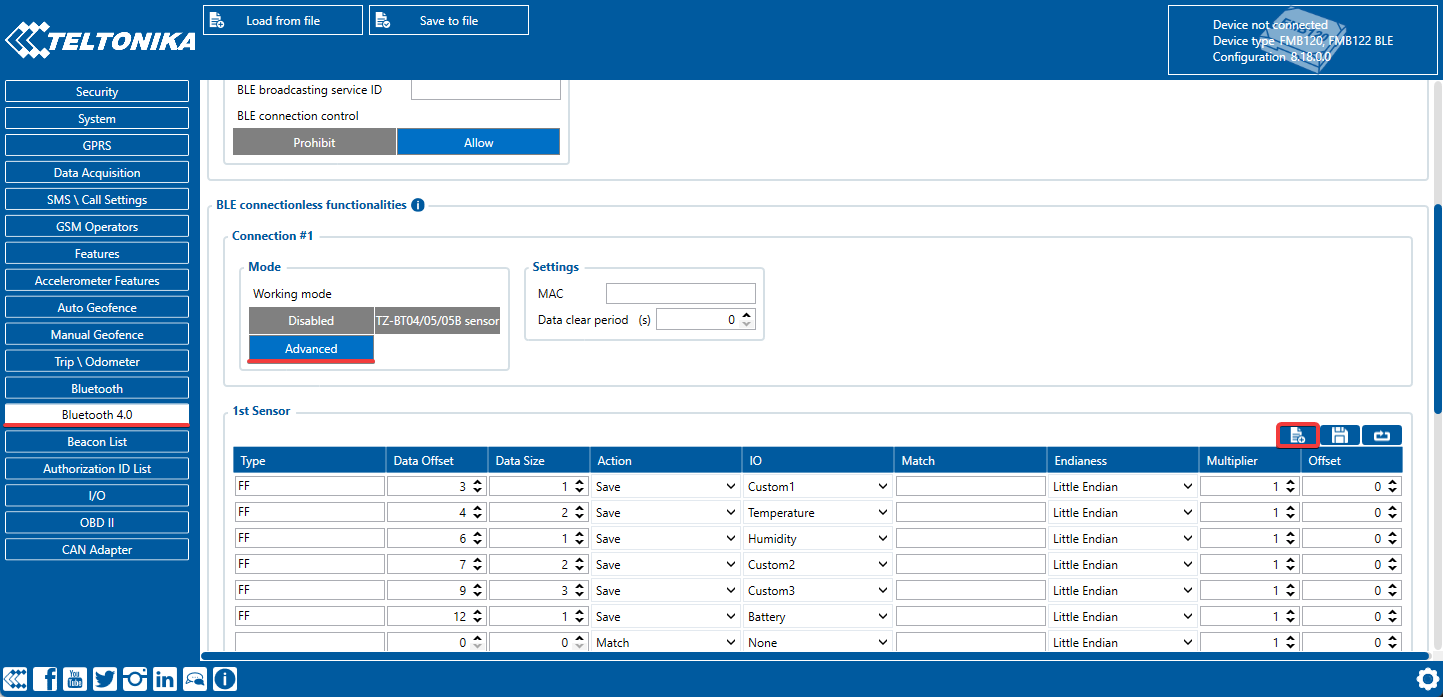
Next, select the **Connection #** and set the operating mode to **Advanced**. This provides access to detailed settings for the sensor. Look for the buttons located in the top right-hand corner and select the **Preset list**. This enables you to streamline the setup process for the sensor.

<figure><img src="https://www.navixy.com/wp-content/uploads/2023/03/3-2.png" alt="Setting the Advanced mode for the sensor and the location of the Preset list button"><figcaption><p>Setting the Advanced mode for the sensor and the location of the Preset list button</p></figcaption></figure>

Once you click the preset list button, a new window opens displaying a selection of available sensors. Choose the one that you're currently using, such as the **Eye sensor**. This table automatically configures all the necessary settings. Afterwards, navigate to the I/O tab to configure data transmission from these sensors within your device packets.

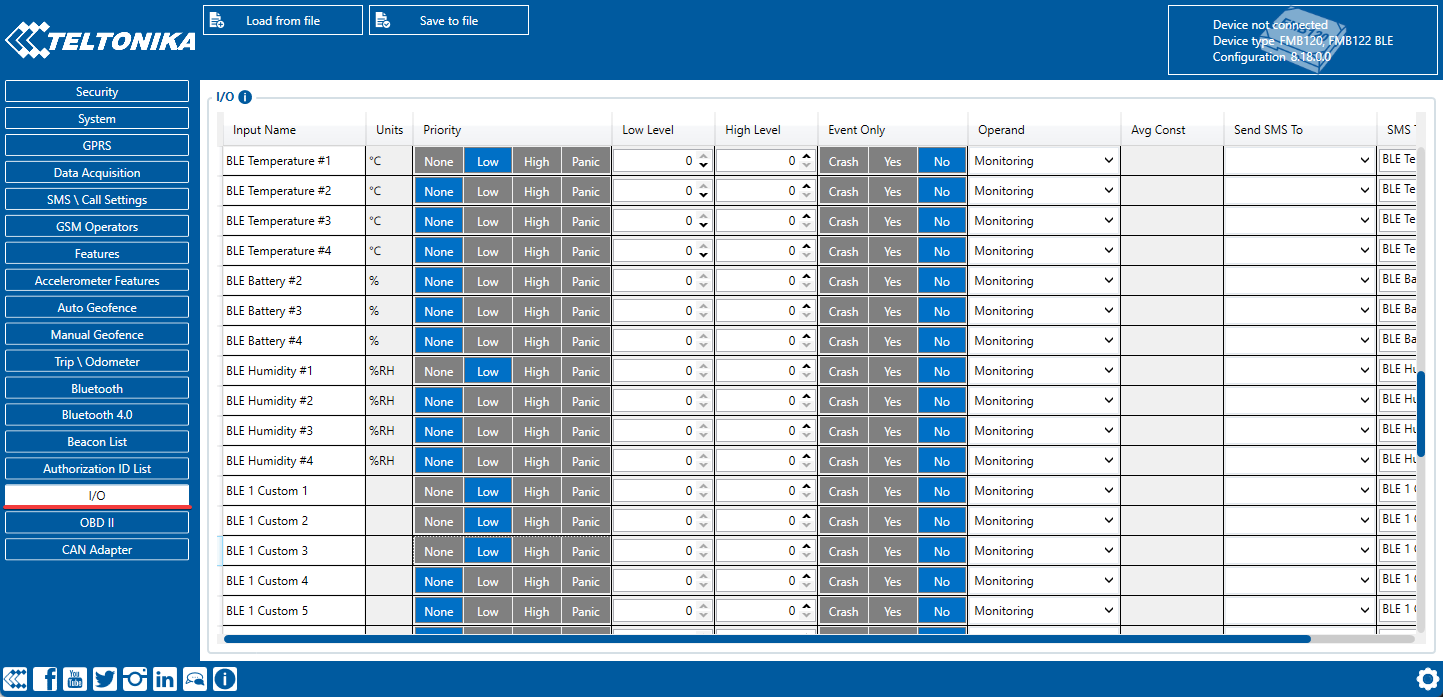
To configure data transmission from these sensors within your device packets, navigate to the I/O tab. Here, you need to set the appropriate parameters for your desired settings. For example, if your sensor connection number is 1, configure the parameters with the same number. In most cases, it's best to set the priority to Low for parameters that need to be monitored on the platform. It's also important to ensure that all other settings are left at their default values, unless you have changed something previously. In such cases, the recommended settings are as follows:

* Priority = Low
* Low level = 0
* High level = 0
* Event Only = No
* Operand = Monitoring

<figure><img src="https://www.navixy.com/wp-content/uploads/2023/03/4-2.png" alt="Setting up the sending of sensor data in device packets"><figcaption><p>Setting up the sending of sensor data in device packets</p></figcaption></figure>

## Configuration on the platform

### Motion status sensor

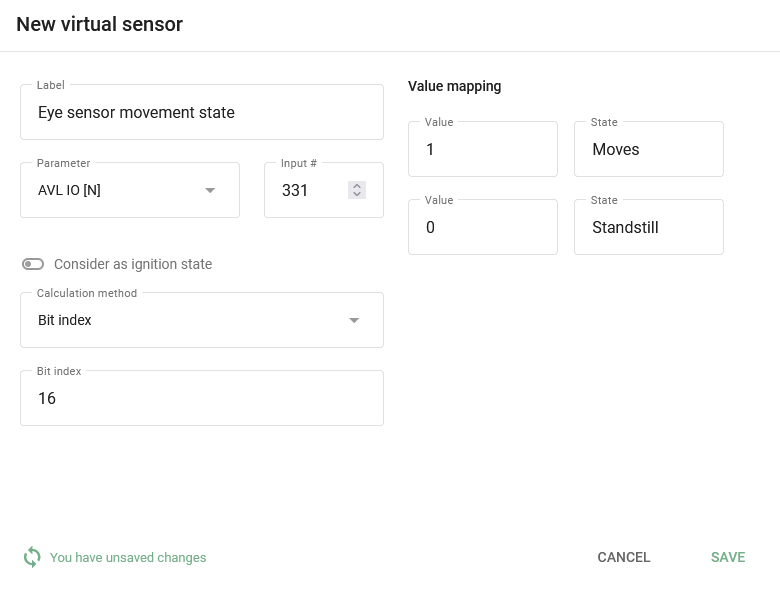
The reading of this sensor is fully configurable with virtual sensors with [the Bit index calculation method](/docs/user/guide/devices-and-settings/vehicle-sensors/virtual-sensors.md#bit-index). The motion state data comes in bit 16 (the 17th bit position, counting from zero) of the BLE 1 Custom 1 field. Configuring the motion state requires the following steps:

1. Create a virtual sensor and specify its name.
2. Select the [appropriate AVL ID](https://wiki.teltonika-mobility.com/view/Full_AVL_ID_List#BLE_Sensor_I.2FO_elements) as the input. An AVL ID is Teltonika's numeric identifier for a specific data parameter. For BLE 1 Custom 1, use number 331.
3. Define the Bit Number that corresponds to motion state data. In this case, select Bit 16 of the BLE 1 Custom 1 field.
4. Define the state names as needed. For example, "Standstill" and "Moves".
5. Specify the corresponding values: 0 means no movement detected, 1 means movement recorded.

<figure><img src="https://2096203889-files.gitbook.io/~/files/v0/b/gitbook-x-prod.appspot.com/o/spaces%2F446mKak1zDrGv70ahuYZ%2Fuploads%2Fgit-blob-043a763fcd601bc1d7e131a06925bf656143dd5b%2Fimage-20241118-031514.png?alt=media" alt="Setting up the Virtual Sensor to read the Eye sensor&#x27;s motion status" width="563"><figcaption><p>Setting up the Virtual Sensor to read the Eye sensor's motion status</p></figcaption></figure>

At this point, the current motion state is retrieved. However, keep in mind that information can only be obtained in reports and rules if the motion state is set as ignition.

Reports and rules for non-ignition virtual sensors aren’t supported at this moment.

### Temperature and humidity sensors

Setting up these sensors is similar to configuring standard [measuring sensors](/docs/user/guide/devices-and-settings/vehicle-sensors/measurement-sensors.md). Let's take a look at an example setup for each of these sensors:

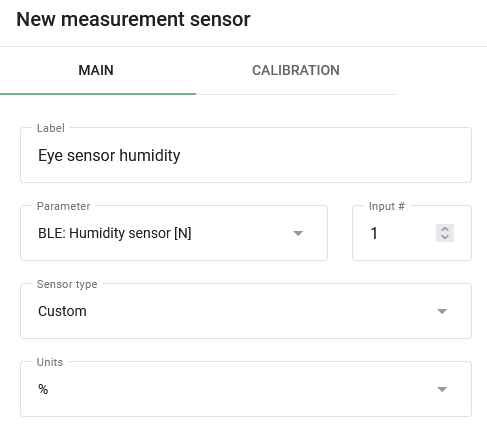
The humidity is transmitted by the device in %.

* Specify the desired sensor name.
* Select the appropriate input **BLE: Humidity \[N]** and enter its number.
* Select the sensor type **Custom**.
* Specify the unit of measure in %.
* Other settings are not required.

<figure><img src="https://2096203889-files.gitbook.io/~/files/v0/b/gitbook-x-prod.appspot.com/o/spaces%2F446mKak1zDrGv70ahuYZ%2Fuploads%2Fgit-blob-ab016caf8db9b9056dea3803fa9cda8ecb356a02%2Fimage-20241118-031634.png?alt=media" alt="Setting up the BLE humidity sensor"><figcaption><p>Setting up the BLE humidity sensor</p></figcaption></figure>

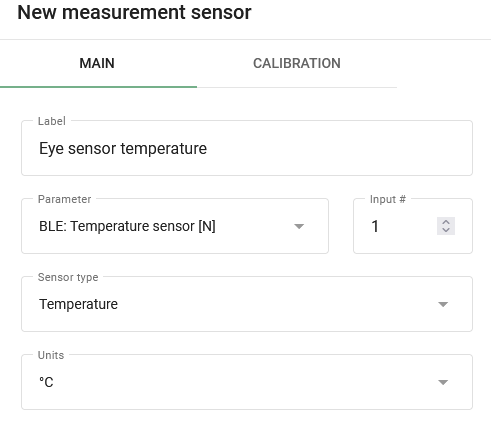
The temperature is transmitted by the device in °C.

* Specify the desired sensor name.
* Select the appropriate input BLE: Temperature \[N] and specify its number.
* Select the sensor type Temperature.
* Specify the unit of measure in °C.
* Other settings are not required.

<figure><img src="https://2096203889-files.gitbook.io/~/files/v0/b/gitbook-x-prod.appspot.com/o/spaces%2F446mKak1zDrGv70ahuYZ%2Fuploads%2Fgit-blob-a45f67ca3e6b14504470107ae121aa0fe1667153%2Fimage-20241118-031701.png?alt=media" alt="Setting up the BLE temperature sensor" width="368"><figcaption><p>Setting up the BLE temperature sensor</p></figcaption></figure>

Using sensor readings, you can generate a Measuring Sensors report that provides useful insights into the data collected by the sensor. Additionally, you can track readings by configuring alerts using the **Parameter in Range** rule, which allows you to receive notifications when specific parameters fall outside of predetermined ranges.

In addition, virtual sensors can be created and provide understandable names for receiving sensor values in widgets. To achieve this, use [the Value in range calculation method](/docs/user/guide/devices-and-settings/vehicle-sensors/virtual-sensors.md#value-in-range). This allows you to customize the sensor data being displayed and make it easier to interpret the information being presented by the sensor.

### Magnet state sensor

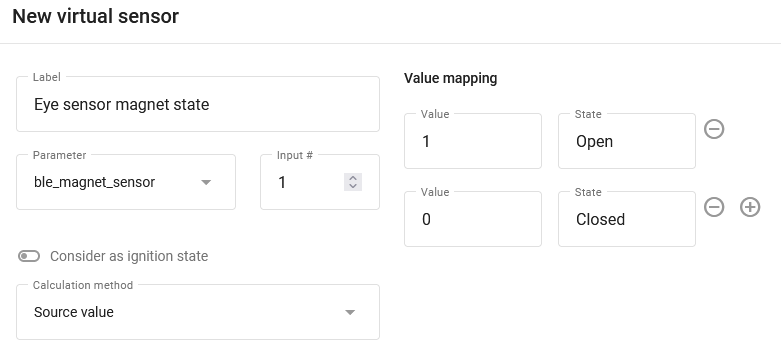
Configuring magnet state sensors is a simple and straightforward process. In fact, no additional configuration is required beyond connecting the sensors to the platform. The magnet state data is transmitted to the platform as status fields and is displayed as soon as it is received from the connected device.

Using virtual sensors with the [Source value calculation method](/docs/user/guide/devices-and-settings/vehicle-sensors/virtual-sensors.md#source-value), you can customize your status field values to be displayed as either "open" or "closed" and give them names that are easily recognizable.

By configuring the **Status field value** rule, you can track the status fields and receive alerts when specific events occur.

<figure><img src="https://2096203889-files.gitbook.io/~/files/v0/b/gitbook-x-prod.appspot.com/o/spaces%2F446mKak1zDrGv70ahuYZ%2Fuploads%2Fgit-blob-e1781ff2d571a1827018a2544b44db9bf399d68d%2Fimage-20241118-031749.png?alt=media" alt="Example of setting the magnet state sensor with its values and name" width="563"><figcaption><p>Example of setting the magnet state sensor with its values and name</p></figcaption></figure>


---

# Agent Instructions
This documentation is published with GitBook. GitBook is the documentation platform designed so that both humans and AI agents can read, navigate, and reason over technical content effectively. Learn more at gitbook.com.

## Querying This Documentation
If you need additional information that is not directly available in this page, you can query the documentation by asking a question.

Perform an HTTP GET request on the following URL with the `ask` and `goal` query parameters:

```
GET https://navixy.com/docs/user/guide/devices-and-settings/vehicle-sensors/virtual-sensors/eye-sensor-configuration.md?ask=<question>&goal=<user_goal>
```

`ask` is the immediate question: it should be specific, self-contained, and written in natural language.
`goal` is what the user is ultimately trying to achieve, the reason they need the answer. Sharing it helps GitBook give you a better, more relevant answer. A goal is most helpful when it describes the outcome the user wants rather than restating the question. For example, with `ask=how do I create an API token`, a goal like `automate deployments from our CI pipeline` lets GitBook tailor the answer to that use case.

The response will contain a direct answer to the question and relevant excerpts and sources from the documentation.

Use this mechanism when the answer is not explicitly present in the current page, you need clarification or additional context, or you want to retrieve related documentation sections.