> For the complete documentation index, see [llms.txt](https://navixy.com/docs/llms.txt). Markdown versions of documentation pages are available by appending `.md` to page URLs; this page is available as [Markdown](https://navixy.com/docs/user/guide/reports/specific-report-details/speed-violation-report.md).
# Speed violation report
Identify speeding episodes with the Speed violation report. Configure speed and duration thresholds and review violation graphs and tables.
The **Speed violation** **report** detects and lists every episode where a vehicle exceeded a speed threshold you define. You set the permitted speed and the minimum duration an episode must last to be included, and the report finds all matching intervals in the data.
Unlike alerts, which notify you in real time, the **Speed violation** **report** is a retrospective analysis tool. It works by scanning the recorded track data for consecutive data points above the threshold, which means it can catch episodes that may have been missed by rules or notifications.
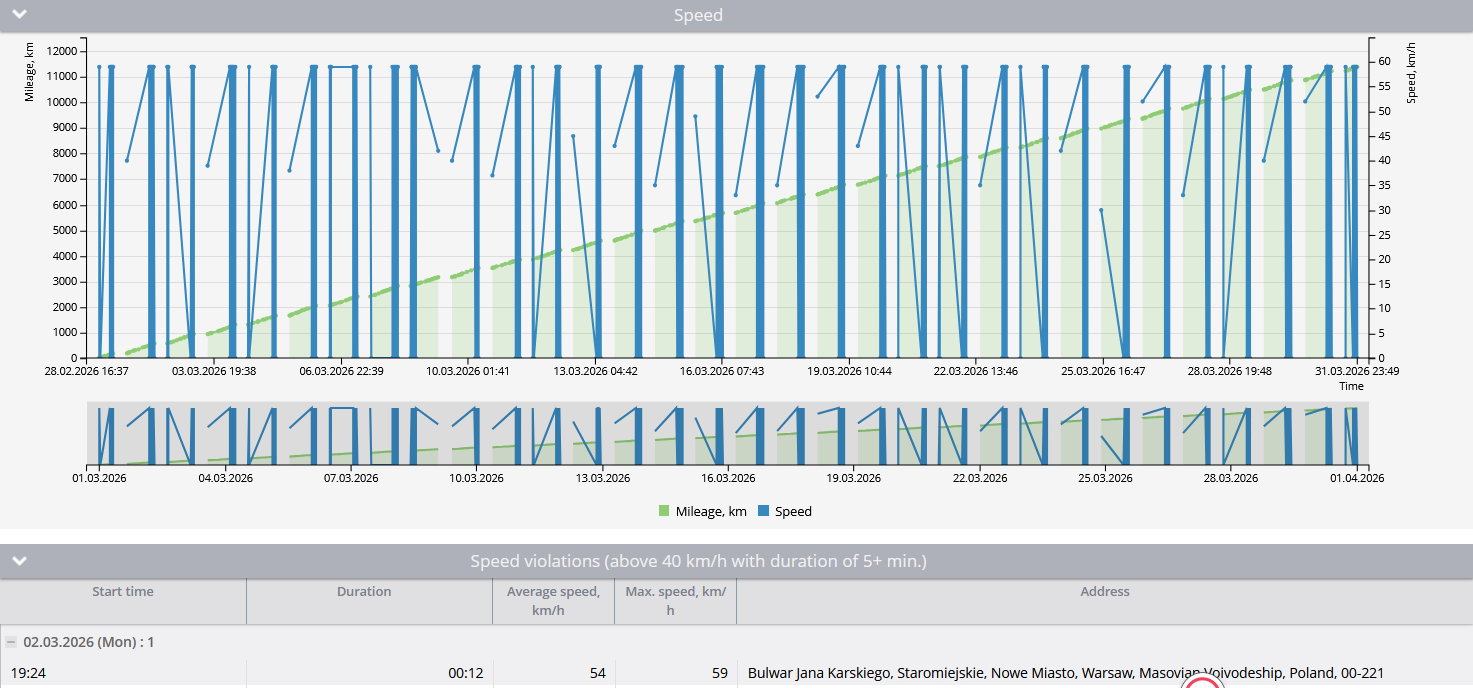
Speed violations report
### Speed violation report use cases
* **Policy enforcement**: check whether drivers stayed within a company-wide or route-specific speed limit across an entire day, week, or month.
* **Risk assessment**: identify the most frequent or severe speeding episodes to focus safety training on the right drivers or routes.
* **Driver comparison**: Enable **Group by drivers** to see which driver had the most or the longest violations during their assigned periods.
* **Incident investigation**: after an accident or a customer complaint, look up the specific violation, its time, duration, peak speed, and the address where the peak occurred.
* **Minimum duration filtering**: Filter out brief speed spikes (e.g., GPS noise or momentary overtaking) by requiring a minimum violation duration, so only sustained overspeed is reported.
### Speed violation report parameters
* **Hide empty tabs:** Omits tabs for devices that have no trips in any configured shift during the selected period.
* **Show seconds:** Shows durations with second precision (`hh:mm:ss`) instead of `hh:mm`.
* **Include POI in location address:** If the address in the report matches a POI, displays the POI's name in front of the address.
* **Include geofence in location address:** If the address in the report matches a geofence, displays the gefence's name in front of the address.
* **Violation duration (required)**: the minimum time in minutes a speeding episode must last to appear in the report. Episodes shorter than this are silently discarded. Set to 0 to include even the briefest spikes. Valid range: 0–1440 (24 hours).
* **Permitted speed (required)**: the speed limit in km/h (or mph, depending on your measurement system). Any continuous period above this value is detected as a violation. Valid range: 1–400.
* **Group by driver:** when enabled, the report is organized into separate sections per driver based on driver assignment history. If a driver wasn't assigned during part of the period, those intervals are attributed to an unidentified driver.
* **Use smart filter:** Excludes short or invalid trips from the report. A regular trip is excluded if it has fewer than 3 data points, covers less than 100 meters, or stays within a 200-meter diameter. Additionally, individual track points with suspicious mileage patterns (e.g. implausibly high or low speeds) are removed.
### How to read the Speed violation report
#### Speed graph
Each device tab starts with a time-series graph covering the entire report period. It plots two overlays:
* Speed (blue line): the vehicle's speed over time.
* Mileage (green area): cumulative distance traveled over the same period.
A horizontal red marker line is drawn at the permitted speed threshold, so you can visually see where and for how long the speed line exceeds the limit.
The graph's time axis uses the user's timezone. Gaps of more than 30 minutes between data points are treated as breaks in the graph rather than connected as a single line.
#### Speed violations table
Below the graph, a table lists every detected violation, grouped by day. A separator row before each day shows the date and the number of violations on that day. The table title also displays the configured threshold and minimum duration, for example: *"Speed violations (above 60 km/h with duration of 5+ min.)"*.
Columns:
* **Start time**: when the vehicle first exceeded the permitted speed.
* **Duration**: how long the violation lasted (from the first over-threshold point to the first at-or-below-threshold point, or to a gap of 30+ minutes).
* **Average speed**: the average speed during the violation. Calculated from the distance covered and duration of the episode.
* **Max speed**: the highest recorded speed during the violation.
* **Address**: the location where the peak speed was recorded (resolved to a street address).
### Important notes
* This report has no **Summary** tab. Each device (or each driver section, when grouping by drivers) gets its own tab, with no cross-device aggregate.
* Speed values from the GPS device are always stored internally in km/h. The permitted speed you enter and all displayed values are converted to your measurement system (km/h or mph) automatically.
* A violation ends when the speed drops to or below the permitted speed, or when there is a gap of more than 30 minutes between data points. These two conditions are checked separately. A 30-minute gap always ends the current violation even if the next point is still above the threshold.
* The minimum duration filter uses a strictly-greater-than comparison: an episode lasting exactly the minimum duration is excluded. It must be at least one second longer to be included.
---
# Agent Instructions
This documentation is published with GitBook. GitBook is the documentation platform designed so that both humans and AI agents can read, navigate, and reason over technical content effectively. Learn more at gitbook.com.
## Querying This Documentation
If you need additional information that is not directly available in this page, you can query the documentation by asking a question.
Perform an HTTP GET request on the following URL with the `ask` and `goal` query parameters:
```
GET https://navixy.com/docs/user/guide/reports/specific-report-details/speed-violation-report.md?ask=&goal=
```
`ask` is the immediate question: it should be specific, self-contained, and written in natural language.
`goal` is what the user is ultimately trying to achieve, the reason they need the answer. Sharing it helps GitBook give you a better, more relevant answer. A goal is most helpful when it describes the outcome the user wants rather than restating the question. For example, with `ask=how do I create an API token`, a goal like `automate deployments from our CI pipeline` lets GitBook tailor the answer to that use case.
The response will contain a direct answer to the question and relevant excerpts and sources from the documentation.
Use this mechanism when the answer is not explicitly present in the current page, you need clarification or additional context, or you want to retrieve related documentation sections.