> For the complete documentation index, see [llms.txt](https://navixy.com/docs/llms.txt). Markdown versions of documentation pages are available by appending `.md` to page URLs; this page is available as [Markdown](https://navixy.com/docs/user/id/guide/devices-and-settings/vehicle-sensors/specialized-sensors-by-manufacturer/teltonika-sensors/ble-beacons-teltonika.md).
# Beacon BLE (Teltonika)
Konfigurasikan beacon BLE Teltonika di Navixy sebagai sensor suhu, Deteksi magnet, atau ID Supir. Berfungsi tanpa pengkabelan, dengan masa pakai baterai hingga 19 tahun.
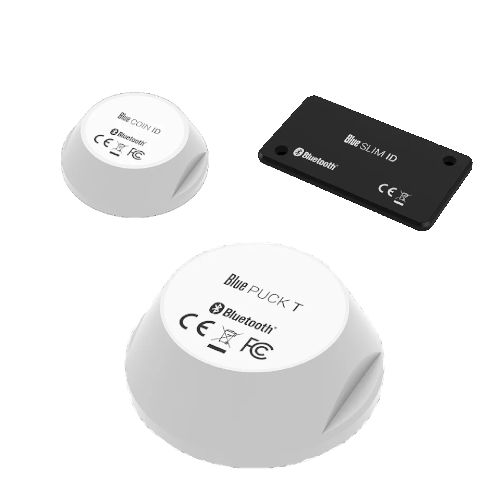
Beacon BLE Teltonika adalah perangkat serbaguna yang dapat mengumpulkan data suhu, status magnetik, dan mengirimkan pengidentifikasinya dalam jarak jauh, hingga 200 meter di area terbuka.
Beacon ini menggunakan **Bluetooth Low Energy** teknologi (BLE 4.0+, standar nirkabel jarak pendek yang dioptimalkan untuk konsumsi daya rendah), sehingga dapat beroperasi dalam waktu lama dengan baterai internalnya: hingga 2 tahun untuk model SLIM (seukuran kartu), hingga 5 tahun untuk model COIN (cakram kecil), dan hingga 19 tahun untuk model PUCK (besar dan tangguh).
Beacon ini ditempatkan dalam casing berperingkat IP68 (tertutup rapat terhadap debu dan aman direndam dalam air).
## Model beacon yang didukung
* **Blue COIN MAG**: beacon magnetik kecil
* **Blue PUCK MAG**: beacon magnetik besar
* **Blue COIN ID**: beacon ID kecil
* **Blue PUCK ID**: beacon ID besar
* **Blue SLIM ID**: beacon seukuran kartu untuk identifikasi karyawan
* **Blue COIN T**: beacon suhu kecil
* **Blue PUCK T**: beacon suhu besar
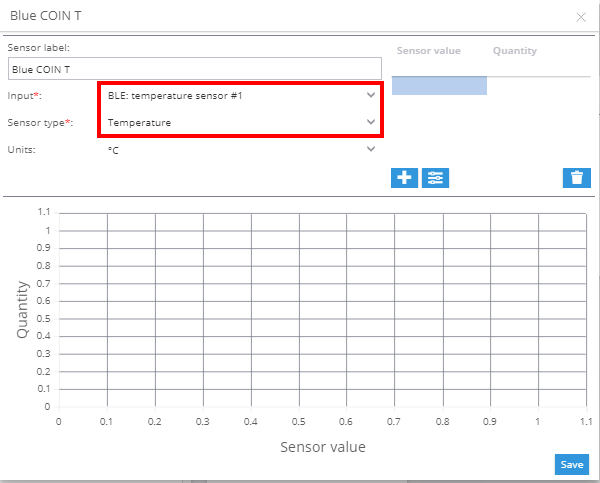
### Sensor suhu
Untuk menambahkan sensor suhu:
1. Buka bagian Sensor pengukuran di tab input.
2. Pilih **BLE: Suhu** sebagai jenis input.
3. Pilih **Suhu** sebagai jenis sensor.
### Sensor magnetik
Beacon magnetik (MAG) mendeteksi apakah magnet ada atau tidak ada, berguna untuk memantau pintu kontainer, tutup kotak peralatan, atau aset lainnya. Konfigurasikan sebagai sensor virtual menggunakan **Nilai sumber** metode:
1. Beralih ke **Sensor dan tombol** dan klik **+** → **Sensor virtual**.
2. Pilih **BLE: Medan magnet** input yang sesuai dengan nomor slot beacon.
3. Pilih **Nilai sumber** sebagai metode perhitungan.
4. Petakan kedua status tersebut (misalnya, `0` → `Buka`, `1` → `Tertutup`) lalu simpan.
Status sensor muncul di **Pembacaan sensor** blok [widget Pelacak](/docs/user/id/guide/tracking/objects-list/object-widget.md).
### Sensor identifikasi supir
Beacon ID (COIN ID, PUCK ID, SLIM ID) bekerja seperti iButton atau RFID, tetapi melalui Bluetooth. Tidak memerlukan pembaca fisik. Saat beacon berada dalam jangkauan perangkat GPS, pengidentifikasinya dibaca secara otomatis. Konfigurasikan sebagai sensor virtual menggunakan **Nilai sumber** metode:
1. Beralih ke **Sensor dan tombol** dan klik **+** → **Sensor virtual**.
2. Pilih **BLE: Kunci perangkat keras** input.
3. Pilih **Nilai sumber** sebagai metode perhitungan.
4. Petakan alamat MAC atau pengidentifikasi setiap beacon ke nama supir, lalu simpan.
Setelah dikonfigurasi, supir yang teridentifikasi muncul di **Pembacaan sensor** blok dan dapat digunakan dalam aturan identifikasi supir.
**Lihat juga:**
* [Menetapkan kunci ID supir di profil supir](/docs/user/id/guide/fleet-management/drivers.md)
* [Identifikasi supir (aturan dan notifikasi)](/docs/user/id/guide/events-and-notifications/scheduling-and-dispatching/driver-identification.md)
---
# Agent Instructions
This documentation is published with GitBook. GitBook is the documentation platform designed so that both humans and AI agents can read, navigate, and reason over technical content effectively. Learn more at gitbook.com.
## Querying This Documentation
If you need additional information that is not directly available in this page, you can query the documentation by asking a question.
Perform an HTTP GET request on the following URL with the `ask` and `goal` query parameters:
```
GET https://navixy.com/docs/user/id/guide/devices-and-settings/vehicle-sensors/specialized-sensors-by-manufacturer/teltonika-sensors/ble-beacons-teltonika.md?ask=&goal=
```
`ask` is the immediate question: it should be specific, self-contained, and written in natural language.
`goal` is what the user is ultimately trying to achieve, the reason they need the answer. Sharing it helps GitBook give you a better, more relevant answer. A goal is most helpful when it describes the outcome the user wants rather than restating the question. For example, with `ask=how do I create an API token`, a goal like `automate deployments from our CI pipeline` lets GitBook tailor the answer to that use case.
The response will contain a direct answer to the question and relevant excerpts and sources from the documentation.
Use this mechanism when the answer is not explicitly present in the current page, you need clarification or additional context, or you want to retrieve related documentation sections.