> For the complete documentation index, see [llms.txt](https://navixy.com/docs/llms.txt). Markdown versions of documentation pages are available by appending `.md` to page URLs; this page is available as [Markdown](https://navixy.com/docs/user/id/guide/devices-and-settings/vehicle-sensors/specialized-sensors-by-manufacturer/teltonika-sensors/ble-fuel-level-sensors-teltonika.md).
# Sensor level Bahan bakar BLE (Teltonika)
Tambahkan sensor Bahan bakar BLE Teltonika ke Navixy: pilih input level LLS, konfigurasikan kalibrasi, dan pantau Bahan bakar, suhu, kelembapan, serta daya baterai.
Banyak [Perangkat GPS Teltonika](https://www.navixy.com/devices/teltonika/) mendukung sensor bahan bakar nirkabel yang terhubung melalui Bluetooth. Keuntungan menggunakan sensor bahan bakar Bluetooth ini sangat besar:
* **Tanpa kabel**: Sensor dan perangkat GPS tidak memerlukan sambungan fisik, sehingga instalasi menjadi lebih sederhana.
* **Tidak bergantung pada sumber daya eksternal**: Sensor ini dilengkapi baterai internal yang dapat bertahan selama beberapa tahun tanpa perlu diisi ulang.
* **Data tambahan**: Selain level bahan bakar, sensor juga mengirimkan data suhu, kelembapan, dan tingkat pengisian baterai.
## Persiapan perangkat GPS
Untuk menyiapkan perangkat GPS Teltonika Anda untuk integrasi sensor bahan bakar Bluetooth, ikuti langkah-langkah berikut.
1. **Unduh Konfigurator Teltonika**: Dapatkan aplikasi dari situs web resmi Teltonika.
2. **Perbarui firmware**: Pastikan perangkat Anda menjalankan versi firmware terbaru.
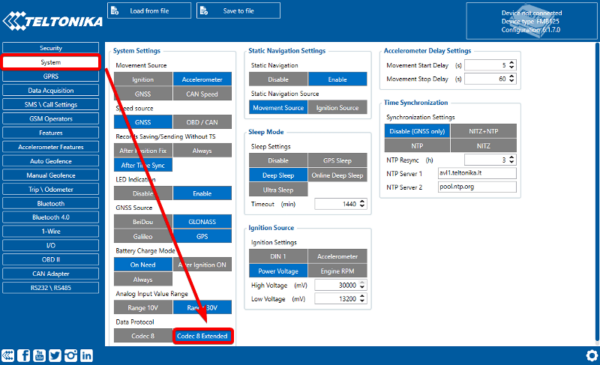
3. **Jalankan konfigurator**:
* Buka **Sistem** tab.
* Ubah protokol transfer data menjadi **Codec 8 Extended** (lihat catatan di bawah untuk mengetahui mengapa ini diperlukan).
4. **Hubungkan sensor bahan bakar**:
* Buka **Bluetooth** tab di konfigurator.
* Hubungkan sensor bahan bakar ke perangkat GPS.
5. **Aktifkan parameter yang diperlukan**:
* Buka **I/O** tab.
* Pastikan parameter yang sesuai dengan sensor bahan bakar diaktifkan.
{% hint style="warning" %}
**Codec 8 Extended** merupakan protokol komunikasi milik Teltonika yang mendukung hingga 65.535 parameter data (ID AVL), sehingga memungkinkan transmisi data yang lebih rinci dibandingkan Codec 8 standar, yang hanya mendukung 255.
{% endhint %}
## Pengaturan sensor di Navixy
Setelah perangkat GPS terhubung dan mengirimkan data bahan bakar, ikuti langkah-langkah berikut untuk menyiapkan sensor yang sesuai di platform Navixy.
{% stepper %}
{% step %}
### Buat Pengukuran sensor baru
1. Buka Perangkat dan pengaturan → Sensor dan tombol.
2. Klik Buat baru [Pengukuran sensor](/docs/user/id/guide/devices-and-settings/vehicle-sensors/measurement-sensors.md).
{% endstep %}
{% step %}
### Konfigurasikan sensor
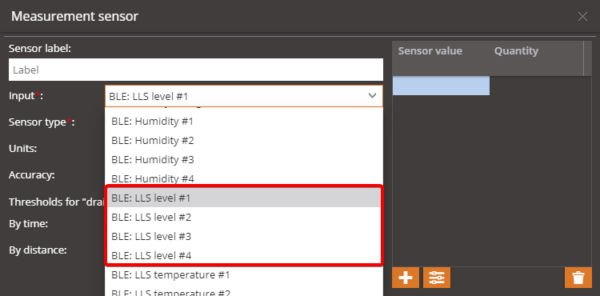
1. Pilih input berlabel "BLE: LLS level".
2. Atur jenis sensor dan satuannya. Jika perlu, isi tabel kalibrasi dan sesuaikan pengaturan lainnya.
{% endstep %}
{% step %}
### Ulangi untuk sensor tambahan
Jika Anda memiliki beberapa sensor bahan bakar, ulangi proses penyiapan untuk setiap sensor, dan pilih input yang sesuai untuk masing-masing.
{% endstep %}
{% step %}
### Pantau dan buat laporan
Setelah dikonfigurasi, Anda dapat memantau level bahan bakar di widget yang ditentukan pada platform. Anda juga dapat membuat laporan terperinci tentang konsumsi bahan bakar.
{% endstep %}
{% endstepper %}
---
# Agent Instructions
This documentation is published with GitBook. GitBook is the documentation platform designed so that both humans and AI agents can read, navigate, and reason over technical content effectively. Learn more at gitbook.com.
## Querying This Documentation
If you need additional information that is not directly available in this page, you can query the documentation by asking a question.
Perform an HTTP GET request on the following URL with the `ask` and `goal` query parameters:
```
GET https://navixy.com/docs/user/id/guide/devices-and-settings/vehicle-sensors/specialized-sensors-by-manufacturer/teltonika-sensors/ble-fuel-level-sensors-teltonika.md?ask=&goal=
```
`ask` is the immediate question: it should be specific, self-contained, and written in natural language.
`goal` is what the user is ultimately trying to achieve, the reason they need the answer. Sharing it helps GitBook give you a better, more relevant answer. A goal is most helpful when it describes the outcome the user wants rather than restating the question. For example, with `ask=how do I create an API token`, a goal like `automate deployments from our CI pipeline` lets GitBook tailor the answer to that use case.
The response will contain a direct answer to the question and relevant excerpts and sources from the documentation.
Use this mechanism when the answer is not explicitly present in the current page, you need clarification or additional context, or you want to retrieve related documentation sections.