> For the complete documentation index, see [llms.txt](https://navixy.com/docs/llms.txt). Markdown versions of documentation pages are available by appending `.md` to page URLs; this page is available as [Markdown](https://navixy.com/docs/user/pt-br/guide/x-gps-mobile-apps/x-gps-mobile/quick-start.md).
# Guia rápido do X-GPS Mobile
Baixe o X-GPS Mobile no Google Play ou na App Store e faça login com suas credenciais do Navixy para começar a monitorar sua frota a partir de um dispositivo móvel.
Siga estas etapas para aprender a usar o X-GPS Mobile:
### Etapa 1. Baixar o aplicativo
{% columns %}
{% column %}
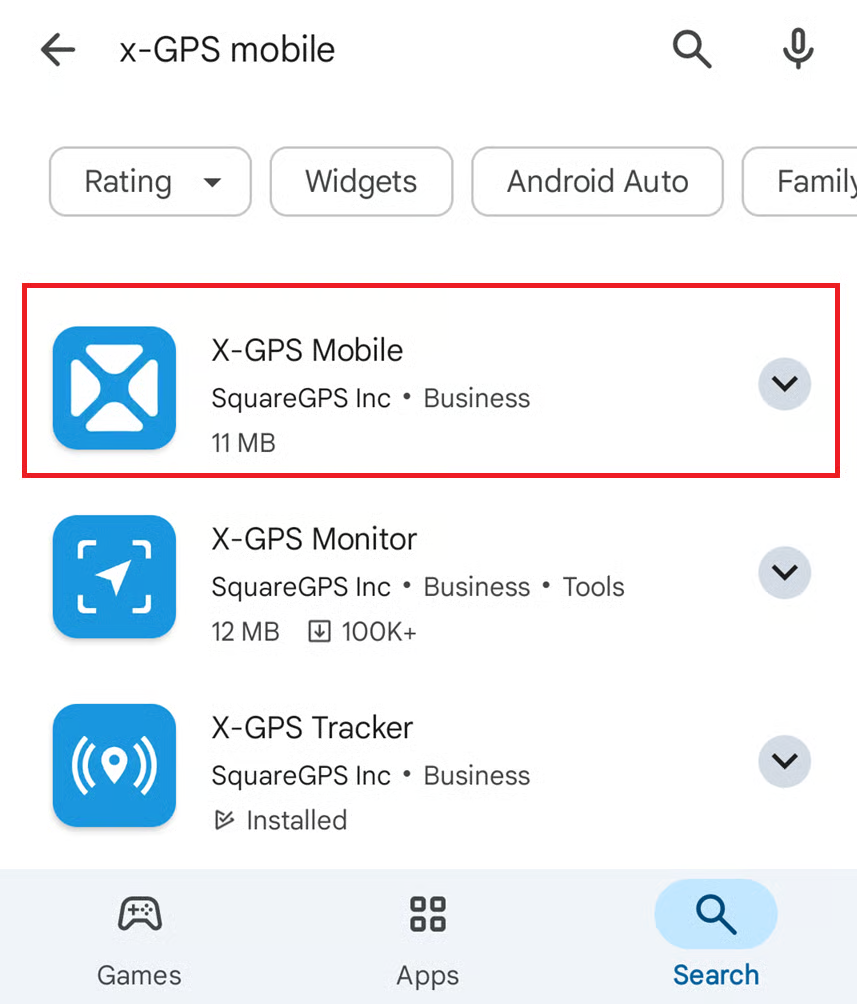
1. Abra o Google Play ou a App Store e digite X-GPS Mobile no campo de pesquisa.
2. Selecione-o e toque em **Instalar**.
{% endcolumn %}
{% column %}
Tela de pesquisa
{% endcolumn %}
{% endcolumns %}
### Etapa 2. Fazer login
{% columns %}
{% column %}
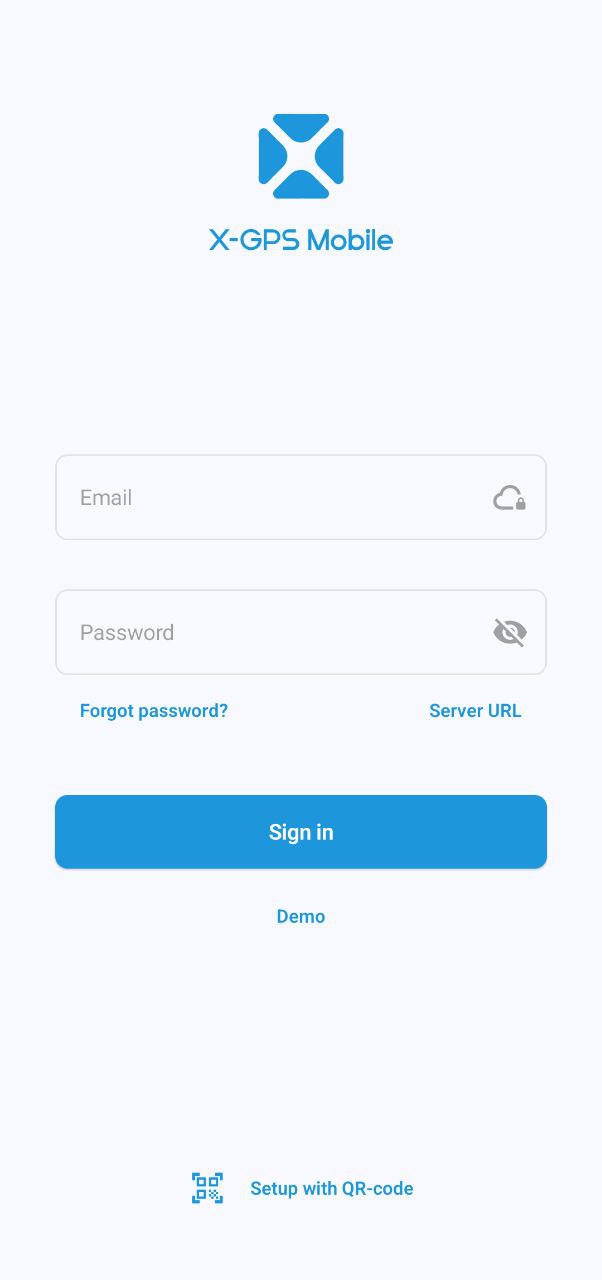
1. Abra o aplicativo.
2. Digite seu nome de usuário e senha e toque em **Entrar**.
3. Se necessário, digite a URL do seu servidor (por padrão, o servidor Navixy é usado). Como alternativa, use um código QR para dispensar a inserção da URL e configurar suas definições automaticamente.\
Para visualizar o código QR, clique no botão abaixo do [formulário de login](https://tracking.navixy.com/).
{% endcolumn %}
{% column %}
Tela de login
{% endcolumn %}
{% endcolumns %}
{% hint style="warning" %}
Se você esqueceu sua senha, toque no botão correspondente e digite seu endereço de e-mail. Você receberá um e-mail com um link para redefinir sua senha.
{% endhint %}
### Etapa 3. Conceder permissões
{% columns %}
{% column %}
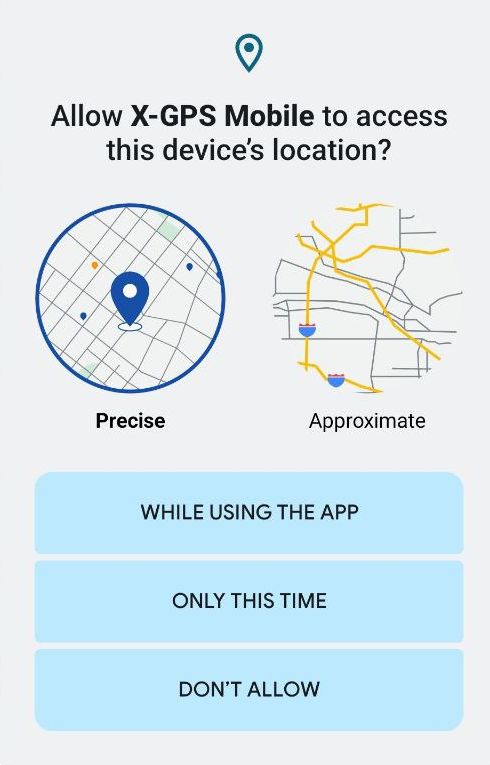
Permita que o aplicativo envie notificações e acesse a localização do dispositivo enquanto você o usa. Observe que você receberá notificações push para todos os ativos da sua frota.
{% endcolumn %}
{% column %}
Solicitação de permissão
{% endcolumn %}
{% endcolumns %}
### Etapa 4. Abrir a tela de monitor
{% columns fullWidth="true" %}
{% column width="50%" %}
A tela de monitor exibe seus ativos: veículos, motoristas e objetos (unidades que representam dispositivos GPS) com ícones indicando seu status de movimento.
Você pode filtrá-los por categoria ou status (em movimento, estacionado etc.) e classificá-los por nome ou status.
Para classificar ou filtrar a lista de ativos e acessar as ferramentas de monitoramento, toque nos ícones no canto superior direito:
 Permite inserir uma consulta de pesquisa
 Abre a [registro de eventos](https://squaregps.atlassian.net/wiki/spaces/~7120201a6252f8d34242e3bdb7409b5d34d953/pages/3182821465/new+Assets+list#events-list) para todas as unidades
 Abre a [filtragem e ordenação](https://squaregps.atlassian.net/wiki/spaces/USERDOCSOLD/pages/3235676161/Assets+list#sorting-and-filtering) menu
 Abre a [tela do mapa](https://squaregps.atlassian.net/wiki/spaces/USERDOCSOLD/pages/3235676161/Assets+list#map-fullscreen)
Use o painel inferior para alternar entre a tela principal e o seu perfil.
{% endcolumn %}
{% column width="50%" %}
Tela de monitor
{% endcolumn %}
{% endcolumns %}
### Etapa 5. Começar a usar
{% columns %}
{% column width="50%" %}
Toque em um ativo para ver sua localização, status, trajeto e histórico de trajetos e eventos, sensores, lembretes, detalhes do dispositivo GPS e outras informações.
{% endcolumn %}
{% column width="50%" %}
Informações do ativo
{% endcolumn %}
{% endcolumns %}
---
# Agent Instructions
This documentation is published with GitBook. GitBook is the documentation platform designed so that both humans and AI agents can read, navigate, and reason over technical content effectively. Learn more at gitbook.com.
## Querying This Documentation
If you need additional information that is not directly available in this page, you can query the documentation by asking a question.
Perform an HTTP GET request on the following URL with the `ask` and `goal` query parameters:
```
GET https://navixy.com/docs/user/pt-br/guide/x-gps-mobile-apps/x-gps-mobile/quick-start.md?ask=&goal=
```
`ask` is the immediate question: it should be specific, self-contained, and written in natural language.
`goal` is what the user is ultimately trying to achieve, the reason they need the answer. Sharing it helps GitBook give you a better, more relevant answer. A goal is most helpful when it describes the outcome the user wants rather than restating the question. For example, with `ask=how do I create an API token`, a goal like `automate deployments from our CI pipeline` lets GitBook tailor the answer to that use case.
The response will contain a direct answer to the question and relevant excerpts and sources from the documentation.
Use this mechanism when the answer is not explicitly present in the current page, you need clarification or additional context, or you want to retrieve related documentation sections.
 botão abaixo do [formulário de login](https://tracking.navixy.com/).
{% endcolumn %}
{% column %}
botão abaixo do [formulário de login](https://tracking.navixy.com/).
{% endcolumn %}
{% column %}