> For the complete documentation index, see [llms.txt](https://navixy.com/docs/llms.txt). Markdown versions of documentation pages are available by appending `.md` to page URLs; this page is available as [Markdown](https://navixy.com/docs/user/ru/guide/x-gps-mobile-apps/x-gps-mobile/quick-start.md).
# Быстрый старт X-GPS Mobile
Скачайте X-GPS Mobile в Google Play или App Store и войдите, используя учетные данные Navixy, чтобы начать мониторинг автопарка с мобильного устройства.
Выполните следующие шаги, чтобы узнать, как работать с X-GPS Mobile:
### Шаг 1. Скачайте приложение
{% columns %}
{% column %}
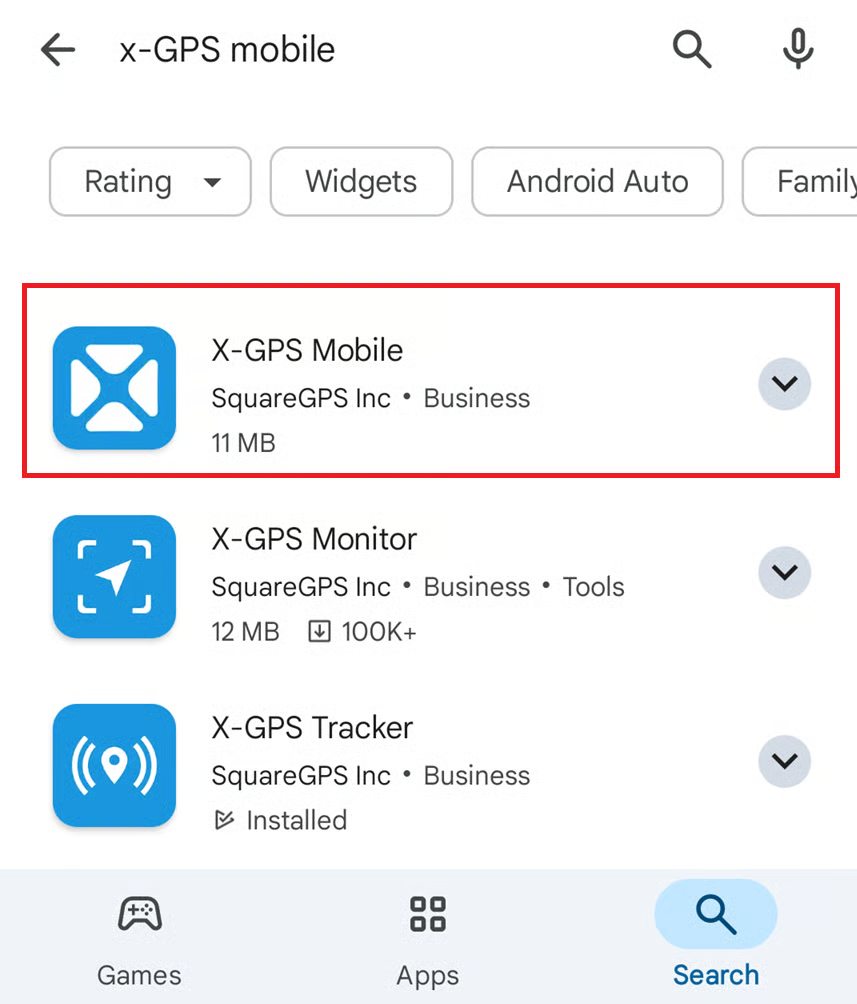
1. Откройте Google Play или App Store и введите X-GPS Mobile в поле поиска.
2. Выберите его и нажмите **Установить**.
{% endcolumn %}
{% column %}
Экран поиска
{% endcolumn %}
{% endcolumns %}
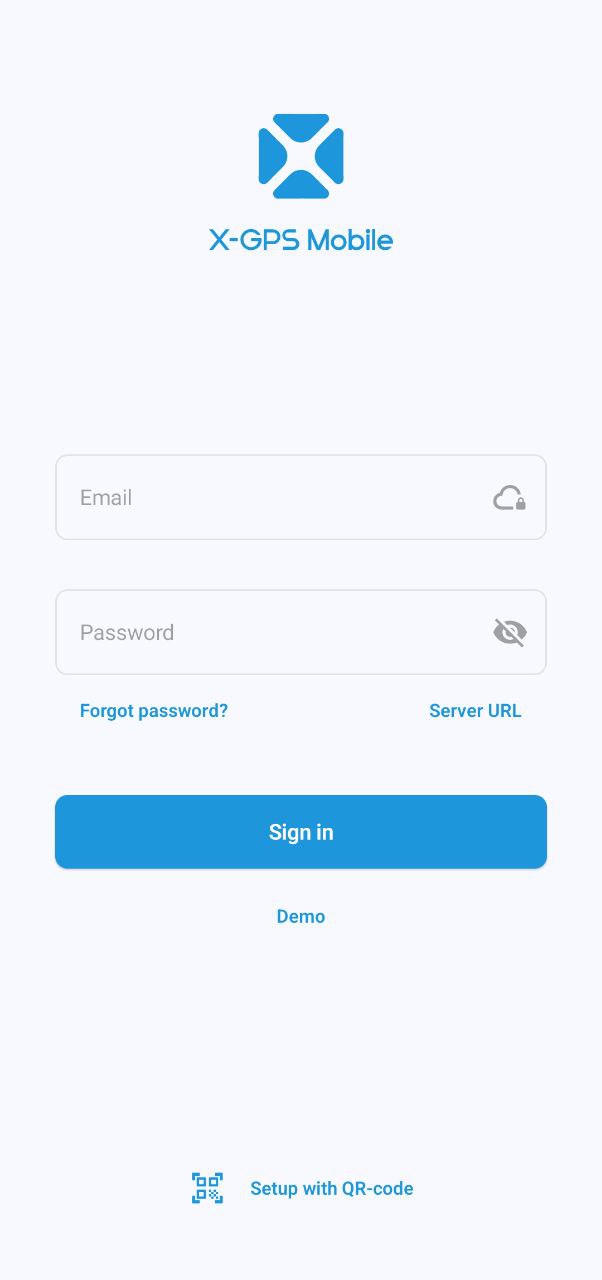
### Шаг 2. Войдите в систему
{% columns %}
{% column %}
1. Откройте приложение.
2. Введите имя пользователя и пароль и нажмите **Войти**.
3. При необходимости введите URL сервера (по умолчанию используется сервер Navixy). Либо используйте QR-код, чтобы не вводить URL и автоматически настроить параметры.\
Чтобы просмотреть QR-код, нажмите под формы входа в платформе Navixy [входа](https://tracking.navixy.com/).
{% endcolumn %}
{% column %}
Экран входа
{% endcolumn %}
{% endcolumns %}
{% hint style="warning" %}
Если вы забыли пароль, нажмите соответствующую кнопку и введите адрес электронной почты. Вам придет письмо со ссылкой для сброса пароля.
{% endhint %}
### Шаг 3. Настройте разрешения
{% columns %}
{% column %}
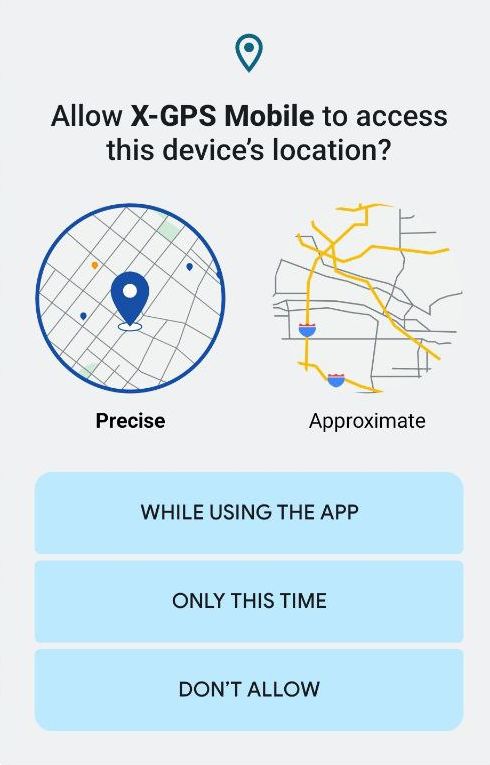
Разрешите приложению отправлять вам уведомления и получать доступ к местоположению устройства во время использования приложения. Обратите внимание, что вы будете получать push-уведомления для всех активов вашего автопарка.
{% endcolumn %}
{% column %}
Запрос разрешений
{% endcolumn %}
{% endcolumns %}
### Шаг 4. Откройте экран мониторинга
{% columns fullWidth="true" %}
{% column width="50%" %}
Экран мониторинга отображает ваши активы: транспорт, сотрудников и объекты (единицы, представляющие GPS-устройства) со значками, указывающими их статус движения.
Вы можете фильтровать их по категории или статусу (движется, стоит и т. д.) и сортировать по имени или статусу.
Чтобы отсортировать или отфильтровать список активов и открыть инструменты мониторинга, нажмите значки в правом верхнем углу:
 Позволяет ввести поисковый запрос
 Открывает [журнал событий](https://squaregps.atlassian.net/wiki/spaces/~7120201a6252f8d34242e3bdb7409b5d34d953/pages/3182821465/new+Assets+list#events-list) для всех объектов
 Открывает [фильтрация и сортировка](https://squaregps.atlassian.net/wiki/spaces/USERDOCSOLD/pages/3235676161/Assets+list#sorting-and-filtering) меню
 Открывает [экран карты](https://squaregps.atlassian.net/wiki/spaces/USERDOCSOLD/pages/3235676161/Assets+list#map-fullscreen)
Используйте нижнюю панель, чтобы переключаться между главным экраном и своим профилем.
{% endcolumn %}
{% column width="50%" %}
Экран мониторинга
{% endcolumn %}
{% endcolumns %}
### Шаг 5. Начните работу
{% columns %}
{% column width="50%" %}
Нажмите на актив, чтобы просмотреть его местоположение, статус, поездку и Историю поездок и событий, датчики, напоминания, сведения об GPS-устройстве и другую информацию.
{% endcolumn %}
{% column width="50%" %}
Информация об активе
{% endcolumn %}
{% endcolumns %}
---
# Agent Instructions
This documentation is published with GitBook. GitBook is the documentation platform designed so that both humans and AI agents can read, navigate, and reason over technical content effectively. Learn more at gitbook.com.
## Querying This Documentation
If you need additional information that is not directly available in this page, you can query the documentation by asking a question.
Perform an HTTP GET request on the following URL with the `ask` and `goal` query parameters:
```
GET https://navixy.com/docs/user/ru/guide/x-gps-mobile-apps/x-gps-mobile/quick-start.md?ask=&goal=
```
`ask` is the immediate question: it should be specific, self-contained, and written in natural language.
`goal` is what the user is ultimately trying to achieve, the reason they need the answer. Sharing it helps GitBook give you a better, more relevant answer. A goal is most helpful when it describes the outcome the user wants rather than restating the question. For example, with `ask=how do I create an API token`, a goal like `automate deployments from our CI pipeline` lets GitBook tailor the answer to that use case.
The response will contain a direct answer to the question and relevant excerpts and sources from the documentation.
Use this mechanism when the answer is not explicitly present in the current page, you need clarification or additional context, or you want to retrieve related documentation sections.
 под формы входа в платформе Navixy [входа](https://tracking.navixy.com/).
{% endcolumn %}
{% column %}
под формы входа в платформе Navixy [входа](https://tracking.navixy.com/).
{% endcolumn %}
{% column %}