> For the complete documentation index, see [llms.txt](https://navixy.com/docs/llms.txt). Markdown versions of documentation pages are available by appending `.md` to page URLs; this page is available as [Markdown](https://navixy.com/docs/user/ru/guide/x-gps-mobile-apps/x-gps-mobile/user-applications.md).
# Приложения
Получайте доступ к пользовательским сторонним приложениям, встроенным в Navixy, через X-GPS Mobile. Приложения настраиваются в веб-платформе и доступны в мобильном приложении.
**Приложения** Это настраиваемые дополнения и сторонние инструменты, которые можно интегрировать непосредственно в экосистему, чтобы расширить ее функциональность. Это позволяет создать персонализированное рабочее пространство со всеми необходимыми инструментами в одном удобном месте.
Хотя эти приложения управляются и настраиваются в [платформе Navixy](https://tracking.navixy.com/), теперь вы можете легко получать к ним доступ и использовать их в **X-GPS Mobile**.
## Настройка и управление
Все Приложения должны создаваться и настраиваться в веб-версии платформы в разделе **Аккаунт** → **Приложения**. Они привязаны к учетной записи пользователя.
Подробные инструкции по созданию, редактированию и управлению приложениями см. в полной [документации «Приложения»](/docs/user/ru/guide/account/user-applications.md).
## Приложения в X-GPS Mobile
{% columns %}
{% column %}
Выполните следующие шаги, чтобы получить доступ к вашим Приложениям, перемещаться по ним и управлять ими.
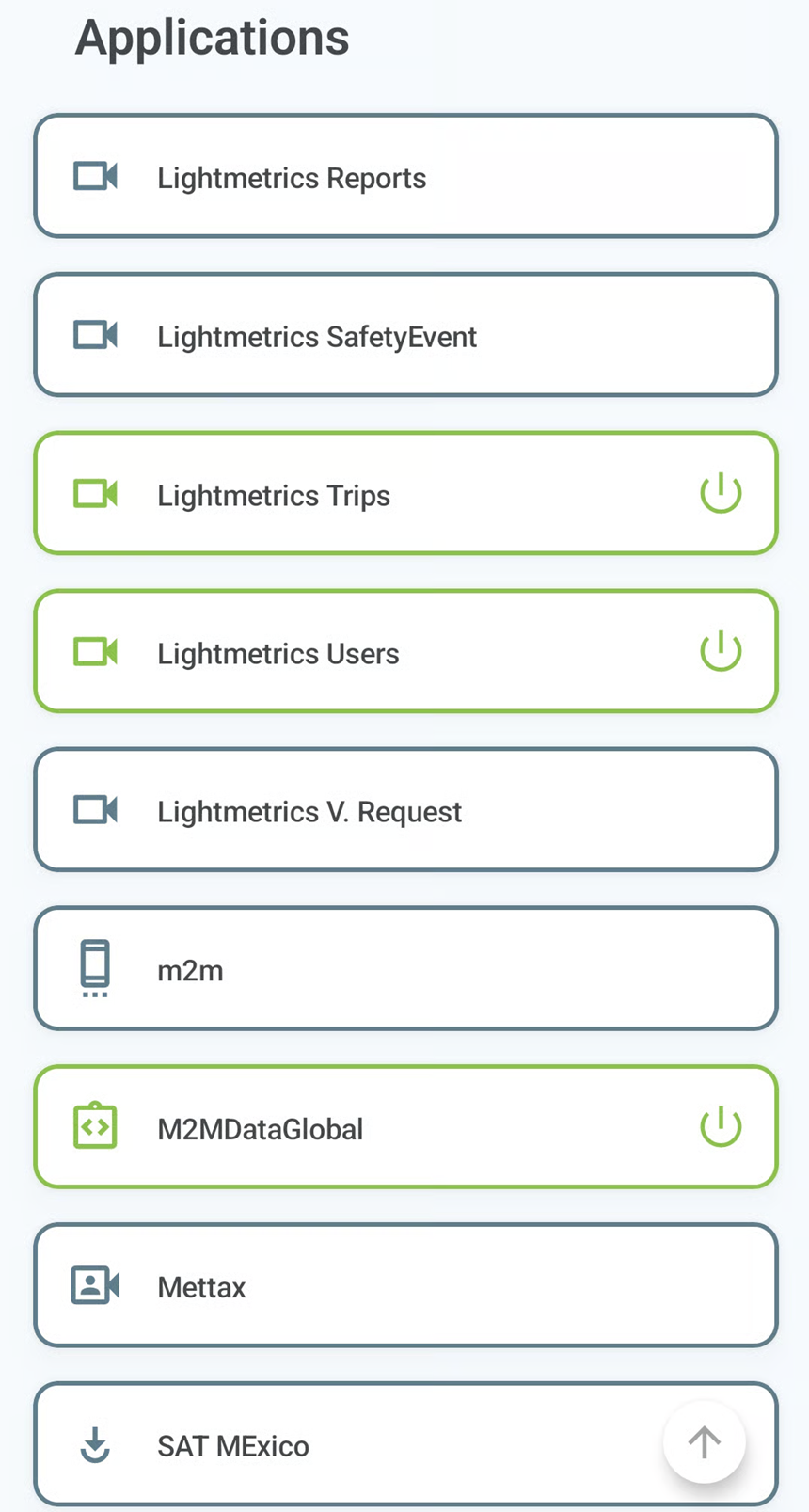
1. Перейдите в **Приложения** вкладку, чтобы просмотреть список всех доступных приложений.
2. Нажмите на название приложения, чтобы открыть его. Это автоматически активирует приложение, а его название в списке изменит цвет с синего на зеленый, показывая, что оно активно.
3. Когда вы откроете приложение, в верхней части экрана появится панель навигации. Она содержит следующие элементы:
* : Перейти на предыдущую страницу приложения.
* : Перейти на следующую страницу.
* : Перезагрузить текущее представление приложения.
* : Открыть приложение в веб-браузере по умолчанию на вашем телефоне.
4. Чтобы отключить активное приложение, вернитесь к **Приложения** Tab и касание справа от его названия.
{% hint style="info" %}
Приложения автоматически деактивируются, когда вы выходите из **X-GPS Mobile**.
{% endhint %}
{% endcolumn %}
{% column %}
Список Приложения
{% endcolumn %}
{% endcolumns %}
---
# Agent Instructions
This documentation is published with GitBook. GitBook is the documentation platform designed so that both humans and AI agents can read, navigate, and reason over technical content effectively. Learn more at gitbook.com.
## Querying This Documentation
If you need additional information that is not directly available in this page, you can query the documentation by asking a question.
Perform an HTTP GET request on the following URL with the `ask` and `goal` query parameters:
```
GET https://navixy.com/docs/user/ru/guide/x-gps-mobile-apps/x-gps-mobile/user-applications.md?ask=&goal=
```
`ask` is the immediate question: it should be specific, self-contained, and written in natural language.
`goal` is what the user is ultimately trying to achieve, the reason they need the answer. Sharing it helps GitBook give you a better, more relevant answer. A goal is most helpful when it describes the outcome the user wants rather than restating the question. For example, with `ask=how do I create an API token`, a goal like `automate deployments from our CI pipeline` lets GitBook tailor the answer to that use case.
The response will contain a direct answer to the question and relevant excerpts and sources from the documentation.
Use this mechanism when the answer is not explicitly present in the current page, you need clarification or additional context, or you want to retrieve related documentation sections.
 : Перейти на предыдущую страницу приложения.
*
: Перейти на предыдущую страницу приложения.
*  : Перейти на следующую страницу.
*
: Перейти на следующую страницу.
*  : Перезагрузить текущее представление приложения.
*
: Перезагрузить текущее представление приложения.
*  : Открыть приложение в веб-браузере по умолчанию на вашем телефоне.
4. Чтобы отключить активное приложение, вернитесь к **Приложения** Tab и касание
: Открыть приложение в веб-браузере по умолчанию на вашем телефоне.
4. Чтобы отключить активное приложение, вернитесь к **Приложения** Tab и касание  справа от его названия.
{% hint style="info" %}
Приложения автоматически деактивируются, когда вы выходите из **X-GPS Mobile**.
{% endhint %}
{% endcolumn %}
{% column %}
справа от его названия.
{% hint style="info" %}
Приложения автоматически деактивируются, когда вы выходите из **X-GPS Mobile**.
{% endhint %}
{% endcolumn %}
{% column %}